![Full Logo.png]](https://help.devicie.com/hs-fs/hubfs/Full%20Logo.png?height=30&name=Full%20Logo.png)
Overview
This knowledge base article provides step-by-step instructions on how to build your Shared PC with the policies deployed.
Devicie will use our automation to push out the relevant policies for you.
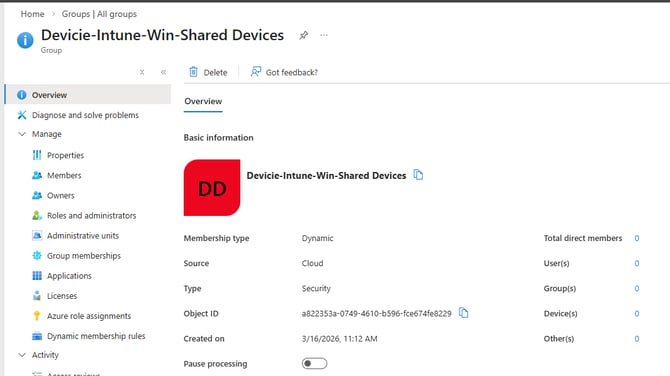
Create dynamic group:
Go to https://intune.microsoft.com/ then select Groups then select New groups
Enter a name like Devicie-Intune-Win-Shared Devices and select Membership type to Dynamic
Select Add dynamic query: (device.devicePhysicalIds -any _ -eq "[OrderID]:Devicie-Shared")
Then click Save then click Create.
Deployment Profile:
Enrollment Status Page:
Device Shared PC ESP is assigned to group: Devicie-Intune-Win-Shared Devices, the setup process can be found in the this KB.
As part of the Shared PC persona, deployed to group: Devicie-Intune-Win-Shared Devices:
- Devicie - Shared PC Global Power Management
- Devicie - Shared Devices User Profile
- Devicie - Shared Devices Allow User Switching
- Devicie - Shared Devices Weekly 2 AM Reboot
- Devicie - Shared Devices Productivity Baseline
- Devicie - Security Baseline (Device) - Kiosk and Shared PC
For assistance with deploying with the Shared PC Personas, reach out to Devicie.
Assigning hardware hash to Deployment Profile
- Navigate to https://intune.microsoft.com/ then select Devices then Enrollment then select Devices

- For new devices, to import the serial number, you can follow this: How to manually upload device hash and assign a Windows Autopilot Deployment Profile in Microsoft Intune?
For Configuration Manager refer to https://learn.microsoft.com/en-us/intune/configmgr/comanage/how-to-prepare-win10#gather-information-from-configuration-manager
For existing search for your Serial Number update grouptag to Devicie-Shared then click Save.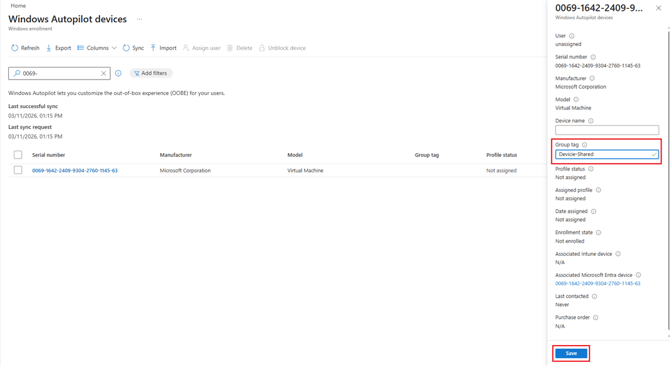
There will be a notification to advise the group tag has been added successfully.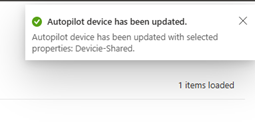
Then click on the S/N then select Sync.
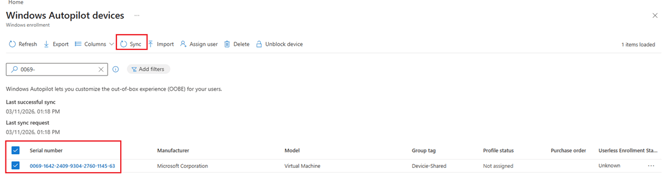
This will change the assigned deployment profile from ‘Not Assigned’ to ‘Pending’ to Assigned to ‘Devicie Shared PC Autopilot Profile’.
Once you see the profile is assigned, you can start kicking off autopilot build.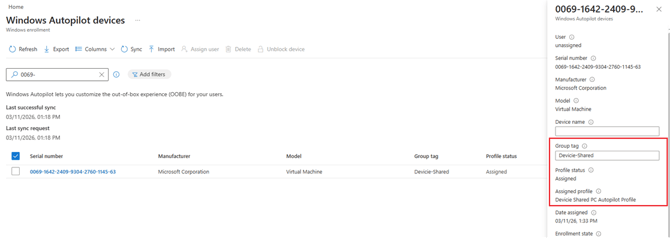
3. Once the profile is assigned as in Step 2.
Run: shutdown -r /t 0
This will temporary reset Windows and bring it back to the OOBE screen.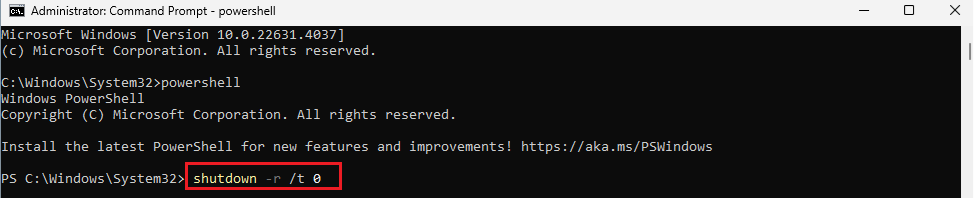
Shared PC Build Process:
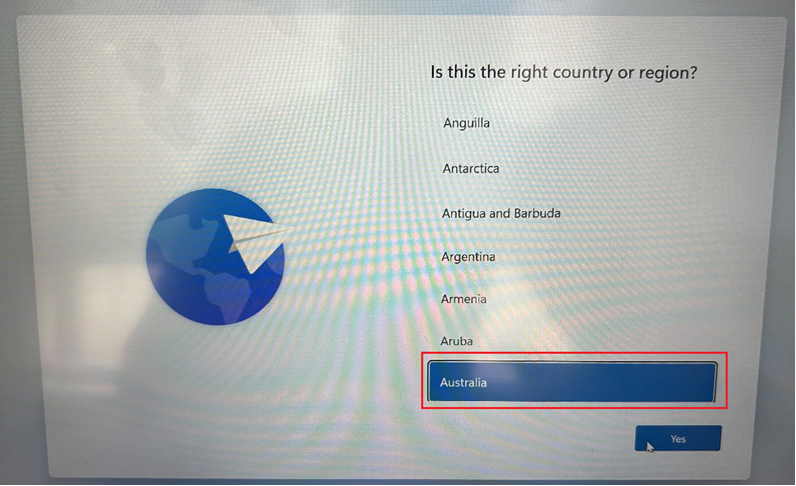
- Select Country as ‘Australia’ then select ‘Yes’
- Then select keyboard as US then select Yes.
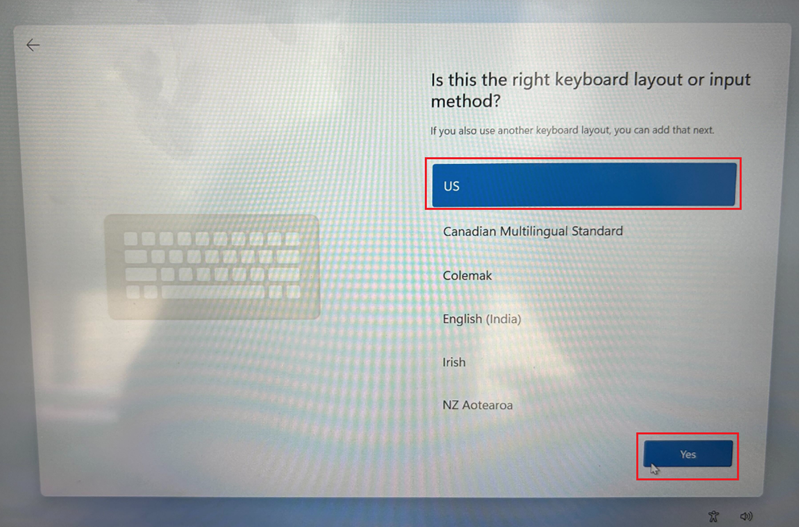
- Then select Skip for a secondary keyboard layout.

- Then select network then select Next. If you are on a wired connection, you can ignore this step.
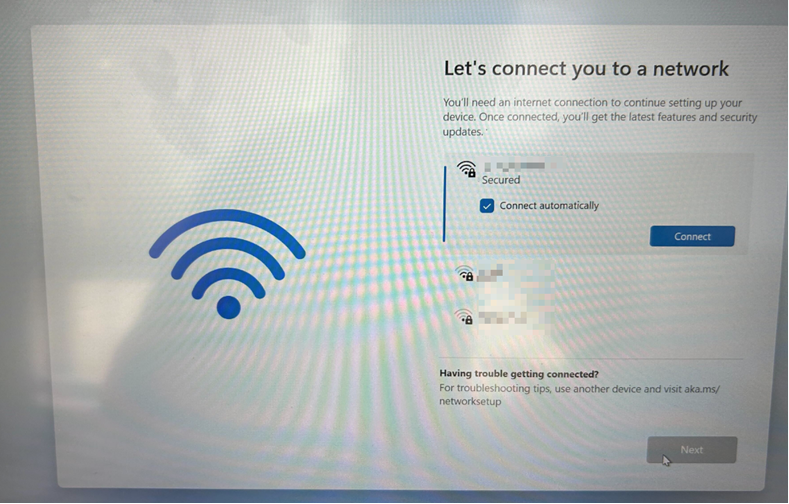
- Once connected, it will show with “Checking the connection to Microsoft. This might take a while.”
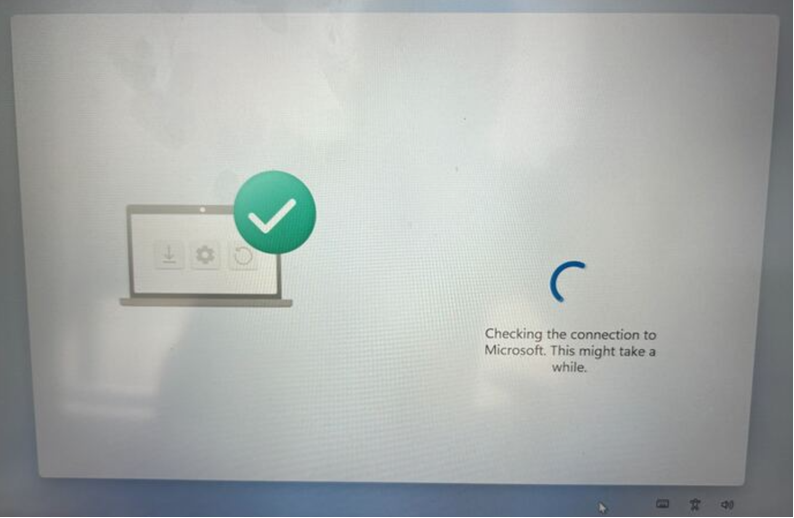
- Then it will show with “Checking with updates”

- Then self-deploying will take place

- It will kick off the ESP
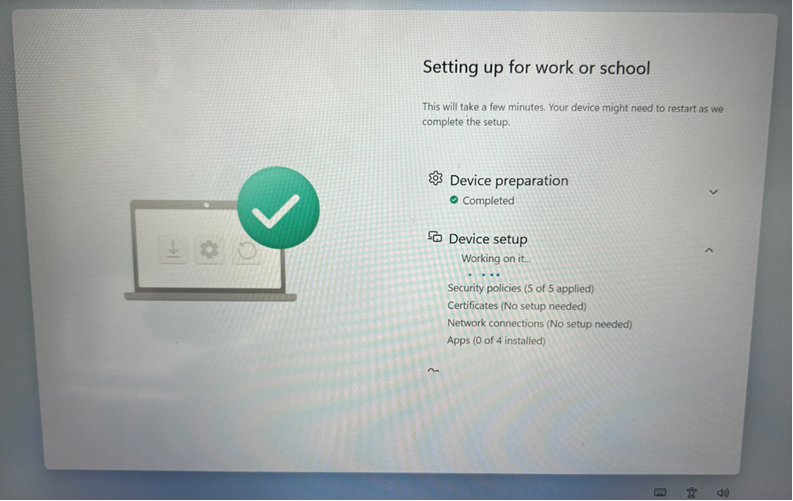
- Once the ESP is completed, it will bring you to the login screen.
10. In the Microsoft Intune portal, you will notice that the ‘Shared PC’ build will not have a primary user associated.