![Full Logo.png]](https://help.devicie.com/hs-fs/hubfs/Full%20Logo.png?height=30&name=Full%20Logo.png)
Overview
Sometimes you need to move devices back to an older version of an app, or replace one app with another, rather than always upgrading forward. A common example is rolling a browser back to a previous release because a business-critical site or extension has broken on the latest version.
The standard approach is Intune app supersedence: configure the new (or previous version) app package as superseding the currently deployed one, with Uninstall previous version ticked. Intune uninstalls the old app first, then installs the one you're pushing out.
This works cleanly for most apps and is often the cleanest path. Some apps support a version downgrade, which removes the need to uninstall the newer version first.
Decide your rollback scope
Before configuring either the standard approach or the downgrade workaround, first decide how far the rollback should reach - this determines which Devicie assignment intent and group you'll use.
- Full deployment downgrade - roll every device running the app back immediately. Assign the older version as Required to the same group the current version targets (or to all devices if whole of fleet).
- Selected downgrade - roll back only a subset, such as an affected team or a pilot group, while everyone else stays on the current version. Assign as Required to that scoped group only.
- Optional downgrade - let users choose to roll back themselves rather than forcing it. Assign as Available, so it appears in Company Portal for anyone who wants it.
This is set in the Devicie portal's Assignments tab for the app (intent, group targeting, and any filters) - see How to deploy catalogue applications. The same choice carries through whichever method you use below.
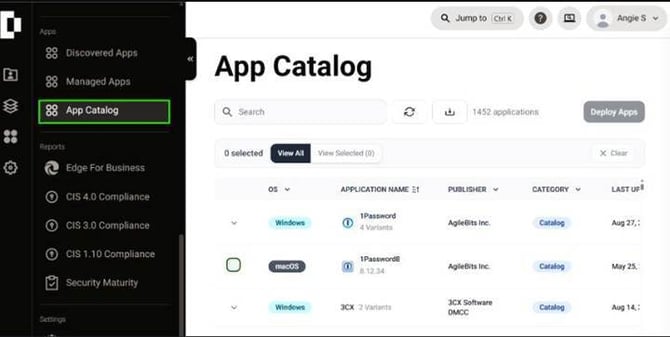
The App Catalog in the Devicie portal, where catalogue apps are selected for deployment.
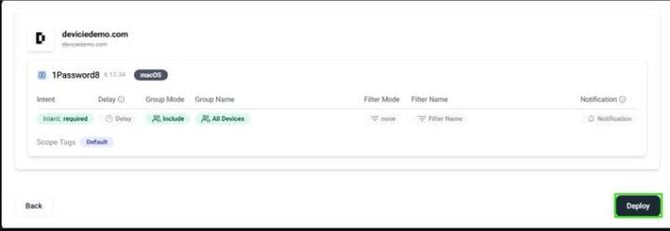
The Assignments review screen in Devicie, showing Intent, Delay, and Group settings for a deployment.
Steps: configuring supersedence
Devicie doesn't currently support configuring supersedence natively (it's on the roadmap), so this part happens directly in the Intune admin center, outside the Devicie portal. Deployment and assignment still happen back in Devicie - see the last step below.
- In the Intune admin center, go to Apps > All apps.
- Open the app you want to deploy (the version replacing the current one).
- Under Properties, edit the app and open the Supersedence section (Windows apps only).
- Add the app it should supersede, and tick Uninstall previous version.
- Save. Deployment and assignment for this app happen in the Devicie portal, not here - go to App Catalog > Assignments and set the intent and group according to the rollback scope you decided above.
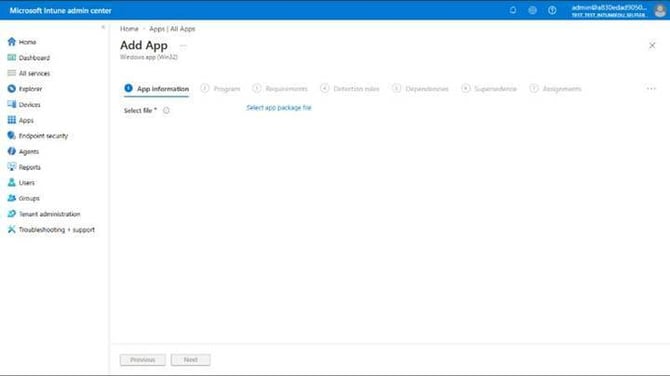
The Add App wizard in the Intune admin center, showing the Supersedence step.
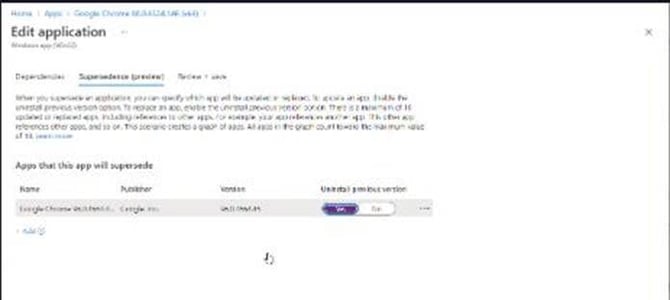
The Supersedence tab of the Edit application panel, with an app added and the Uninstall previous version toggle set to Yes.
Known issue: uninstall of the newer version fails
Some apps don't uninstall cleanly, which breaks the supersedence flow. Because Intune uninstalls first and installs second, a failed uninstall means the replacement version never gets installed at all.
This is a known failure mode with some apps - browsers are a common example. Attempting to uninstall the newer version can fail, silently blocking the whole deployment, and trying to install the older version on its own doesn't work either, since a newer version is still detected on the device.
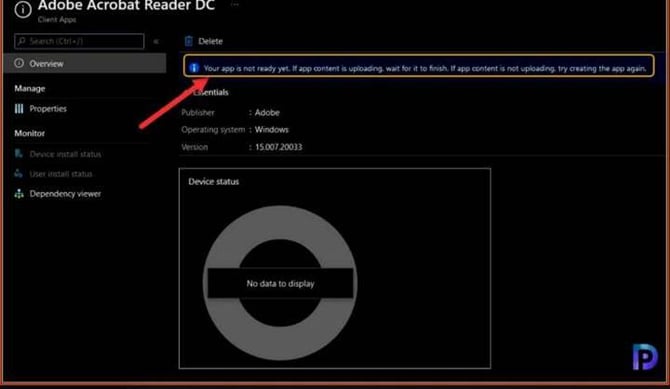
The app's Monitor > Device install status page in the Intune admin center, where a failed uninstall shows up
Workaround: install over the top instead of uninstalling
Rather than relying on Intune to uninstall the newer version first, install the older version directly over it, using the app's own switch or flag for allowing an install over a newer version (many vendor installers support this - check the app's own documentation for the exact syntax). This skips the uninstall step entirely, so a broken uninstall can't block the deployment.
In practice: instead of an uninstall-then-install supersedence, package the older version with the appropriate override switch and deploy it as a straight install.
Steps: deploying the override install
- Package the older app version as a standalone Win32 app, rather than as a supersedence target.
- In Devicie, set this as a custom install argument for the app rather than editing the install command directly in Intune - include the vendor's override switch that allows installing an older version over a newer one. Custom install arguments carry forward automatically every time Devicie updates that catalogue app, so you won't need to reapply it, but you will need to remove it yourself once you're back on the standard version.
- Assign it via the Devicie Assignments tab, using the rollback scope you decided above (Required to everyone or a specific group, or Available for an opt-in rollback). Don't configure supersedence for this deployment.
- Monitor install status in Intune to confirm the install succeeds without needing an uninstall step first.
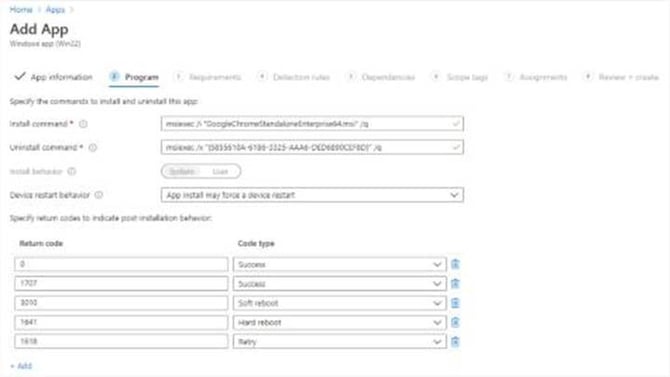
The Program step of the Add App wizard, showing the Install command and Uninstall command fields (source: systemcenterdudes.com).
Notes
- This isn't a universal fix. Whether an app supports installing an older version over a newer one depends on the vendor's installer, so treat each app on its own merits rather than assuming one app's approach applies everywhere.
- Standard uninstall-then-install supersedence remains the default approach and should still be tried first for most apps.
- Devicie doesn't yet support supersedence natively - it's on their roadmap. Until then, configure it directly in Intune, and handle deployment and assignment for the app back in Devicie as normal.
- Custom install arguments in Devicie persist across catalogue updates automatically, so remember to remove any override switch once you're back on the standard version - otherwise it'll keep being applied to future updates too.