![Full Logo.png]](https://help.devicie.com/hs-fs/hubfs/Full%20Logo.png?height=30&name=Full%20Logo.png)
Overview:
Devicie's application catalog provides customers with a list of applications that are automatically packaged directly from the publisher via Devicie's platform. This article describes how users can browse, assign, and deploy catalog applications from the Devicie portal.
Key Capabilities:
- Select one or multiple apps from the Devicie catalog to deploy in your environment
- Ability to configure application assignments
- Ability to directly edit assignments associated with deployed catalog applications
How to Access:
1. Navigate to Apps > App Catalog
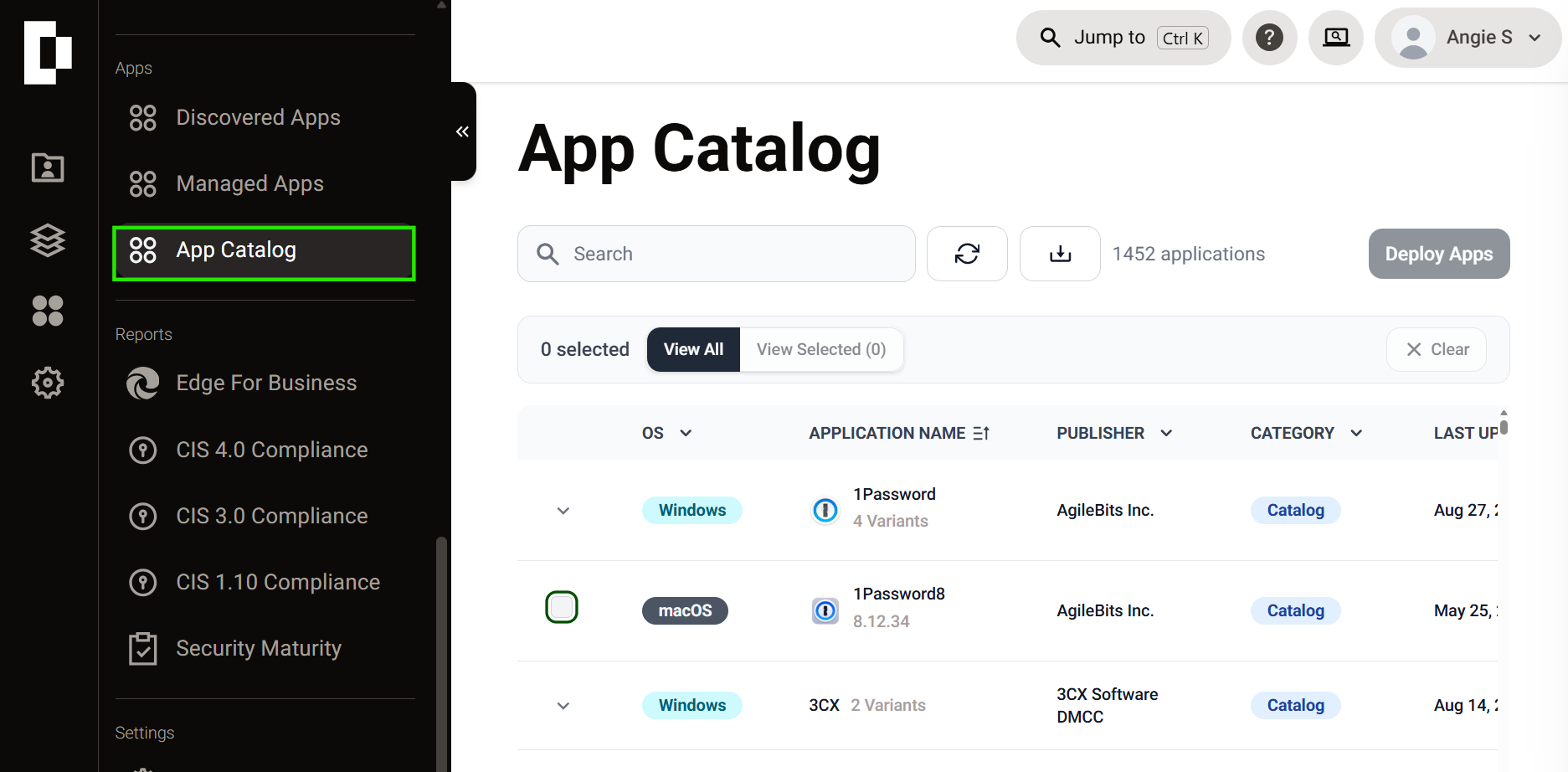
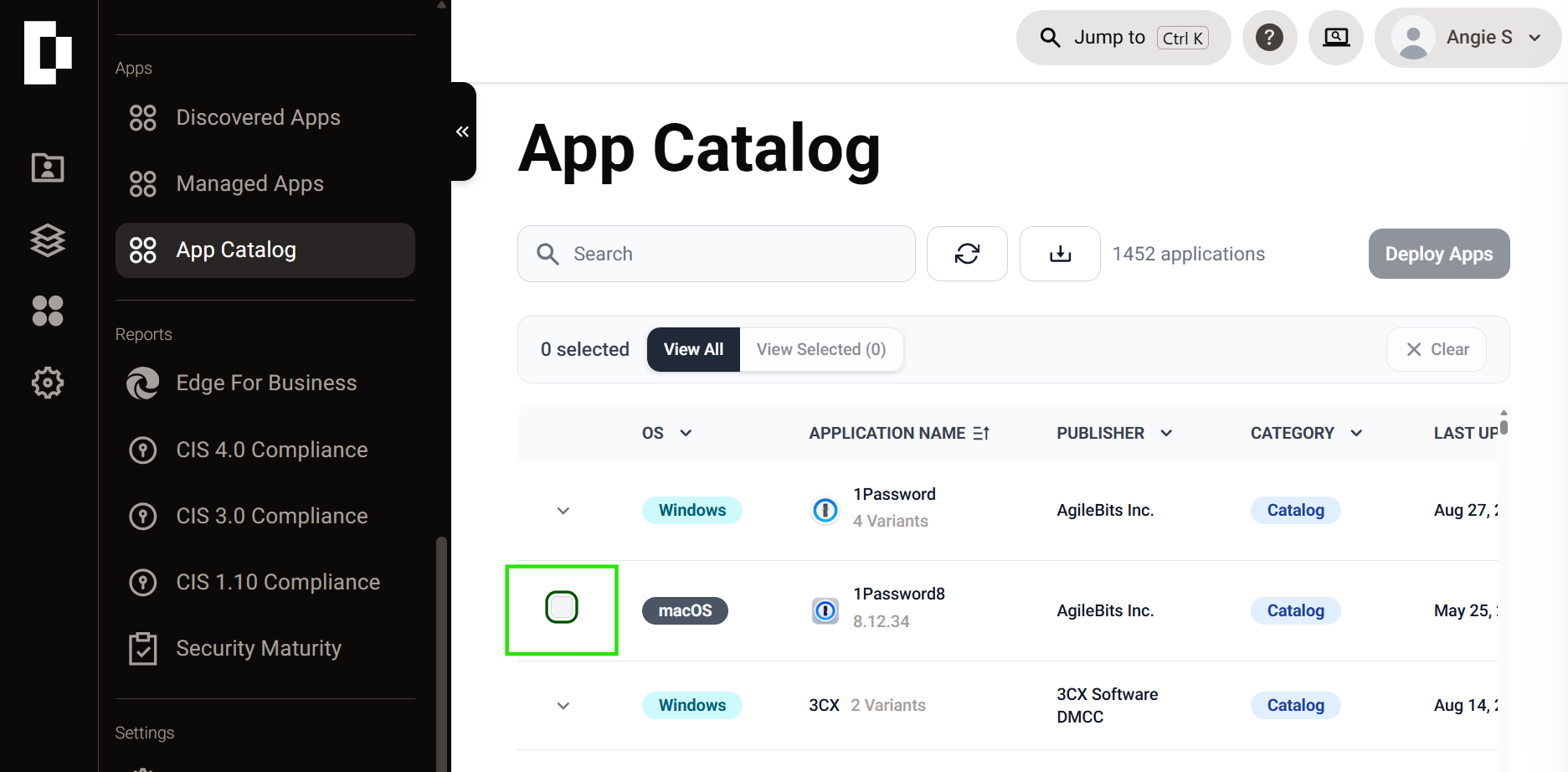
2. Select Required Apps via tickbox selection then ‘Deploy Apps’
3. Navigate to the ‘Select applications’ dropdown selection to select the desired application/s from the Devicie catalog list and select next
You can select one or multiple apps from the Devicie catalog list to deploy to your tenant at the same time
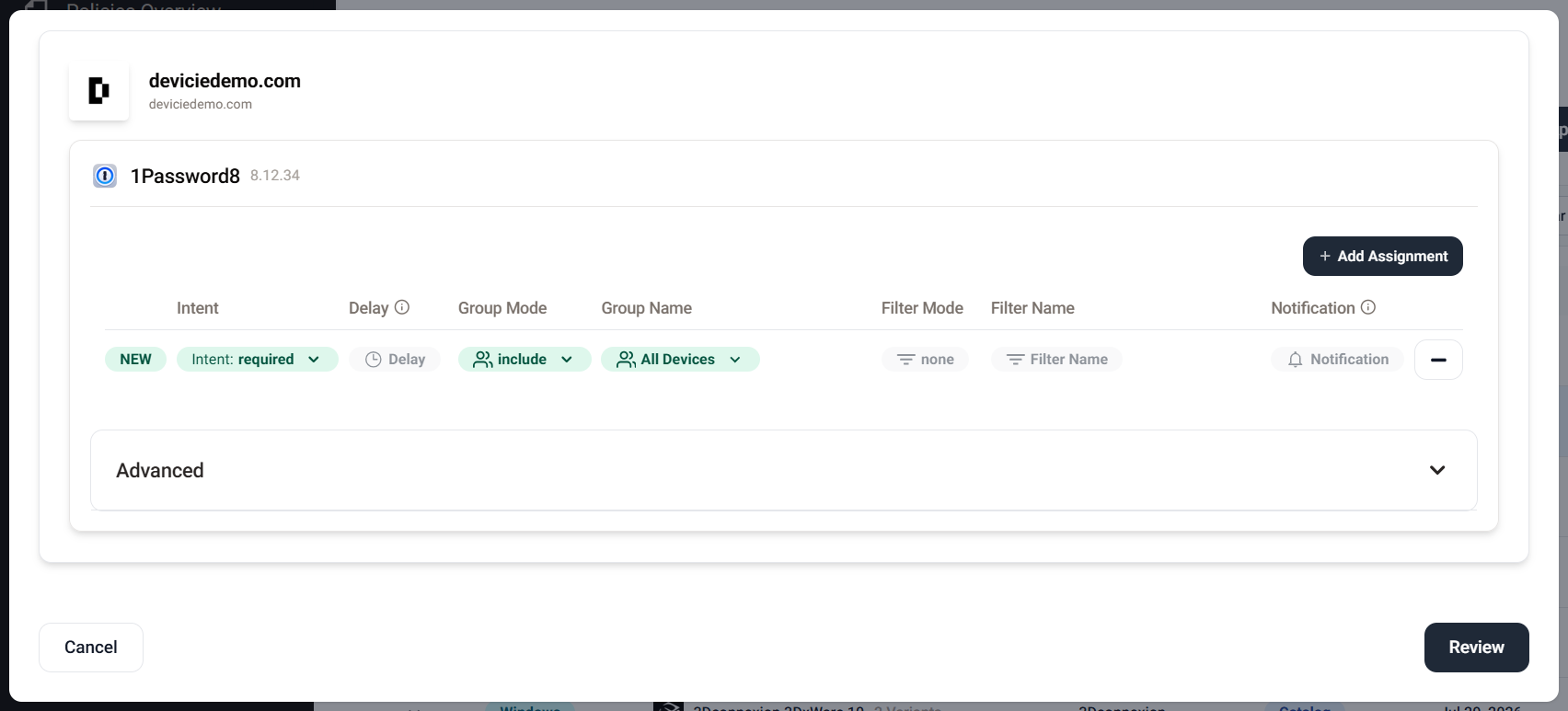
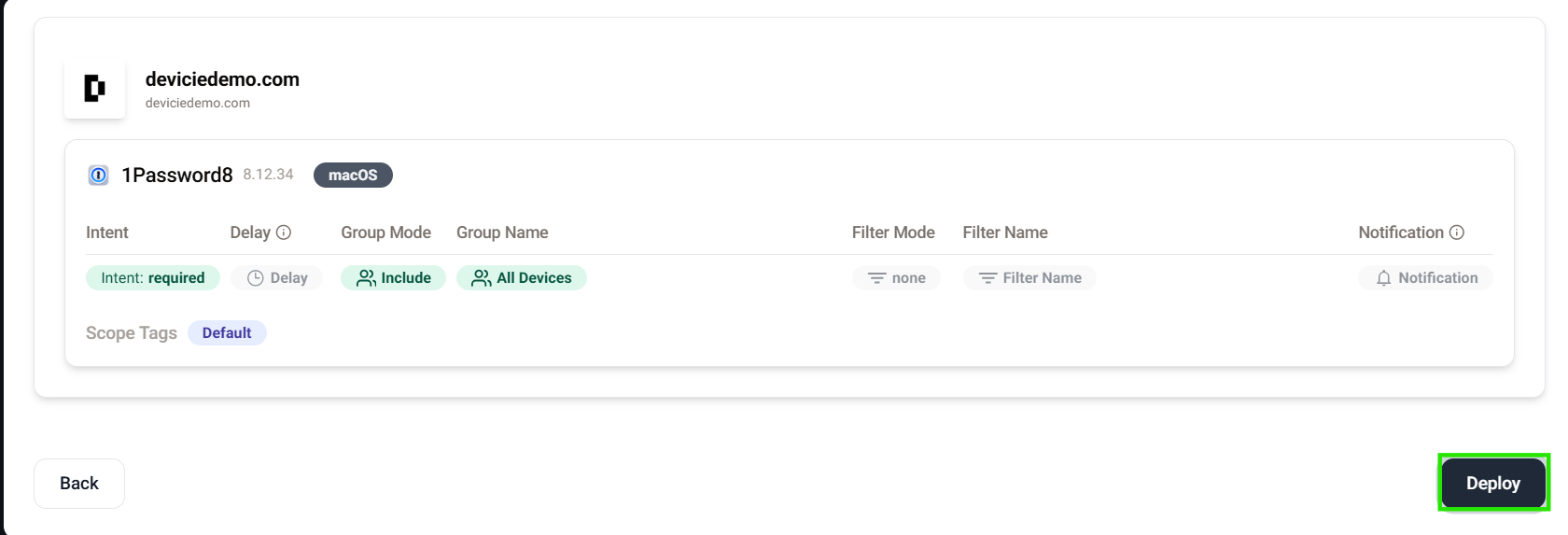
- Intent - Intent of the assignment - Required, Available, Uninstall
- Required applications are installed automatically and do not require action from the end user. Even in the event of an uninstall by the end user, the required application will install again on the device within 8 hours.
- Available applications do not install automatically. Instead, they will be available to install through Company Portal. The end user can click on the application and install it on their device.
- Uninstall intent will remove the application from all assigned devices.
- Delay - Delay time between when an update is released and when it is assigned to devices
- Group Mode - Include/exclude assignment group
- Group Name - Select group the application should be assigned to
- Filter Mode - Include/exclude certain devices.
- Filter Name - Select filter that should be included or excluded
- Notification - Choose whether users see Intune agent toast notifications during the update process.
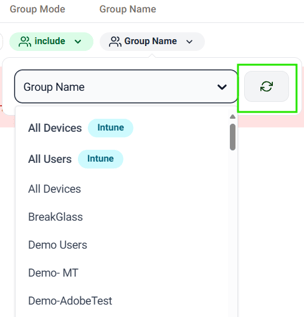
Note: Devicie will poll your Intune tenant to bring in all available groups and filters. If you need a new group or filter, you can create this in your tenant and then use the refresh button to pull in a fresh list to select from without losing your place in the wizard.
You can also set custom install arguments when you configure and deploy an app, to match specific requirements. Set it once, and it carries forward automatically every time Devicie updates the application with a new version. 
Use cases for multiple app assignments
- You are able to apply separate assignments for each catalog app
- You are able to set multiple group assignments with different delays to the one app in order to stagger wider release of updates.
- Each group can only be assigned once.
- Filters can only be applied to Include groups.
- A delay of at least 24 hours is recommended to avoid user disruption.
- Notifications are required for Include groups and disabled for Exclude groups.
- The Uninstall intent cannot target 'All Users' or 'All Devices' when excluding.
5. Review applications and assignments. Once confirmed, press ‘Deploy’.
- Devicie's Application Catalogue for Windows
- Devicie's Application Catalogue for macOS
- How do Automatic Application Updates and Assignments Work