![Full Logo.png]](https://help.devicie.com/hs-fs/hubfs/Full%20Logo.png?height=30&name=Full%20Logo.png)
Overview:
This KB shows you how to deploy an Apple Businesses Manager (ABM) joined Mac with Devicie Foundation policies.
This KB will not show how to join a device to ABM. Please make sure the device is joined and set up to be deployed with the proper policies before beginning.
Steps:
Step 1: Setup and turn on the Mac and select the right country
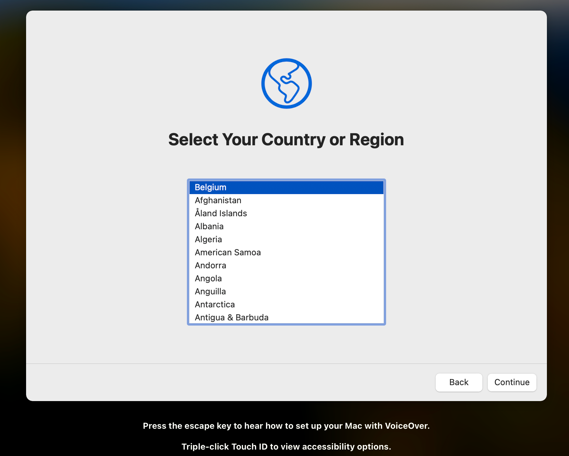
Step 2: Click Continue
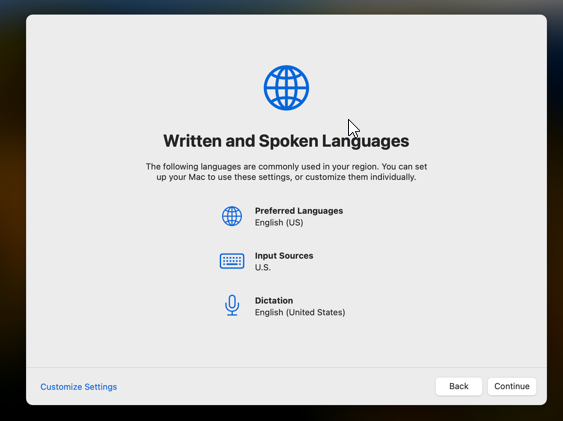
Step 3: Connect to Wi-Fi if no Ethernet is connected
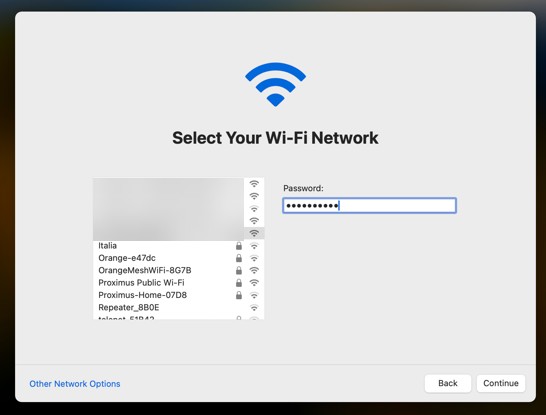
Step 4: Click Enroll
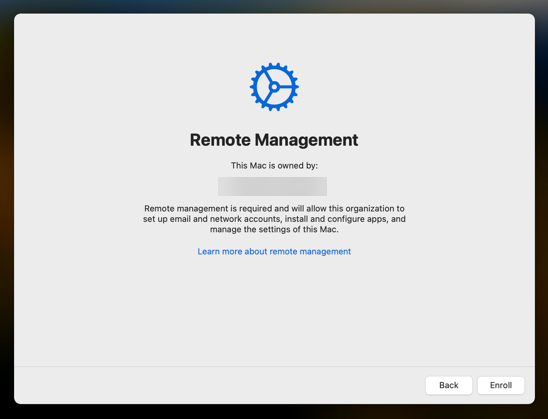
Step 5: Log in with the end user Entra Username and Password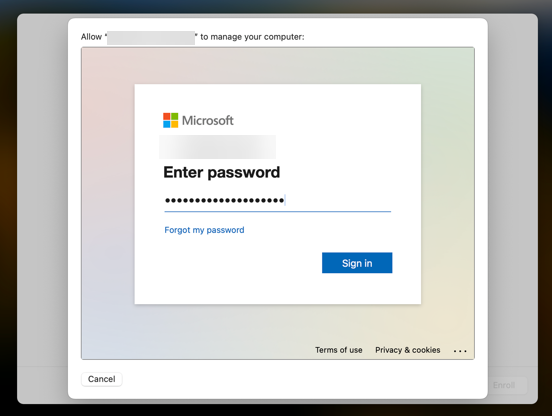
Step 6: Allow the device to receive the profile and install.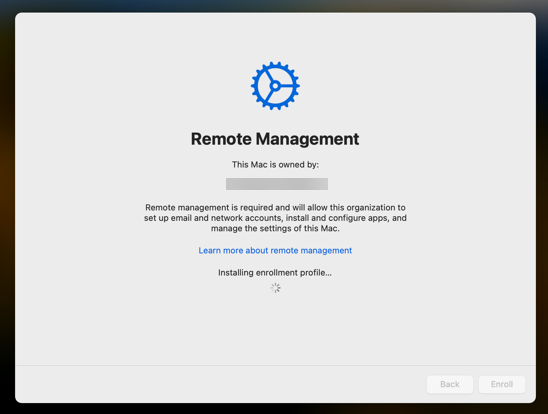
Step 7: Enter name and account name
- The password will be temporary before the Platform SSO set up can be complete. 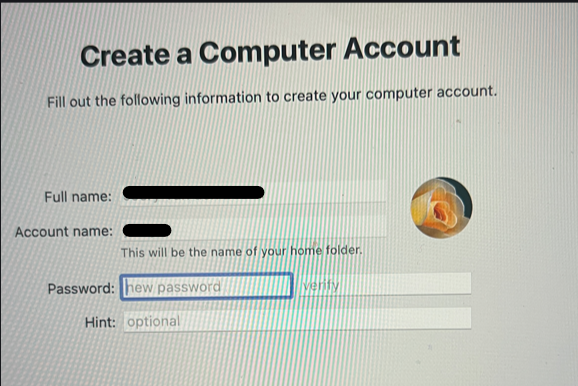
Step 8: The Device will open to the desktop. From here a pop up have the user click on it.
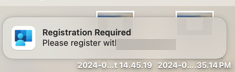
Use the temp password or touch ID if set up.
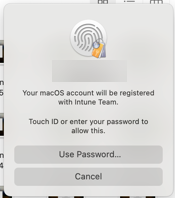
Enter Entra ID Credentials and MFA
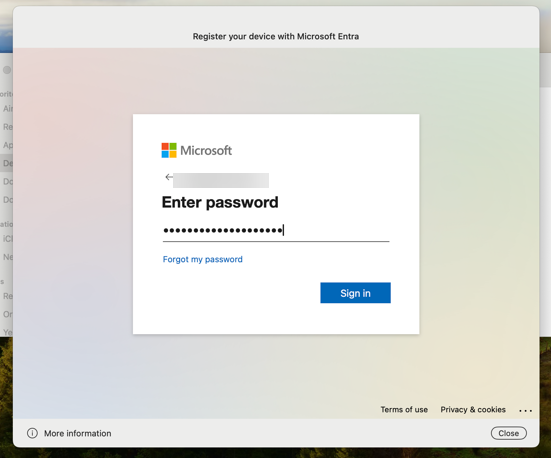
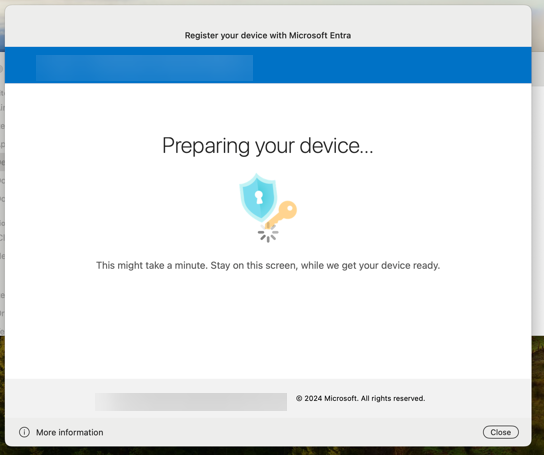
This will finish the Platform SSO and write over the temp password with the Entra ID password.
Step 9: Find and open Company Portal. Sign in
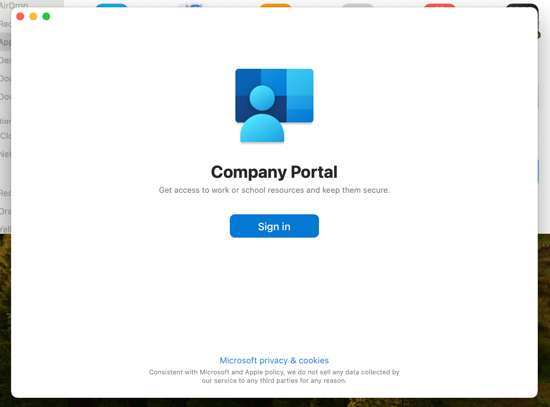
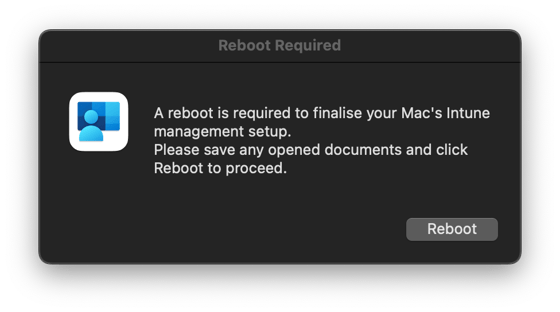
Step 10: Wait for the pop-up up notification that the device needs to restart to complete set up.
Step 11: Device is set up and can start to be used and tested.