![Full Logo.png]](https://help.devicie.com/hs-fs/hubfs/Full%20Logo.png?height=30&name=Full%20Logo.png)
Overview
This knowledge base article provides step-by-step instructions on how to setup Kiosk policies which are essential for the devices to function.
The following will be covered in creating these policies for Kiosk
- Kiosk Global Power Management
- Kiosk Automatic Logon and Disable First Logon Animation
- Kiosk Wait for Network Before Logon
- Kiosk Productivity Baseline
Create Device Configurations: Kiosk Global Power Management
1. By navigating to Windows Configuration Profiles, select Create then select New Policy then select By platform: Windows 10 and later and Profile type: Settings Catalog then select Create.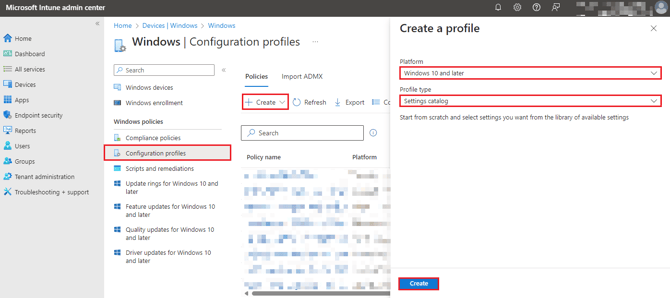
2. Under Basics tab, enter the following:
Name: Kiosk Global Power Management
Description: Kiosk Global Power Management
Then select Next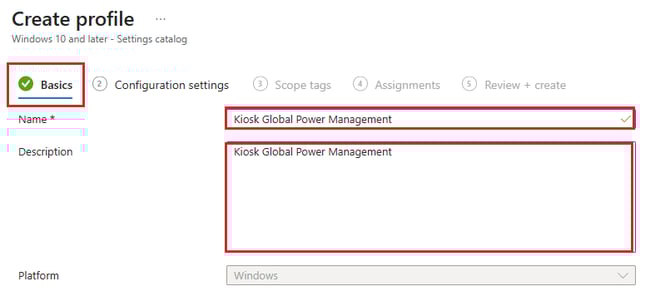
3. Under Configuration Settings tab, select Add Setting. In the search for a setting, enter in: Power Management.
Then select the following:
Administrative Templates\System\Power Management
Administrative Templates\System\Power Management\Hard Disk Settings
Administrative Templates\System\Power Management\Sleep Settings
Administrative Templates\System\Power Management\Video and Display Settings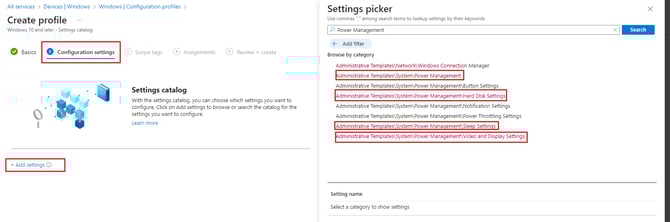
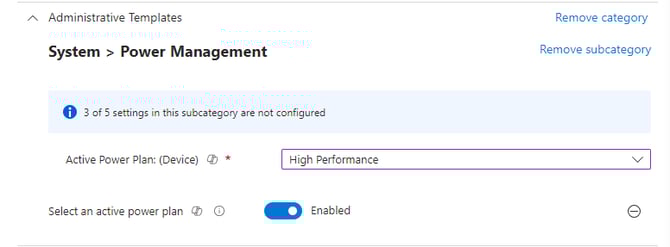
Under Administrative Templates\System\Power Management, select the following:
- Select an active power plan as Enabled
- Select Action Power Plan (Device): High Performance
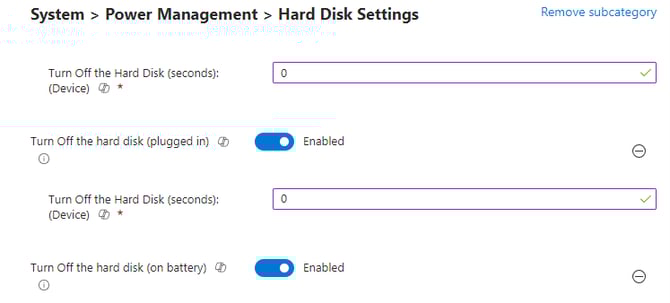
Under Administrative Templates\System\Power Management\Hard Disk Settings, select the following:
- Turn Off the hard disk (on battery) as Enabled
- Turn Off the Hard disk (seconds) Device: 0
- Turn Off the hard disk (plugged in) as Enabled
- Turn Off the Hard disk (seconds) Device: 0
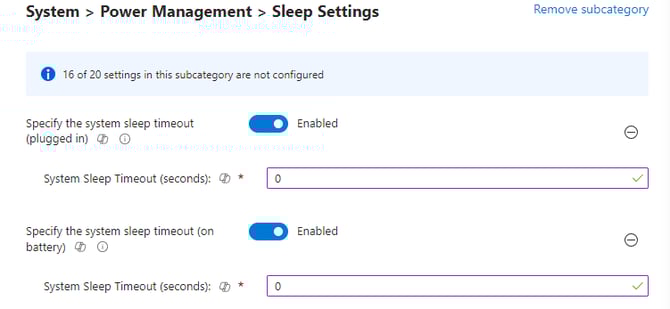
Under Administrative Templates\System\Power Management\Sleep Settings
- Specify the system sleep timeout (on battery) as Enabled
- System Sleep Timeout (seconds): 0
- Specify the system sleep timeout (plugged in) as Enabled
- System Sleep Timeout (seconds): 0
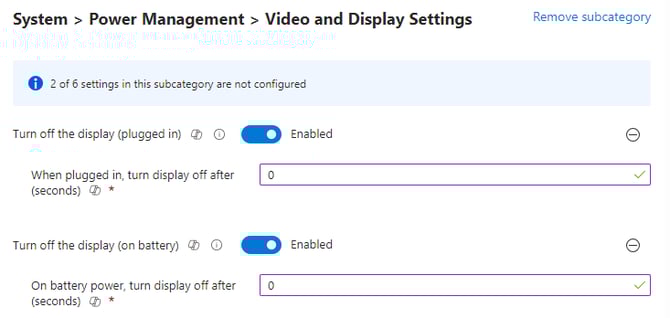
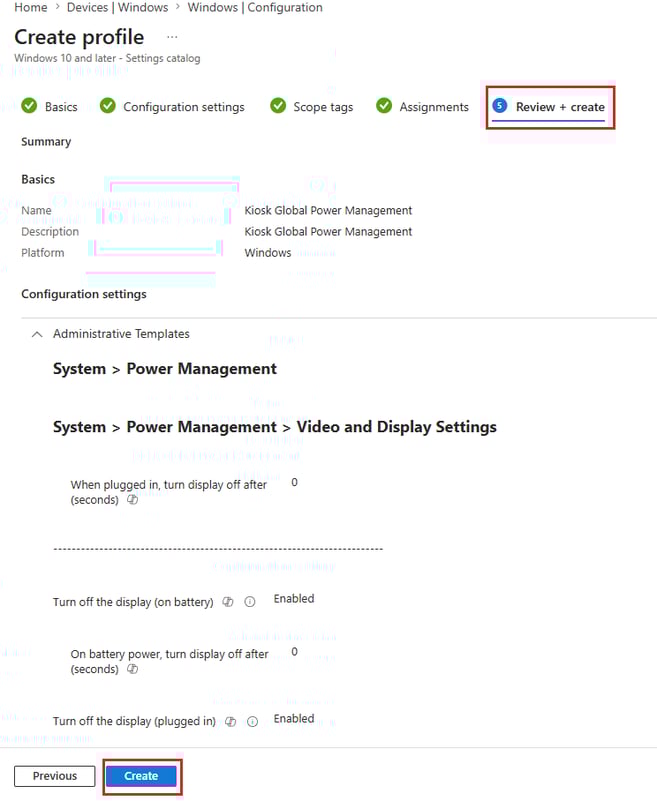
Under Administrative Templates\System\Power Management\Video and Display Settings, select the following:
- Turn off the display (on battery) as Enabled
- When plugged in, turn display off after (seconds): 0
- Turn off the display (plugged in) as Enabled
- On battery power, turn display off after (seconds): 0
Then select Next.
4. Under Scope tags, leave as default then select Next.
5. Under Assignments, select your required Kiosk group then select Next.
6. Under Review + create, review your settings then select Next.
Create Device Configurations: Automatic Logon and Disable First Logon Animation
1. By navigating to Windows Configuration Profiles, select Create then select New Policy then select By platform: Windows 10 and later and Profile type: Settings Catalog then select Create.
2. Under Basics tab, enter the following:
Name: Kiosk Automatic Logon and Disable First Logon Animation
Description: Kiosk Automatic Logon and Disable First Logon Animation
Then select Next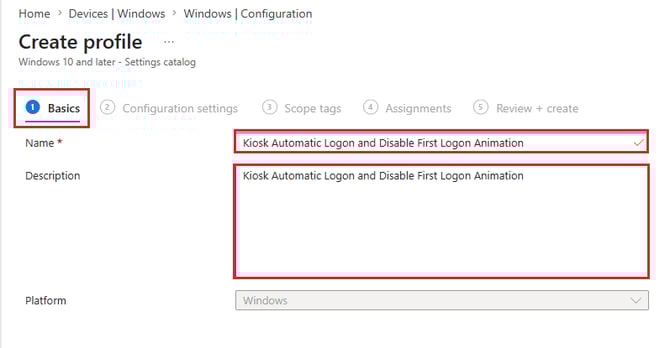
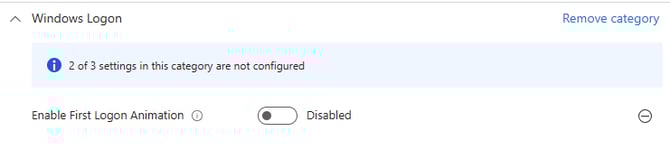
3. Under Configuration Settings tab, select Add Setting. In the search for the settings:
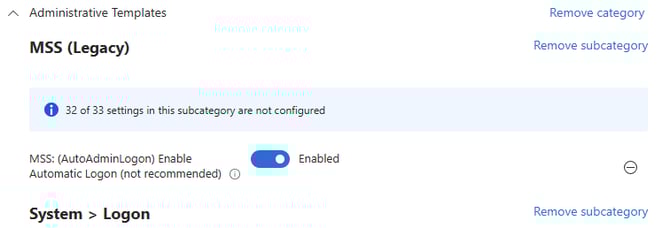
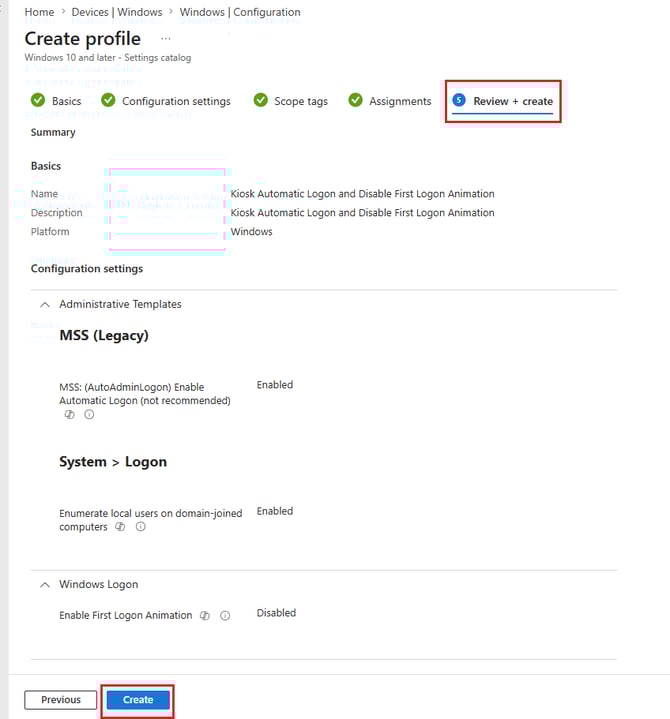
- MSS: (AutoAdminLogon) Enable Automatic Logon (not recommended) as Enabled
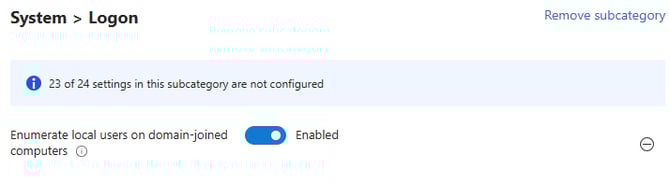
- Enumerate local users on domain-joined computer as Enabled
-
Enable First Logon Animation as Disabled
4. Under Scope tags, leave as default then select Next.
5. Under Assignments, select your required Kiosk group then select Next.
6. Under Review + create, review your settings then select Next.
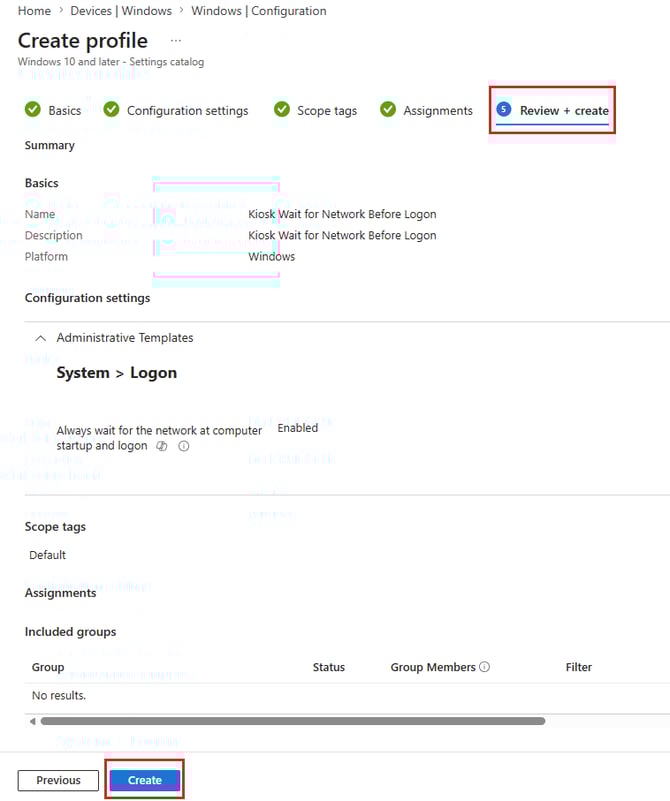
Create Device Configurations: Kiosk Wait for Network Before Logon
1. By navigating to Windows Configuration Profiles, select Create then select New Policy then select By platform: Windows 10 and later and Profile type: Settings Catalog then select Create.
2. Under Basics tab, enter the following:
Name: Kiosk Wait for Network Before Logon
Description: Kiosk Wait for Network Before Logon
Then select Next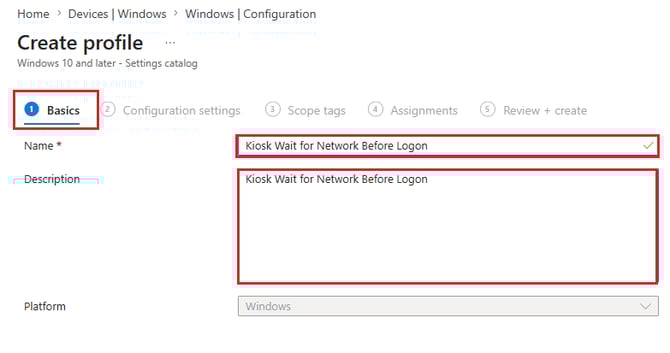
3. Under Configuration Settings tab, select Add Setting. Search for the following:
For Always wait for the network at computer startup and logon, select as 'Enabled'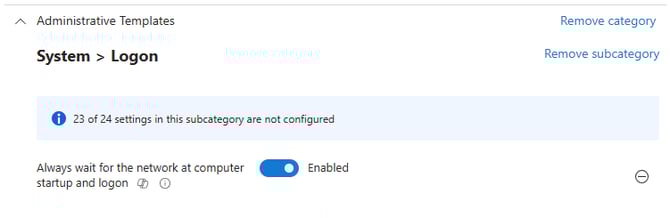
Then select Next.
4. Under Scope tags, leave as default then select Next.
5. Under Assignments, select your required Kiosk group then select Next.
6. Under Review + create, review your settings then select Next.
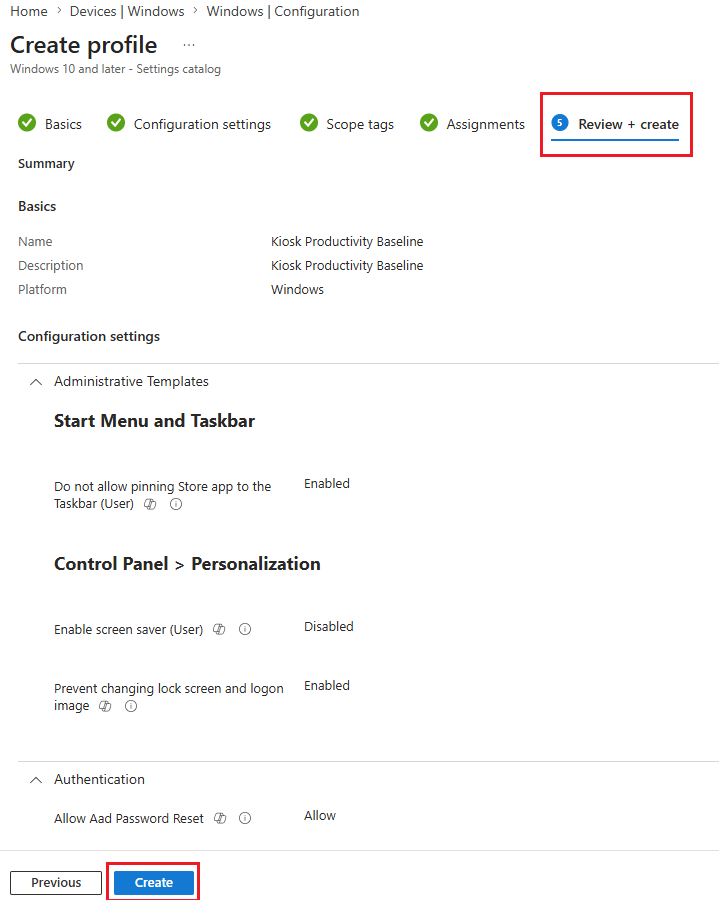
Create Device Configurations: Kiosk Productivity Baseline
1. By navigating to Windows Configuration Profiles, select Create then select New Policy then select By platform: Windows 10 and later and Profile type: Settings Catalog then select Create.
2. Under Basics tab, enter the following:
Name: Kiosk Productivity Baseline
Description: Kiosk Productivity Baseline
Then select Next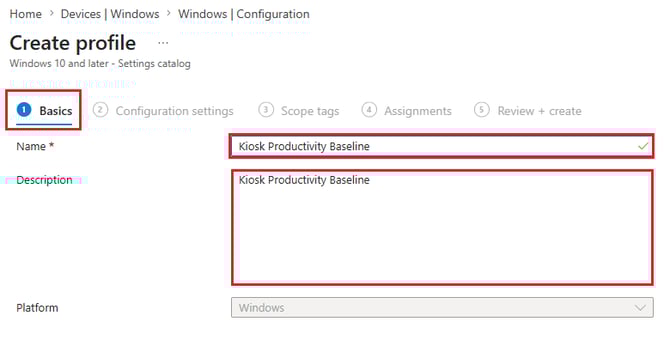
3. Under Configuration Settings tab, select Add Setting. In the search for a setting, enter in:
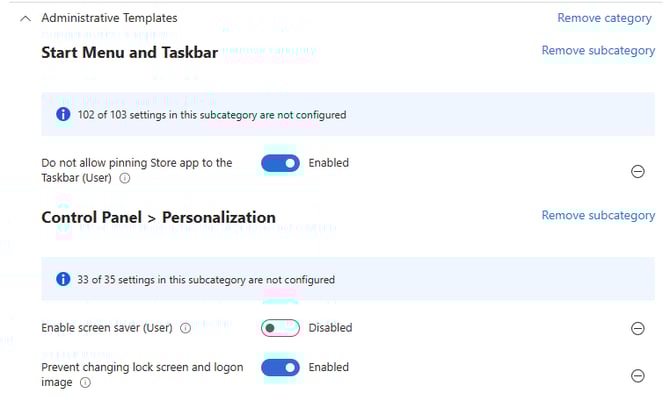
Under Administrative Templates, select the following:
-
Do not allow pinning Store app to the Taskbar (User) as Enabled
-
Enable screen saver (User) as Disabled
-
Prevent changing lock screen and logon image as Enabled
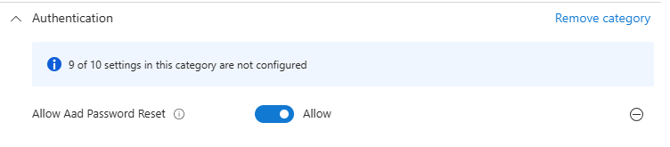
- Allow Aad Password Reset as Allow
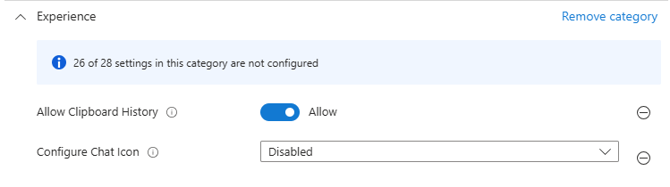
Under Experience, select the following:
-
Allow Clipboard History as Allow
- Configured Chat Icon as Disabled
- Allow Advanced Gaming Services as Block

- Do Not Use Web Results as Not allowed. Queries won't be performed on the web and web results won't be displayed when a user performs a query in Search.

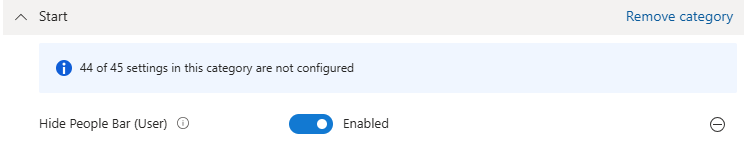
Under Start, select the following:
-
Hide People Bar (User) as Enabled
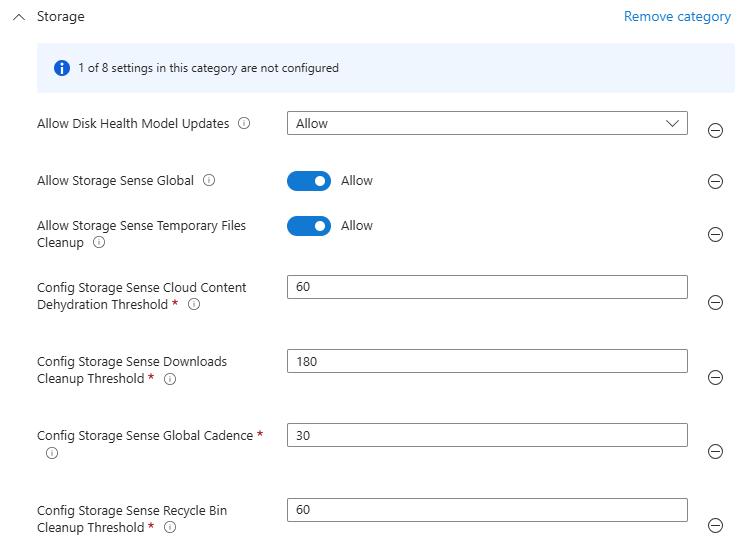
Under Storage, select the following:
-
Allow Disk Health Model Updates as Allow
-
Allow Storage Sense Global as Allow
- Allow Storage Sense Temporary Files Cleanup as Allow
-
Config Storage Sense Cloud Content Dehydration Threshold as 60
- Config Storage Sense Downloads Cleanup Threshold as 180
-
Config Storage Sense Global Cadence as 30
- Config Storage Sense Recycle Bin Cleanup Threshold as 60
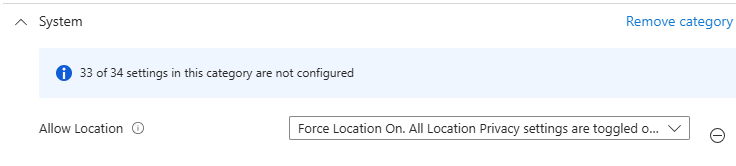
Under System, select the following:
- Allow Location as Force Location On. All Location Privacy settings are toggled on and grayed out. Users cannot change the settings and all consent permissions will be automatically suppressed.
Then select Next.
4. Under Scope tags, leave as default then select Next.
5. Under Assignments, select your required Kiosk group then select Next.
6. Under Review + create, review your settings then select Next.