![Full Logo.png]](https://help.devicie.com/hs-fs/hubfs/Full%20Logo.png?height=30&name=Full%20Logo.png)
Overview
The Devicie Edge for Business integration brings Microsoft Edge browser security event data directly into the Devicie portal. Once connected, your team gains centralized visibility into browser extension activity, password security signals, unsafe browsing, sensitive data transfers, and authentication events across all managed devices.
This guide walks you through the two-part setup: retrieving your connector credentials from Devicie, then configuring the Devicie Reporting Connector inside the Microsoft Edge Management Service.
Prerequisites
Before you begin, confirm the following are in place:
- An active Devicie subscription
- Microsoft Edge installed on managed devices (Edge for Business mode is activated automatically when users sign in with their Microsoft 365 work account — no separate browser install is required)
- Global Administrator or appropriate delegated admin permissions in both the Devicie portal and the Microsoft Admin Center
Note: If you plan to enable URL Filtering Interstitial events, additional licensing may be required depending on your Microsoft plan. Refer to Microsoft's Web Content Filtering prerequisites for details.
Part 1: Get Your Connector Credentials from Devicie
The Devicie portal generates a unique endpoint address and reporting key for your tenant. You will need these values when configuring the connector in the Microsoft Admin Center.
- Sign in to the Devicie portal at app.devicie.com
- Navigate to Reports > Edge for Business in the left-hand navigation panel.
- Click the Settings URL within the Edge for Business report page.
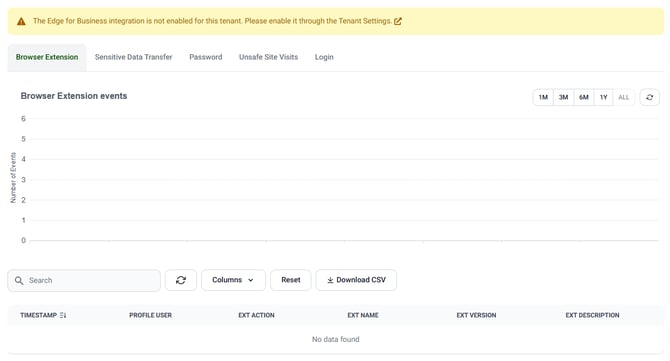
- The integration will appear as disabled by default. Click Enable to activate it - this generates your unique credentials.
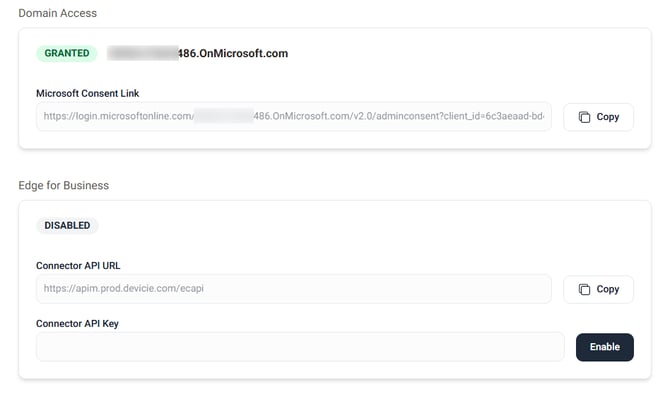
- Once enabled, your Endpoint Name and Reporting Key will appear. Copy both values and keep them ready for Part 2
Tip: Keep this browser tab open. You will need to return here after completing the Microsoft Admin Center configuration to confirm data is flowing through.
Part 2: Configure the Connector in Microsoft Admin Center
The Microsoft Edge Management Service is where you register the Devicie Reporting Connector and specify which browser events to send to Devicie.
Step 1: Create a Configuration Policy (if you don't have one)
The connector must be assigned to an existing Edge configuration policy. If you already have one, skip to Step 2.
Important: The Edge connector configuration must be done through the Microsoft Admin Center — it cannot be configured through Intune, even though Intune policies may appear on the same page.
- Go to Microsoft Admin Center and sign in with your administrator account.
- In the left navigation, go to Settings > Microsoft Edge.
- Select Create a policy and give it a descriptive name (e.g. "Devicie Edge Business Connector"). Leave all other settings as default.
- When prompted to assign the policy, assign it to All Users to make it a tenant-wide policy. Assigning to a specific group will limit the connector to only those users.
- Select Review and create to save the policy.
Note: If you assign to a group instead of All Users, the connector will only capture events from devices where that group's users are signed in to Edge.
Step 2: Set Up the Devicie Reporting Connector
- Navigate directly to the Connectors page in Microsoft Edge Management Service.
- Under Connectors, find Devicie Reporting Connector and select Set up.
- In the Chosen policy field, select the configuration policy you want to apply the connector to.
- Enter the following connection details:
| Field | Value |
|---|---|
| Host Address | Your Endpoint Name from the Devicie portal (Part 1, Step 4) |
| Port | 443 |
| Token ID | Your Reporting Key from the Devicie portal (Part 1, Step 4) |
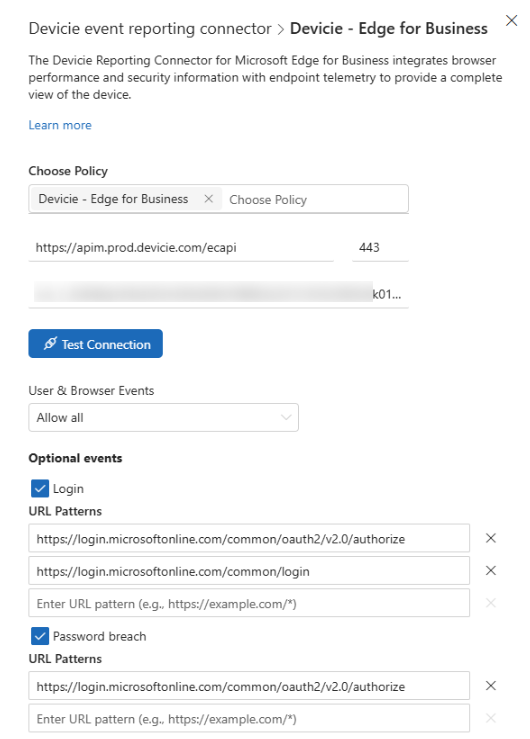
- Select Test Connection to verify that Microsoft can reach the Devicie endpoint. You should see a success confirmation before proceeding.
Part 3: Select Event Types
After a successful connection test, configure which browser events Devicie will receive. The tables below describe each available event type.
User and Browser Events
These are the core security events. Enable the ones relevant to your organization.
| Event Type | What it captures |
|---|---|
| Browser Extension Install | Records when a browser extension is installed, updated, or removed by a user. |
| Malware Transfer | Fires when Edge's SmartScreen blocks a malicious file download attempt. |
| Unsafe Site Visit | Fires when a user attempts to visit a site flagged for phishing, malware, or malvertising. |
| URL Filtering Interstitial | Records when a user is blocked from visiting a site based on your web content filtering policy (e.g. gambling, newly registered domains). Requires web content filtering to be configured separately. |
| Password Reuse | Detects when a user reuses a credential from a monitored login URL on a non-allowlisted site. |
| Password Change | Fires when a user changes their password in response to a password reuse warning. |
Note - Password Reuse false positives: In testing we have observed that Password Reuse warnings can occasionally fire when a user types characters similar to a monitored password in another part of the browser, not just on a login page. We recommend making your users aware that this warning may appear and that it does not necessarily mean their account has been compromised.
Optional Events
These events provide additional visibility and can be enabled based on your organization's security requirements.
| Event Type | What it captures |
|---|---|
| Password Breach | Fires when Edge detects that a saved password has appeared in a known data breach. Requires password monitoring and password saving to be enabled via Intune policy. |
| Login | Records login events for URL patterns you specify. You must supply at least one URL pattern (e.g. https://login.microsoftonline.com/*) in the connector settings for this event to fire — no events will be collected until patterns are configured. |
Once you have selected your desired events, select Save configuration in the Microsoft Admin Center.
Verification
After saving, allow a short period for the configuration to propagate to managed devices. To confirm data is flowing:
- Return to the Devicie portal and navigate to Reports > Edge for Business.
- You should begin to see events populating across the report tabs: Browser Extension, Sensitive Data Transfer, and Password.
- If no data appears after 24 hours, verify that the Test Connection step succeeded and that Edge for Business is actively installed and in use on managed devices.
To confirm the policy has been applied on a device, open Microsoft Edge on a managed device and navigate to edge://policy in the address bar. Once the connector policy is active, an Enterprise Connector entry will appear in the policy list.
Note: Event data is collected in near real-time once the connector is active and Edge has sent its first events. Some event types (such as Password Breach) may take longer to appear, as they depend on user activity that triggers the specific event conditions.
What You Will See in Devicie
Once the connector is active, the Edge for Business report in Devicie surfaces browser event data across three primary views:
- Browser Extension: A timeline of extension install, update, and removal events across your device fleet, with per-user and per-device detail.
- Sensitive Data Transfer: Events related to DLP-sensitive data detected during browser activity.
- Password: Password reuse, change, and breach signals captured across managed devices.
Additional event types enabled during setup (such as unsafe site visits and login events) also surface in the report depending on your configuration.
Additional Resources
- Devicie connector on Microsoft Learn
- Microsoft Edge Management Service setup guide
- Microsoft Edge Web Content Filtering prerequisites
Need help? If you run into issues during setup, contact the Devicie support team through your portal or reach out to your Customer Success Manager.