![Full Logo.png]](https://help.devicie.com/hs-fs/hubfs/Full%20Logo.png?height=30&name=Full%20Logo.png)
Overview:
This knowledge base article provides step-by-step instructions on how to set Microsoft Defender into Passive Mode. You must have a main EDR (Endpoint Detection and Response) installed on your endpoints like Crowdstrike, Sophos, Cynet, Sentinel One and others.
The following will be covered in setting Microsoft Defender in Passive Mode:
- Enable EDR in block mode
- Deploying Defender for Endpoint onboarding
- Deploying Defender Antivirus policy
- Validation and Testing
Enable EDR in block mode
When Enable EDR in block is turned on, this helps protect devices that are running a non-Microsoft Antivirus solution. This provides added protection from malicious artifacts when Microsoft Defender is not the primary antivirus product and is running in passive mode.
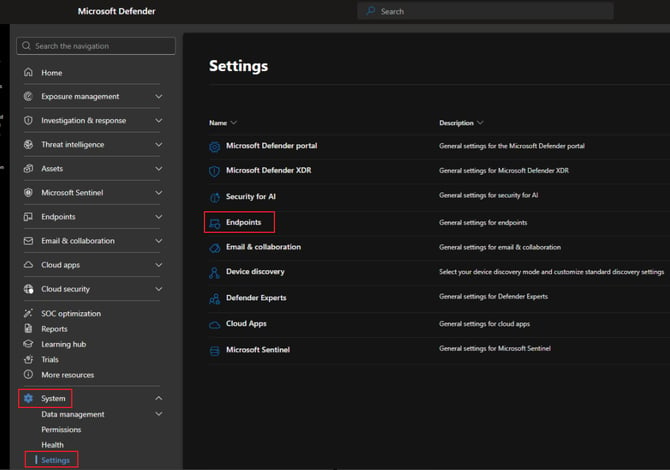
1. By navigating to Microsoft Defender Portal, under System select Settings then select Endpoints.
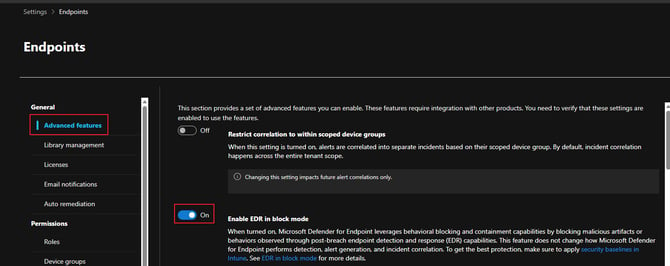
2. Under General, select Advanced Features then select On for Enable EDR in block mode. Then click Save preferences.
Deploying Defender for Endpoint Onboarding
Once Enable EDR in block mode is enabled in Microsoft Defender, using Endpoint Security policy for endpoint detection and response (EDR) to manage the EDR settings and onboard devices to Microsoft Defender for Endpoint.
1. By navigating to Microsoft Intune Portal, select Endpoint Security then select Endpoint detection and response (EDR) policies then select Create policy and then under Platform: Windows then under Profile select Endpoint detection and response then select Create.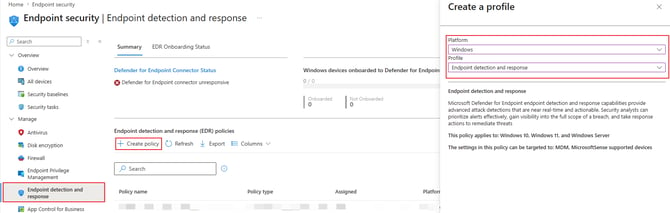
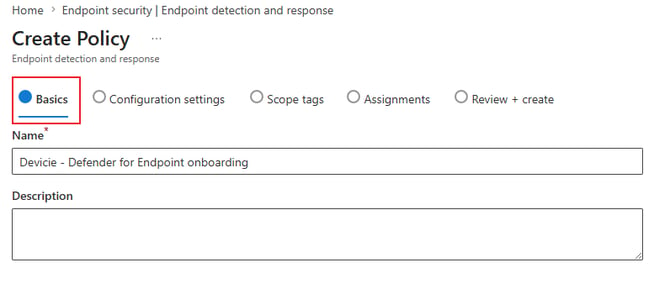
2. Under Basics, enter a name like: Devicie - Defender for Endpoint onboarding and select Next.
3. Under Configuration settings, select the following:
Microsoft Defender for Endpoint client configuration package type: Onboard
Onboard (Device): token will be automatically generated given by Microsoft Defender
Sample Sharing: Not configured
[Deprecated] Telemetry Reporting Frequency: Not configured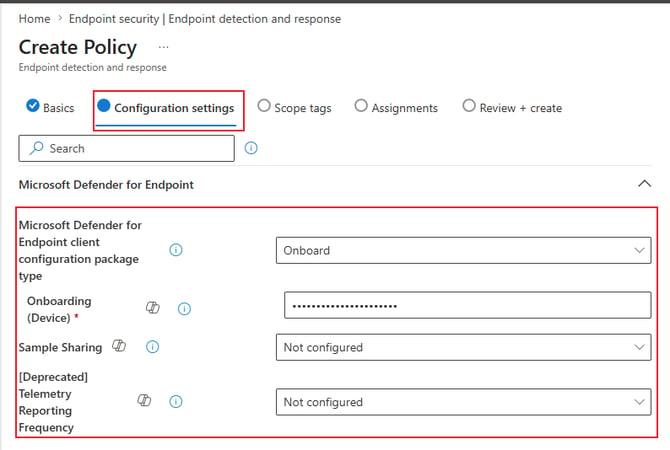
Select Next.
4. Under Scope Tags, leave as default and select Next.
5. Under Assignments, deploy to the required groups then select Next.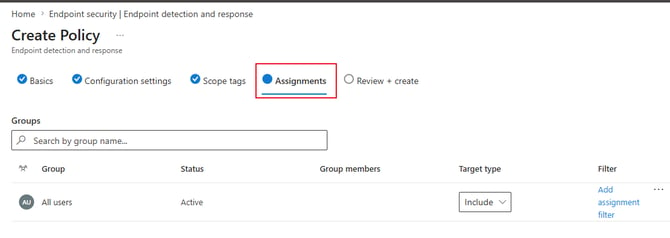
Deploying Defender Antivirus policy
Once the Defender for Endpoint onboard policy has been deployed, using Defender Antivirus which will be deployed to your tenant. This enables Microsoft Defender Antivirus to coexist with non-Microsoft antimalware solutions while still providing valuable endpoint detection and response capabilities.
EDR Block mode: post-breach each protection by detecting and remediating threats missed by the active antimalware solution
Security intelligence updates: Microsoft Defender Antivirus continues to receive updates to stay aware of the latest threats.
Data Loss Prevention (DLP): Endpoint DLP functionalities operate normally, ensuring sensitive data is safeguarded.
Validation and Testing
Once the devices have received the Defender for endpoint onboarding and Defender Antivirus policy has been deployed.
Check the registered Antivirus products installed on the device by running: Get-CimInstance -Namespace root/SecurityCenter2 -ClassName AntivirusProduct | Select-Object displayname, productState, timestamp
For Crowdstrike:
For Sophos:
Check Installed Antivirus Package details by running in PowerShell: Get-Package "Sophos Endpoint Agent" 
Check Sophos or Crowdstrike Service is running on the device by running in PowerShell:
For Crowdstrike: Get-Service CSAgent, CSFalconService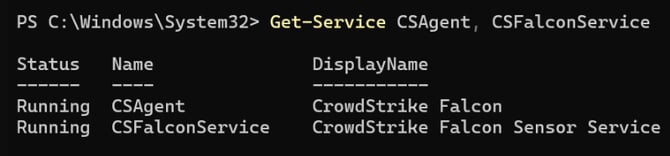
For Sophos: Get-Service "Sophos Endpoint Defense Service"
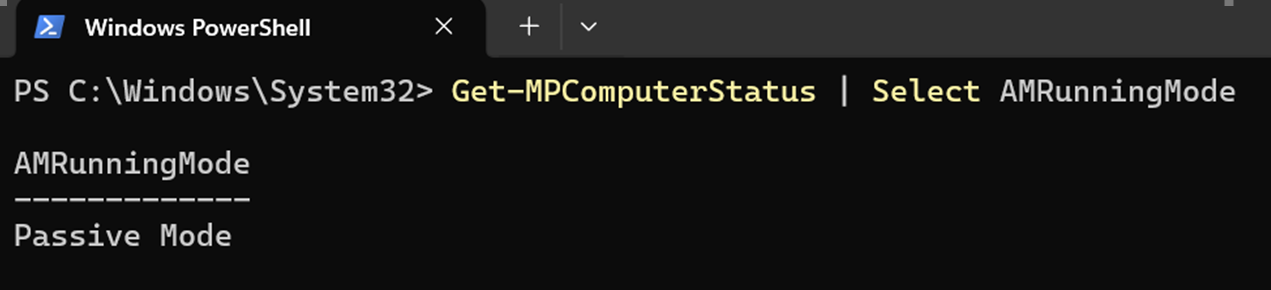
It is time to validate to see that Microsoft Defender is in running in Passive Mode, by running in PowerShell in standard mode, type in: Get-MPComputerStatus | Select AMRunningMode