![Full Logo.png]](https://help.devicie.com/hs-fs/hubfs/Full%20Logo.png?height=30&name=Full%20Logo.png)
The Apple MDM Push certificate is essential for managing iOS/iPadOS/macOS devices in Microsoft Intune. This certificate must be renewed annually to maintain device management capabilities. It enables devices to enroll using the Company Portal app and Apple bulk enrollment methods such as the Device Enrollment Program, Apple School Manager, and Apple Configurator.
To ensure continuous management, the certificate must be renewed every 365 days through the Apple Push Certificates Portal and Intune. After the certificate expires, a 30-day grace period is provided for renewal.
1. Navigate to https://endpoint.microsoft.com/#home then select Devices then select Enroll devices then select Apple enrollment then select Apple MDM Push Certificate.
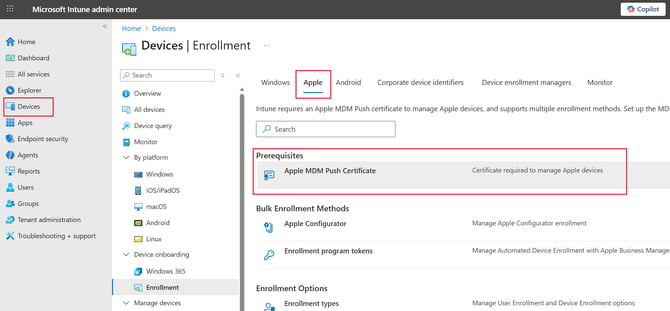
2. Under Configure MDM Push Certificate:
Select (1) I agree
Select (2) Download your CSR - this will download a IntuneCSR.csr which will be used later
Select (3) Create your MDM Push Certificate, this will open up a new tab on your browser.

3. Next it will load https://idmsa.apple.com/IDMSWebAuth/signin, login with the Apple ID and Password.

4. Select Renew

5. Under Renew Push Certificate, select Choose File - upload the IntuneCSR.csr from Step 2. Then select Upload.

6. Select Download, this will then download a MDM_ Microsoft Corporation_Certificate.pem which will be used in Microsoft Intune.

7. Going back to https://intune.microsoft.com/#view/Microsoft_Intune_DeviceSettings/DevicesMenu/~/enrollment enter in the Apple ID followed by uploading MDM_ Microsoft Corporation_Certificate.pem from Step 6. Then select Upload.

8. Scrolling up, you will now see this has been renewed.
