![Full Logo.png]](https://help.devicie.com/hs-fs/hubfs/Full%20Logo.png?height=30&name=Full%20Logo.png)
Overview
This configuration enables Platform SSO with Microsoft Entra ID, using the device's hardware-bound cryptographic keys to authenticate with Microsoft Entra ID.
- Provides users with phishing-resistant, password-less authentication, similar to Windows hello for business,
- Enables SSO to be used for authentication across all supported apps and websites.
Note: An alternate Platform SSO configuration is available, using Entra ID password as the authentication method. The Password method will replace the local account password with the Microsoft Entra ID password, and ensure that the two passwords are kept in sync.
🔎 For further information about Platform SSO with Password, check out macOS Foundation - Platform SSO using Password Authentication
User Experience
Shortly after first login, users will be prompted to register with Platform SSO.
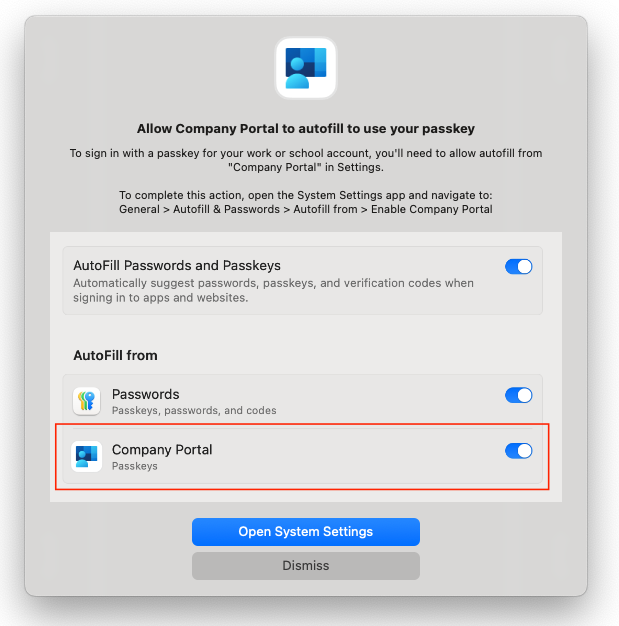
To register, they must sign in with Microsoft Entra ID and complete multi-factor authentication (MFA), if required.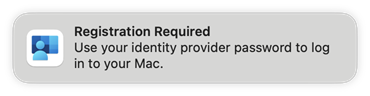 They are then presented with a pop-up that provides instructions on how to allow Company Portal to have access Autofill. This particular step cannot be automated, nor can it be skipped - the user must follow the instructions in order to complete registration.
On completion all SSO enabled browsers and apps will automatically authenticate the user into Entra ID. This applies to all Microsoft and Apple applications, and any third-party applications that support SSO.
Both Google Chrome and Firefox need to have SSO enabled via configuration policy, which is covered in Devicie's standard policy offering for both apps.
Pre-requisites
Users cannot have per-user MFA enabled. Use Conditional Access MFA instead.
🔎 More information available here: https://learn.microsoft.com/en-us/entra/identity/monitoring-health/recommendation-turn-off-per-user-mfa
Only available for Microsoft Entra join deployments. Hybrid-join unsupported.
Troubleshooting Notes
Ensure that users have the permission to both join and register devices to Entra ID.
From your Microsoft Entra admin centre, under Microsoft Entra ID join and registration settings, ensure that the All option is selected in the toggle menu for Users may join devices to Microsoft Entra
What is being deployed
Policy Name
macOS AddOn - PlatformSSO with Secure Enclave
Recommended Assignment Targets
All Devices, exclude Shared Devices
Policy Variables
|
Variable |
Description |
Value |
Computer accounts to exclude from Platform SSO |
An array of computer usernames to exclude from Platform SSO registration. |
|
Policy Settings
|
Setting |
Description |
Value |
|
|
Bundle identifier for the Microsoft Enterprise SSO extension |
|
|
|
Apple Team ID for validating the SSO extension |
|
|
|
SSO extension mode |
|
|
|
SSO behavior when screen is locked |
|
|
|
Microsoft Entra ID login endpoints |
https://login.microsoft.comhttps://sts.windows.nethttps://login-us.microsoftonline.comhttps://login.microsoftonline.ushttps://login.usgovcloudapi.net |
|
|
Share cryptographic keys across users |
|
|
|
Display name shown to users |
|
|
|
Authentication method used by Platform SSO |
UserSecureEnclaveKey |
|
|
Include device identifiers in attestation |
|
|
|
Enable browser SSO interaction |
|
|
|
Disable explicit app prompts |
|
|
|
Allowed bundle ID prefixes |
|
|
|
Device registration token |
|