![Full Logo.png]](https://help.devicie.com/hs-fs/hubfs/Full%20Logo.png?height=30&name=Full%20Logo.png)
Overview:
This knowledge base article provides step-by-step instructions on how to enable App Control for business within your environment using the Managed Installer as well with Devicie App Control Audit and then applying App Control Enforce policies.
The following will be covered in implementing App Control for Business
- Enabling Managed Installer
- Deploying App Control Audit Policy
- Querying App Control Events using Advanced Hunting (KQL)
- Deploying App Control Supplementary Block Policy
Enabling Managed Installer
When looking at using WDAC (Windows Defender Application Control) with the Intune Management Extension, it all starts with adding the extension as a managed installer. That will make sure that apps that are installed via that extension are automatically tagged. That tag will make sure that those apps are automatically identified by the Application Control policies as safe apps that can be allowed to run on the device.
1. By navigating to Microsoft Intune Portal, select Endpoint Security then select App Control for Business then select Managed Installer tab and then select Create. 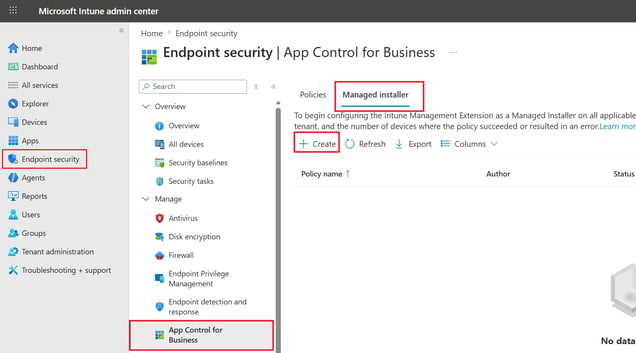
2. Under Basics, enter a name like Managed Installer Deployment then select Next.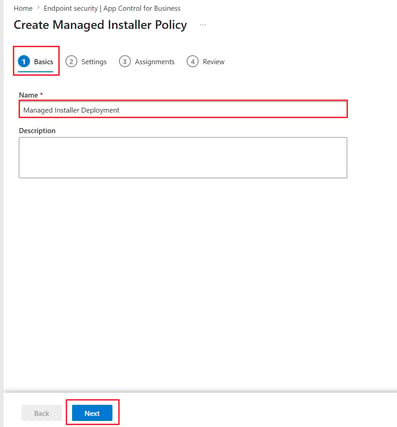
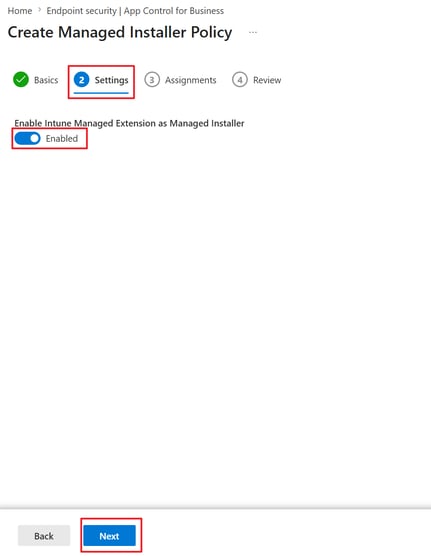
3. Under Settings, Enable Intune Managed extension as Managed Installer will be enabled by default (leave as default) then select Next.
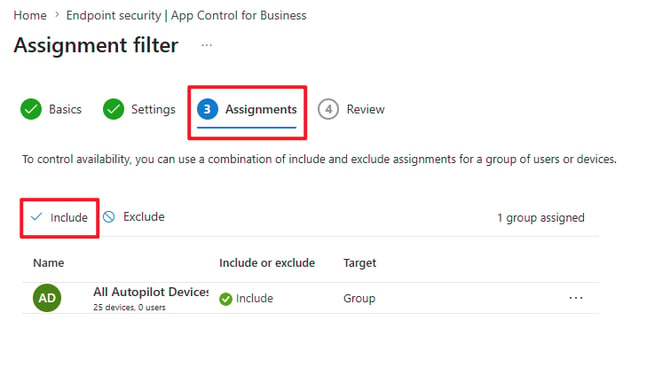
4. Under Assignments, select Include then choose your groups to which you assign the Managed Installer to. Then select Next.
5. Under Review, review your settings and select Save.
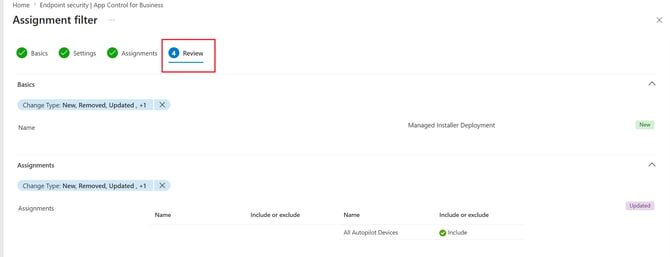
6. Now the recent Managed Installer will appear here.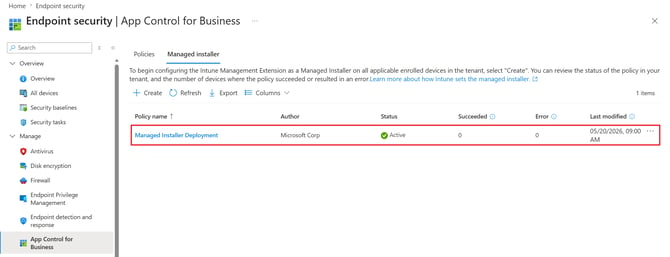
Deploying App Control Audit Policy
Once the Intune Management Extension is configured as a managed installer, using Devicie's App Control Audit policy which will be deployed to your tenant. By running in audit mode, this lets you discover applications, binaries and scripts that are missing from your App Control policy but should be included.
While App Control policy is running in audit mode, any binary that runs but would have been denied is logged in the Event Viewer: Applications and Services Logs\Microsoft\Windows\CodeIntegrity\Operational event log. Script and MSI are logged in Event Viewer: Applications and Services Logs\Microsoft\Windows\AppLocker\MSI and Script event log.
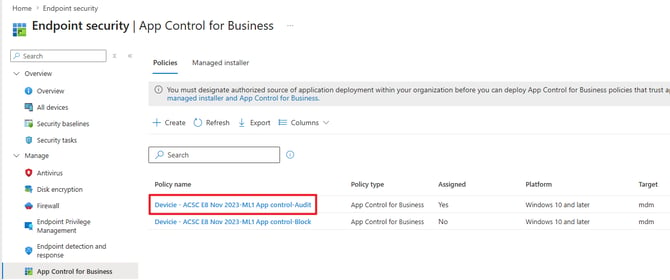
Once the 'Devicie - ACSC E8 Nov 2023-ML1 App Control-Audit' policy is in your tenant and assigned to the same group as the 'Managed Installer"
Querying App Control Events using Advanced Hunting (KQL)
App Control for Business policy logs events locally in Windows Event Viewer in either enforced or audit mode, the functionality can now be viewed in Microsoft Defender.
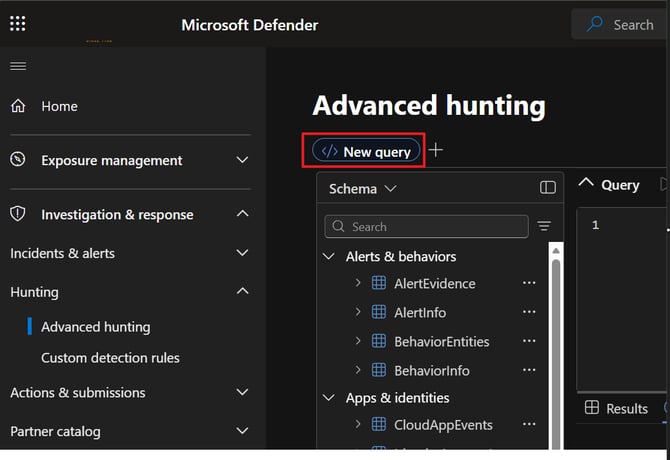
1. By navigating to Microsoft Defender Portal, select Investigation & response then select Hunting then select Advanced Hunting.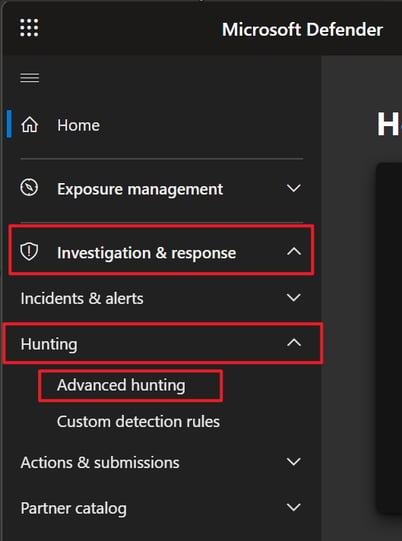
2. Under Advanced hunting, select New query.
3. Paste and copy this KQL:
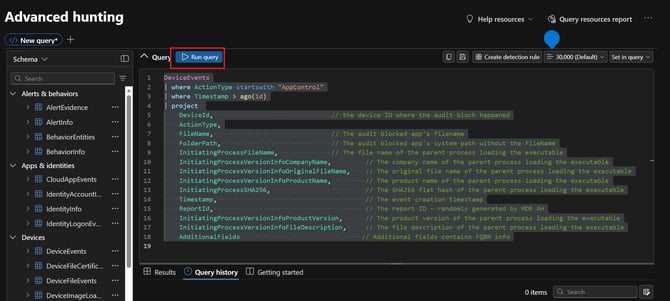
DeviceEvents
| where ActionType startswith "AppControl"
| where Timestamp > ago(1d)
| project
DeviceId, // the device ID where the audit block happened
ActionType,
FileName, // The audit blocked app's filename
FolderPath, // The audit blocked app's system path without the FileName
InitiatingProcessFileName, // The file name of the parent process loading the executable
InitiatingProcessVersionInfoCompanyName, // The company name of the parent process loading the executable
InitiatingProcessVersionInfoOriginalFileName, // The original file name of the parent process loading the executable
InitiatingProcessVersionInfoProductName, // The product name of the parent process loading the executable
InitiatingProcessSHA256, // The SHA256 flat hash of the parent process loading the executable
Timestamp, // The event creation timestamp
ReportId, // The report ID - randomly generated by MDE AH
InitiatingProcessVersionInfoProductVersion, // The product version of the parent process loading the executable
InitiatingProcessVersionInfoFileDescription, // The file description of the parent process loading the executable
AdditionalFields // Additional fields contains FQBN info
And it should look like this, then select Run query.
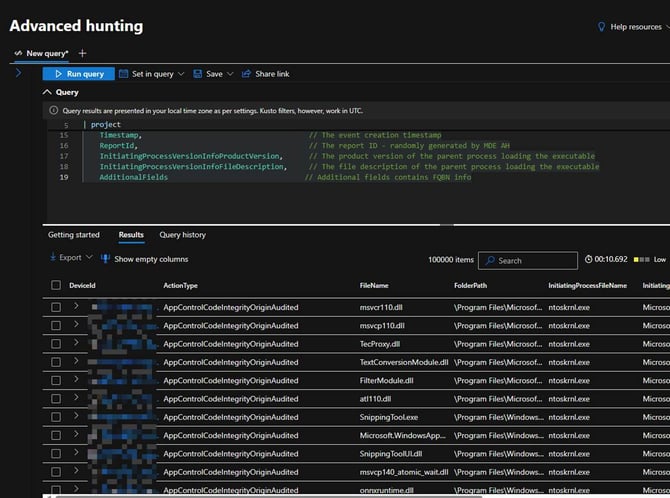
4. Once the query has ran, it should provide an output like this:
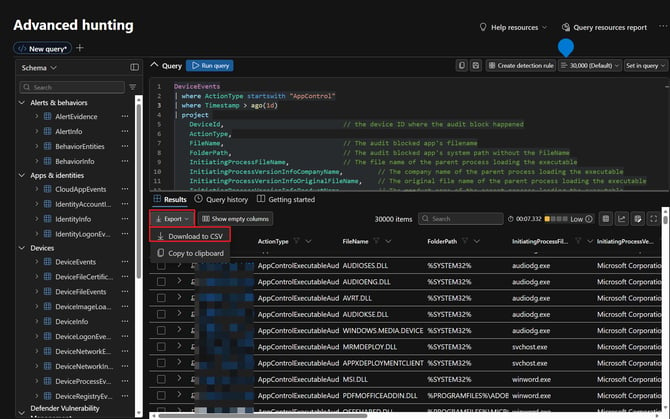
5. To ensure all the applications, binaries and scripts, allow up to two weeks to gather all the information to whitelist. Select Export then select Download to CSV.
Deploying App Control Supplementary Block Policy
As we have gathered our audit rules, to ensure applications run fine with the ACSC E8 Nov 2023-ML1 App control-Block. We need to make sure to add an exclusion group has been added against ACSC E8 Nov 2023-ML1 App control-Audit in order for ACSC E8 Nov 2023-ML1 App control-Block to apply. This is to avoid any conflicts.
An App Control Supplementary Block Policy will need to be created to allow additional apps to run and prevent interruptions on end user's devices.
1. By navigating to Microsoft Intune Portal, select Endpoint Security then select App Control for Business then select Policies tab and then select Devicie - ACSC E8 Nov 2023-ML1 App control-Block. 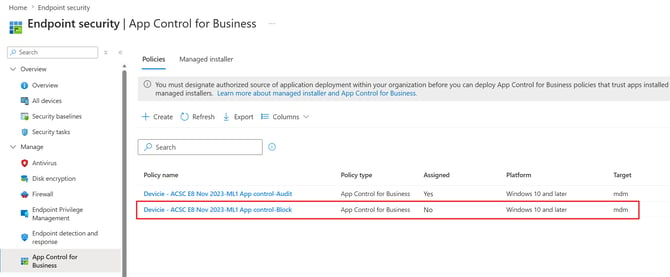
Under Configuration settings of Devicie - ACSC E8 Nov 2023-ML1 App control-Block, select Edit.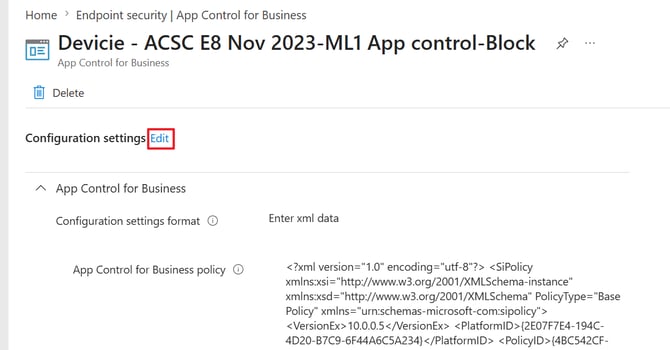
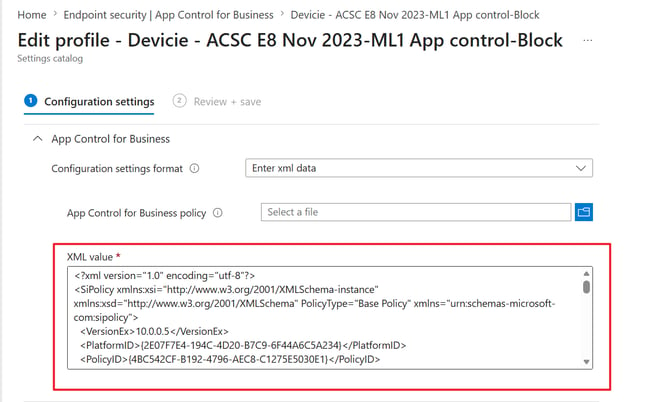
Copy the entire 'XML value' into VSCode or another application to grab the correct BasePolicy ID:
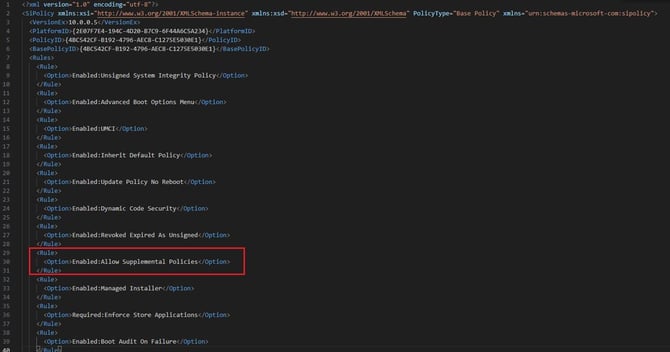
Once it has been copied over, you can see that this allows one or more supplementary policies can be added along side the base policy.
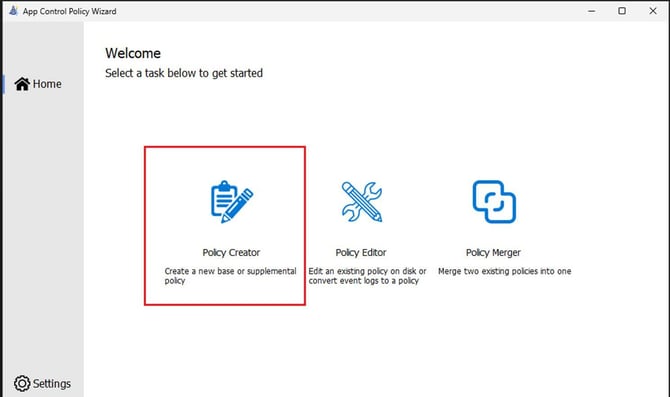
2. Install WDAC Microsoft App Control Wizard, select Policy Creator
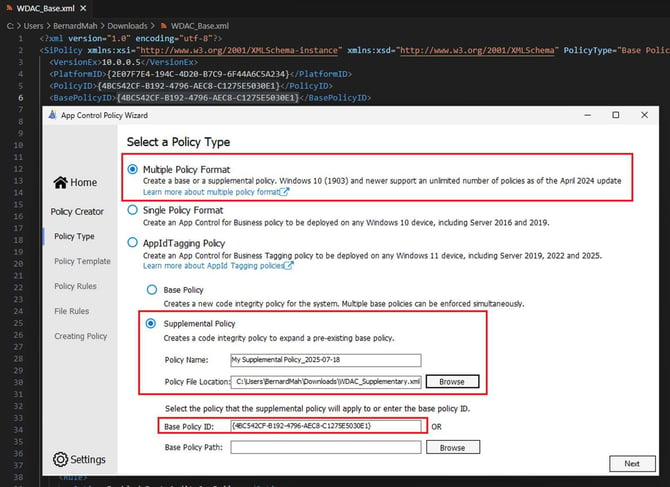
3. Select ‘Multiple Policy Format’ then select “Supplemental Policy” by giving it a name then copying the base ID from the Devicie - ACSC E8 Nov 2023-ML1 App control-Block which in this case is {4BC542CF-B192-4796-AEC8-C1275E5030E1}. Select Next.
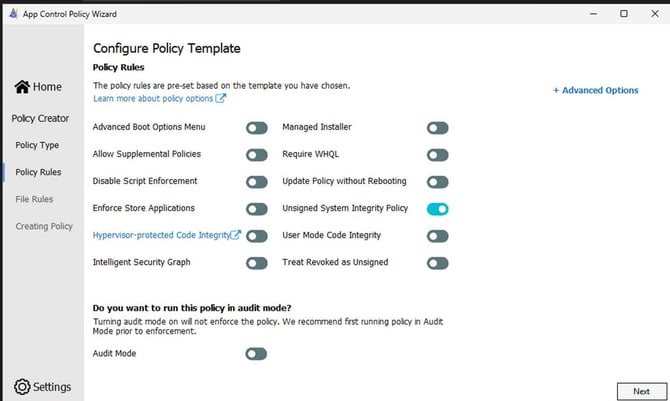
4. Select Next.
5. Select Add Custom.
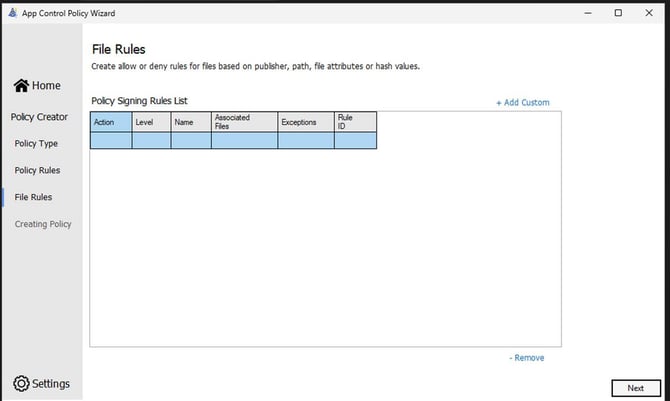
6. By default the custom rule conditions will be defaulted to Kernel rule, select Usermode rule then click Yes when prompted.
Rule action: Allow
Rule Type: Path
Reference File: Locate the folder, in this case: C:\Program Files\WindowsApps\* then select Create Rule.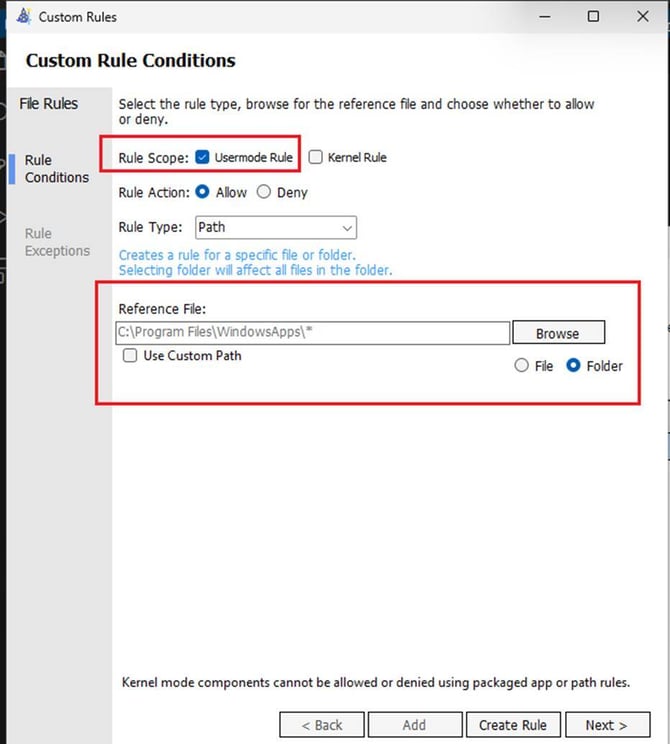
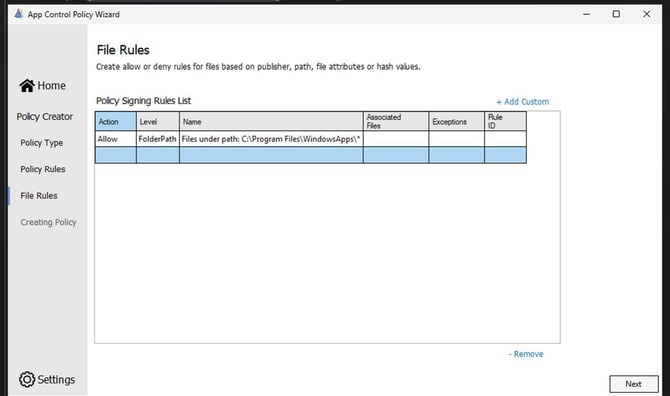
7. To add more select “Add Custom”, once you done, select Next.
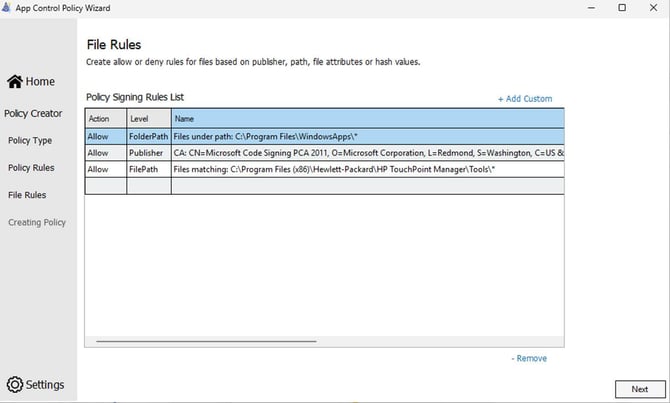
8. It will then create the policy which is now finished:
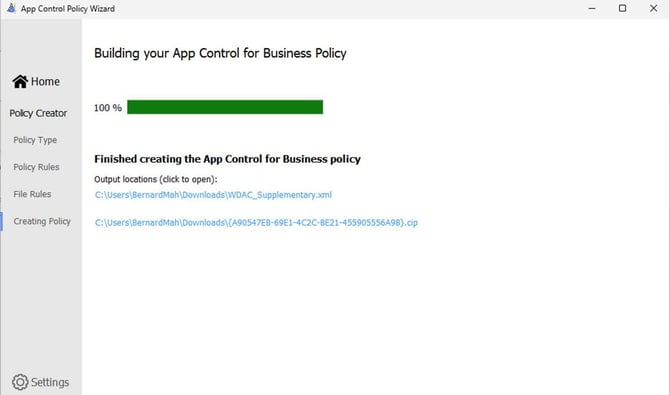
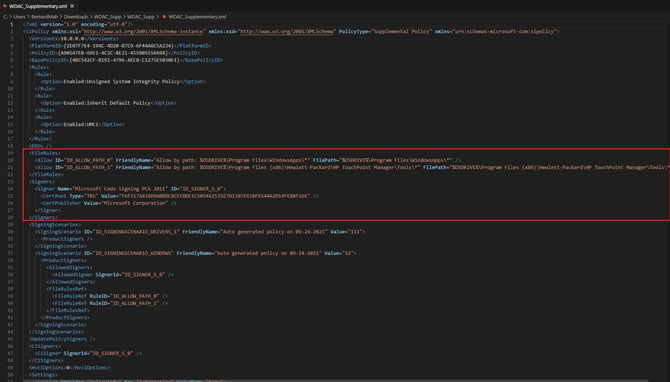
When you open the XML file, you will see the allow path rules and publisher trusted.
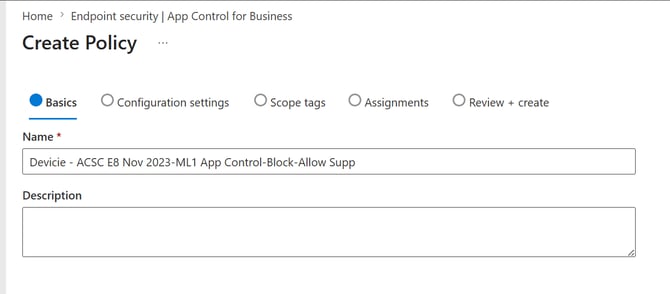
9. By navigating to Microsoft Intune Portal, select Endpoint Security then select App Control for Business then select Policies and then select Create. Give it a name of the policy and select Next.
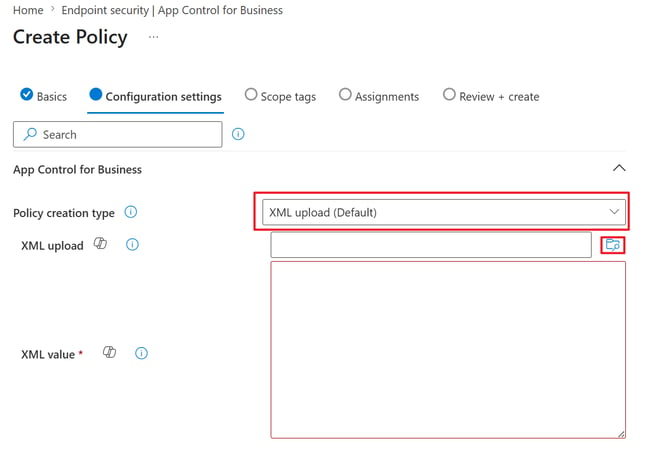
10. Under Configuration Settings, under Policy creation type select XML Upload (Default) then select the XML Upload folder to import the App Control Block Supplementary XML file.
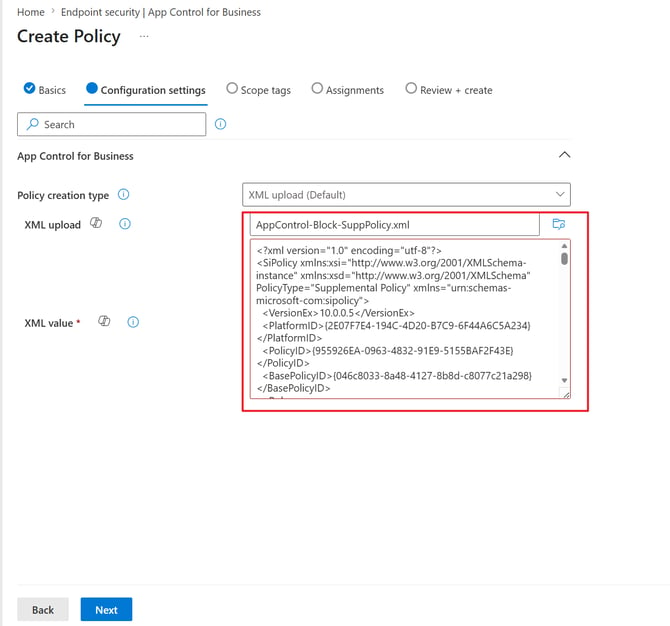
11. Under Configuration settings, upload the XML by clicking the folder, select Next.
12. Under Assignments, choose a group that is assigned to ACSC E8 Nov 2023-ML1 App control-Block.
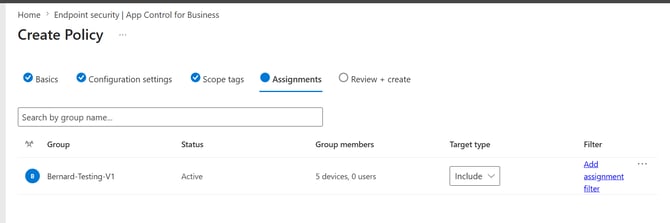
13. Make sure the devices have fully synced from Company Portal to receive the App control Block Supplementary policy.