![Full Logo.png]](https://help.devicie.com/hs-fs/hubfs/Full%20Logo.png?height=30&name=Full%20Logo.png)
Overview
This knowledge base will demonstrate how to uninstall quality and feature updates for Windows 10 and later in Intune.
The following will be covered in the article:
- How to uninstall quality updates from Windows Update Ring
- What to expect on devices when quality update is set to uninstall?
- How to uninstall feature updates from Windows Update Ring
- How to uninstall a KB that is outside of the expected quality patch cycle
Prerequisites
You must have the following licenses, subscriptions and network configurations.
- Intune: Your tenant requires the Microsoft Intune Plan 1 subscription.
- Microsoft Entra ID: Microsoft Entra ID Free (or greater) subscription.
- Windows Editions:
- Pro
- Enterprise
- Education
- Pro for Workstations
- Windows subscription and licenses:
- Windows 10/11 Enterprise E3 or E5 (included in Microsoft 365 F3, E3, or E5)
- Windows 10/11 Education A3 or A5 (included in Microsoft 365 A3 or A5)
- Windows Virtual Desktop Access E3 or E5
- Microsoft 365 Business Premium
- Unsupported: Windows 10/11 Enterprise LTSC
- The device is running a version of Windows 10/11 that is still in support.
- The device is enrolled in Microsoft Intune and (hybrid) Entra joined.
- The telemetry is enabled, on the device, with a minimum level of Required.
- The Microsoft Account Sign-In Assistant (wlidsvc) service, on the device, is not Disabled.
- The device has access to the network endpoints required for Intune managed devices.
- The Intune setting Windows drivers, in an update ring, is set to Allow.
- The Intune setting Enable features that require Windows diagnostic data in processor configuration in turned On.
How to uninstall quality update from Windows Update Ring
If you have existing Devicie Windows Updates: Windows OS Patching , Windows OS Patching - UAT and Windows OS Patching - Pilot 
1. Navigate to Microsoft Intune portal, then select Devices then under Manage updates, select Windows updates.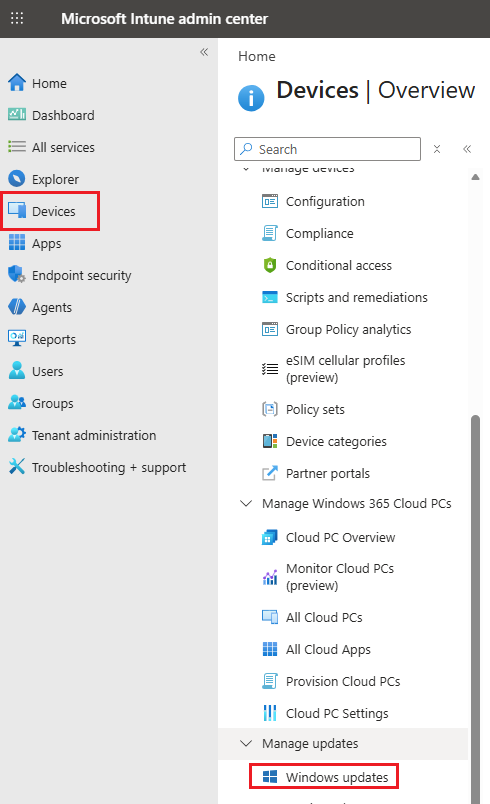
2. Select Update Rings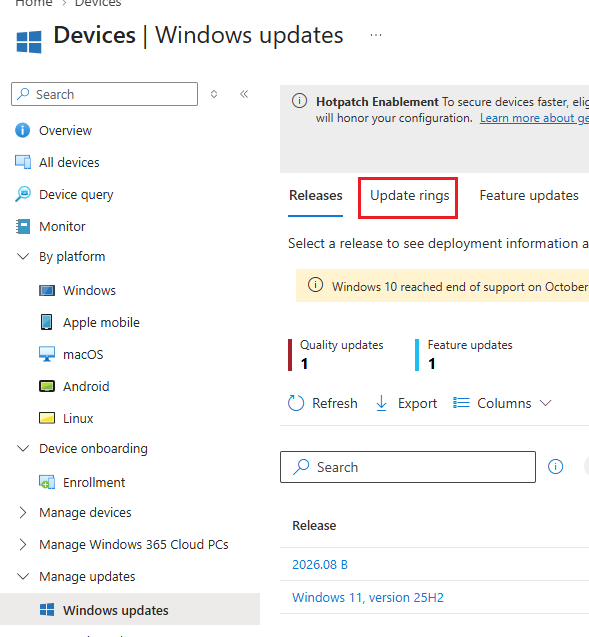
3. Select all three Update Rings, and select Uninstall then select Uninstall Quality Updates.
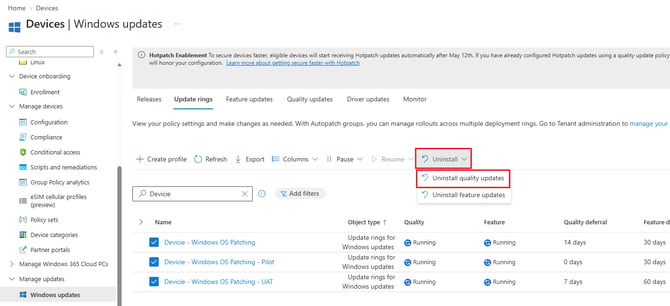
Select Yes when prompted.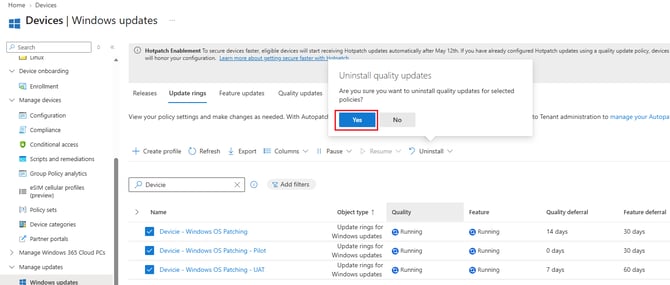
4. Now the 'Quality' update will show it as Uninstalling.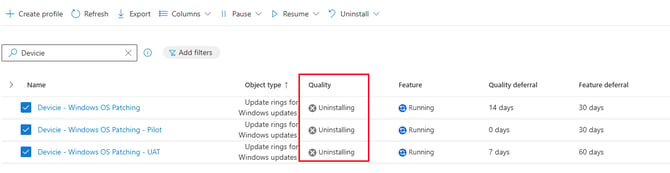
What to expect on devices when quality update is set to uninstall?
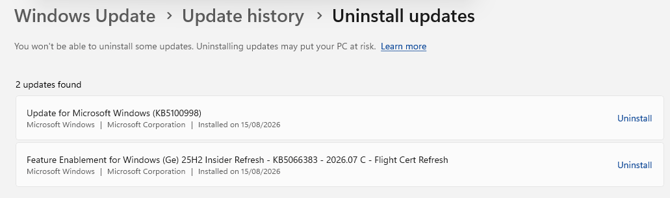
On the device, you will notice that it shows quality updates have been unisntalled.
How to uninstall feature update from Windows Update Ring
If you have existing Devicie Windows Updates: Windows OS Patching , Windows OS Patching - UAT and Windows OS Patching - Pilot
1. Navigate to Microsoft Intune portal, then select Devices then under Manage updates, select Windows updates.
2. Select Update Rings
3. Select all three Update Rings, and select Uninstall then select Uninstall feature updates.
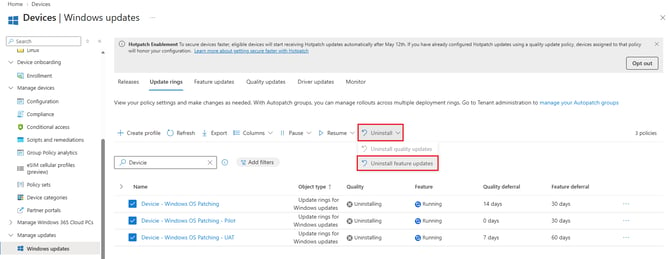
4. Select Yes when prompted.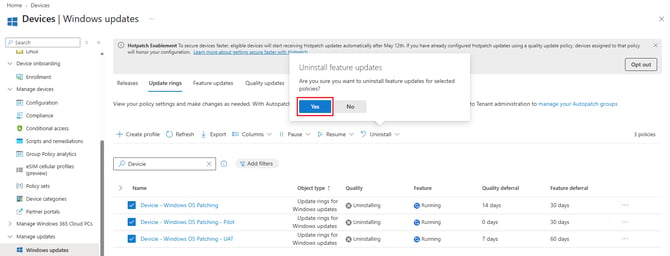
4. Now the 'Feature' update will show it as Uninstalling.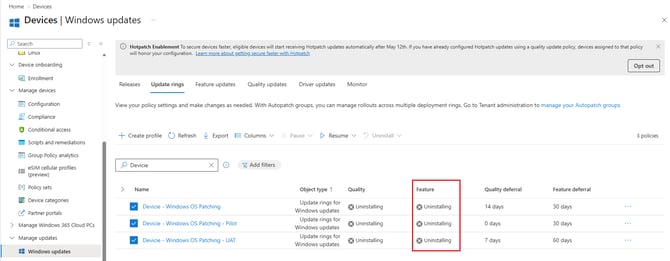
5. This is dependent on what is set in the Windows Update Rings, for all three rings the setting: Set feature update uninstall period (2 - 60 days) is set to 30 days. Example, if you are on Windows 11 25H2 this will roll you back to Windows 11 24H2.
6. To monitor, navigate to Monitor tab under Windows Updates.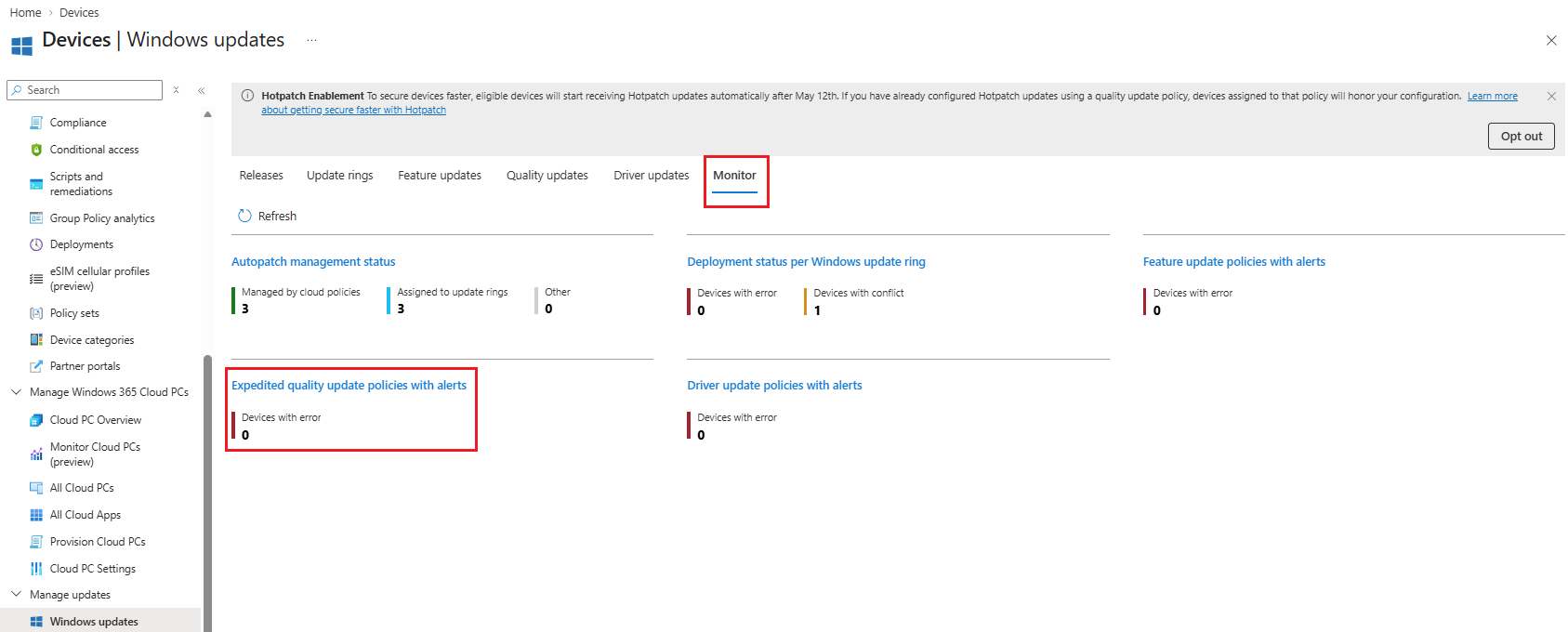
How to uninstall a KB that is outside of the expected quality patch cycle
Preparation:1. Download the Windows update package by searching on Microsoft Update Catalog.
2. Search for the relevant KB you wish to uninstall
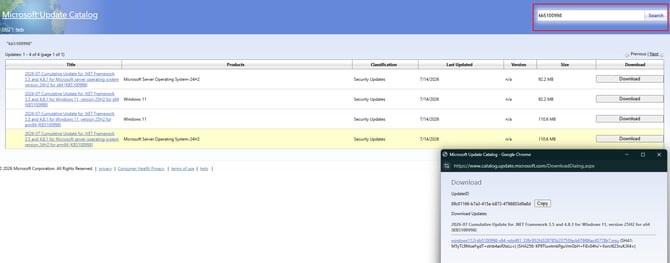
3. Use the Microsoft Win32 Content Prep Tool to convert the .msu file into the .intunewin format. This tool guides you to input the required parameters in a step-by-step process if you don't specify the parameters in the command-line. For more information about the Microsoft Win32 Content Prep Tool, see Convert the Win32 app content.
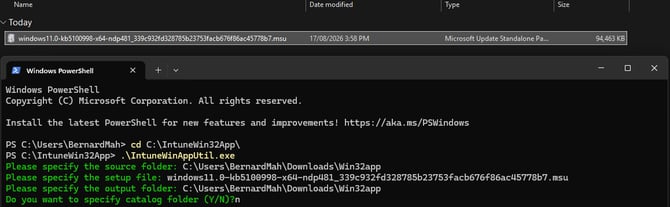
Upload:
1. Navigate to Microsoft Intune portal, then select Apps then select By platform: Windows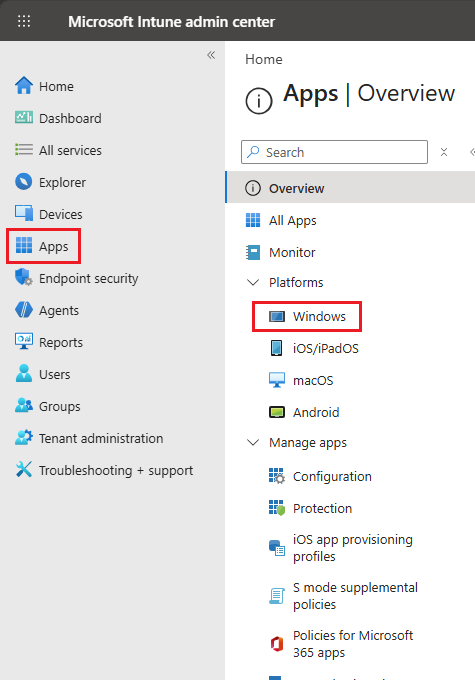
2. Under Windows apps, select Create.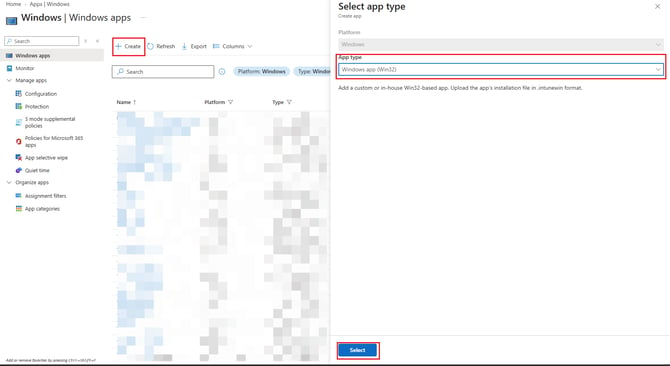
3. Under App information, upload the .intunewin file then select OK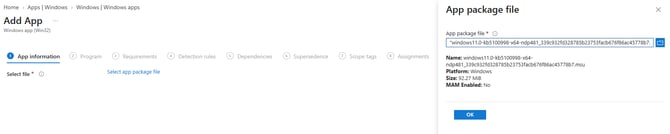
Update the naming based on * against the boxes.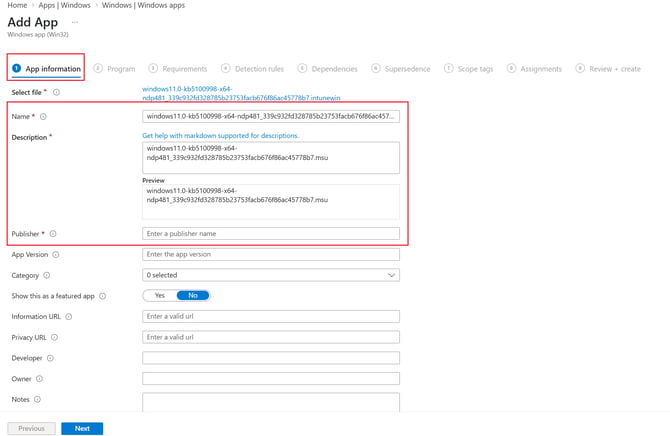
It will look like this once done, then select Next.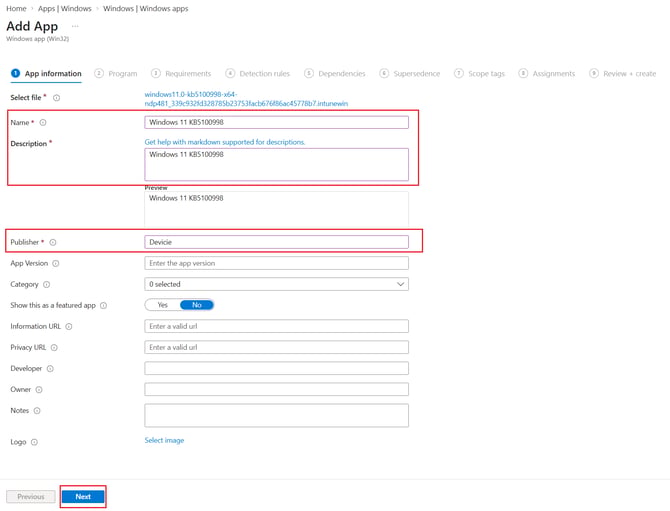
4. Under Program, update the command lines.
Install command line:
wusa.exe .\windows11.0-KB5066383-x64-ndp481_339c932fd328785b23753facb676f86ac45778b7.msu /quiet /norestart -Wait
To get the uninstall commands, run PowerShell as an administrator: Get-WindowsPackage -online -Packagename "*KB*"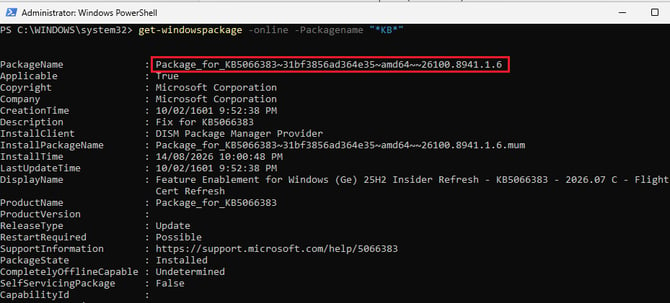
Uninstall command line:
dism /online /remove-package /PackageName:Package_for_KB5066383~31bf3856ad364e35~amd64~~26100.8941.1.6 /Quiet /NoRestart
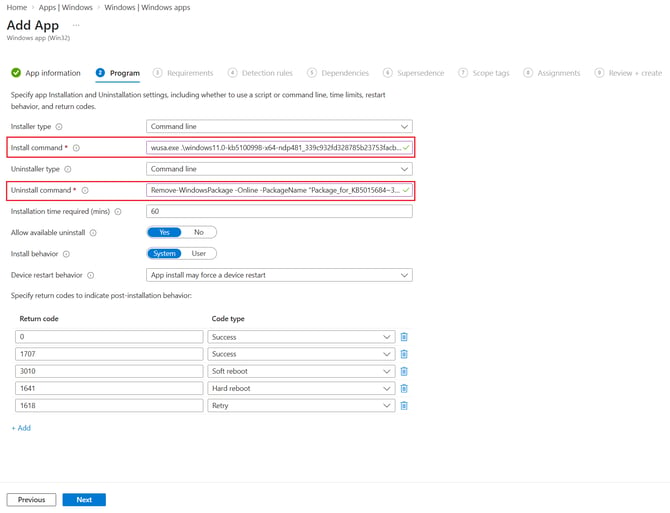
Then select Next.
5. Under Requirements, select the minimum OS version then select Add then select the following:
Requirement type: Registry
Key Path: HKEY_LOCAL_MACHINE\SOFTWARE\Microsoft\Windows NT\CurrentVersion
Value name: CurrentBuildNumber
Registry key requirement: String comparison
Operator: equals
Value: 26200
Associated with a 32-bit app on 64-bit app clients: No
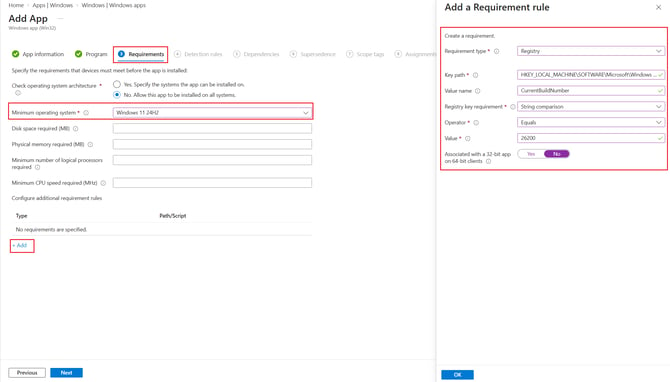
Select Next.
6. Under Detection, create a PowerShell script with the following. Replace KB5066383 with the relevant KB you are wanting to uninstall or install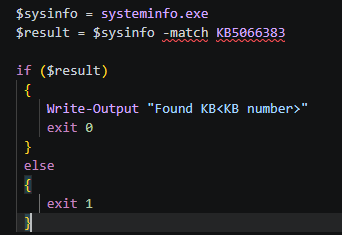
7. Under Review + create, select Create then deploy the package to the relevant group.