![Full Logo.png]](https://help.devicie.com/hs-fs/hubfs/Full%20Logo.png?height=30&name=Full%20Logo.png)
Windows Autopilot makes setting up new work on computers faster and easy by using the software already installed on the device.
There are two main ways it works:
-
Standard: The user follows a few simple prompts to get the device ready themselves.
-
Pre-provisioned (White Glove): IT or the manufacturer handles the heavy lifting (installing apps, configuration profiles, PowerShell scripts and remediation scripts) before the user even gets the laptop.
Requirements:
- A currently supported version of Windows.
- Windows Pro, Enterprise, or Education editions.
- An Intune subscription.
- Physical devices that support Trusted Platform Module (TPM) 2.0 and device attestation. Virtual machines aren't supported. The pre-provisioning process uses Windows Autopilot self-deploying capabilities, so TPM 2.0 is required. The TPM attestation process also requires access to a set of HTTPS URLs that are unique for each TPM provider. For more information, see the entry for Windows Autopilot self-Deploying mode and Windows Autopilot pre-provisioning in Networking requirements.
- Network connectivity. Using wireless connectivity requires selecting region, language and keyboard before being able to connect and start provisioning.
- An enrollment status page (ESP) profile must be targeted to the device.
Steps
1. Navigate to https://intune.microsoft.com/ then select Devices then select Enrollment then select Devices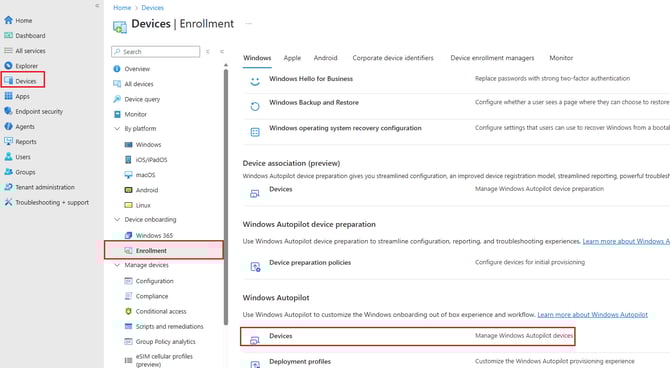
2. Enter in the serial number in the search panel, click on the Serial number and make sure the profile is assigned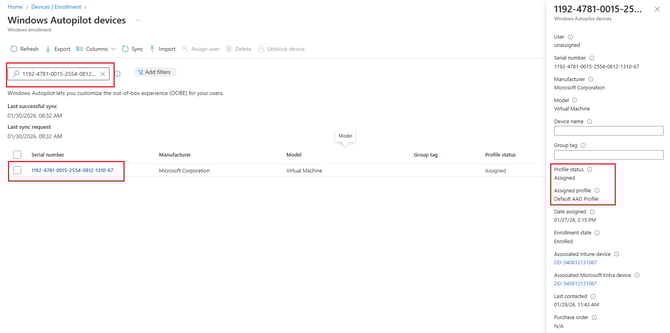
3. Once the S/N has been assigned, turn on the device which will bring you into OOBE (Out of box experience). Select your Country then select Yes.
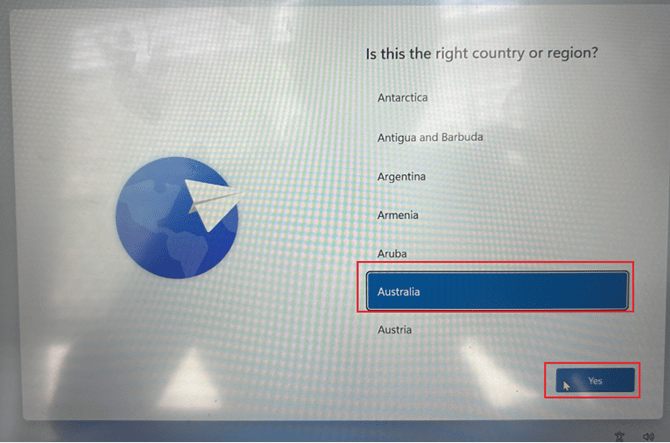
4. Select Keyboard, select US then select Yes. 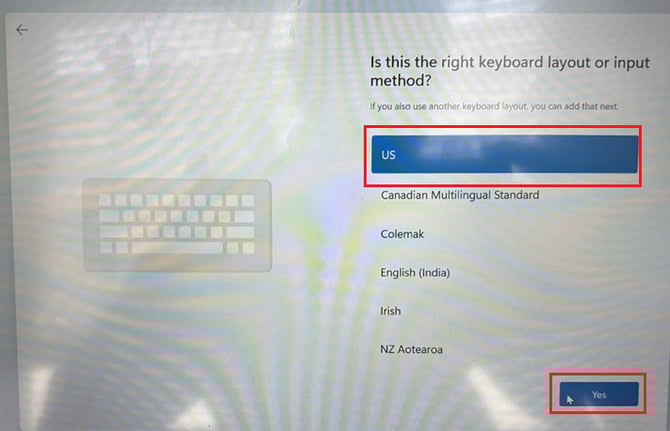
5. You have the option to add a secondary keyboard if you wish, if you do not want to add one, select Skip. 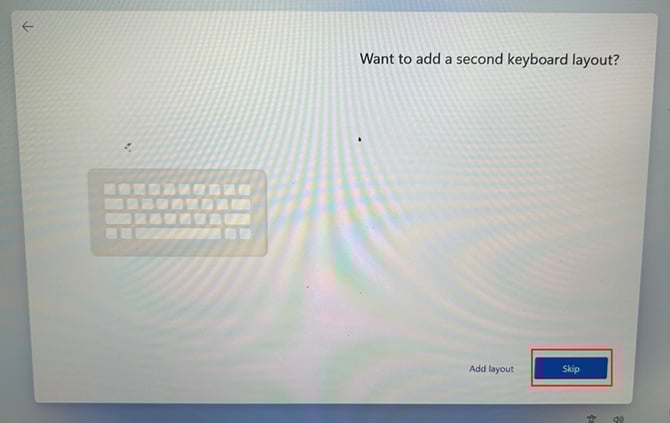
6. If you are wired in a network cable, ignore this step. If you need to be prompted for Wi-Fi – click the appropriate Wi-Fi profile and connect to it.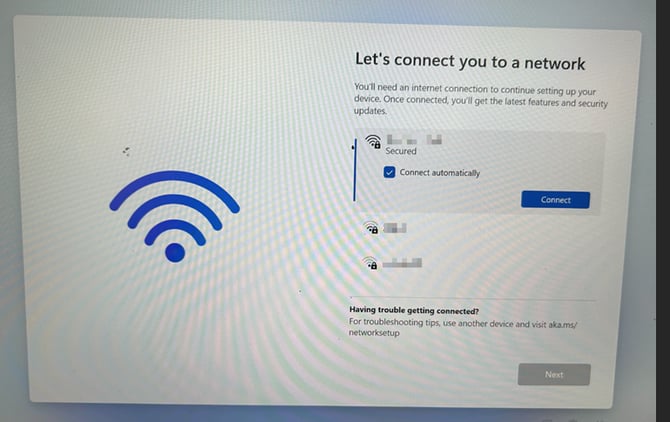
If you are using wired network, then you can ignore this step.
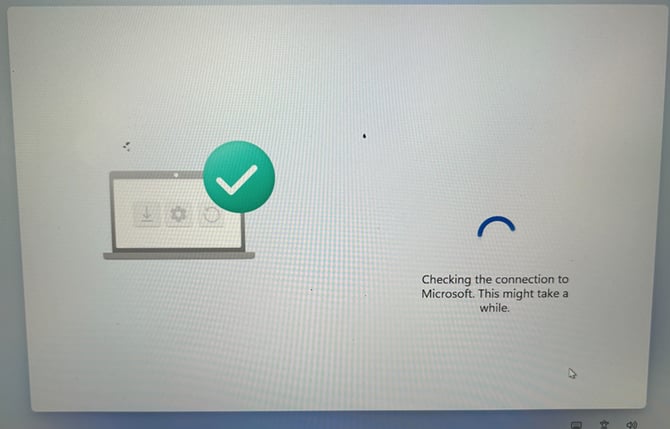
8. This will load to the login screen, press the windows key 5 times.
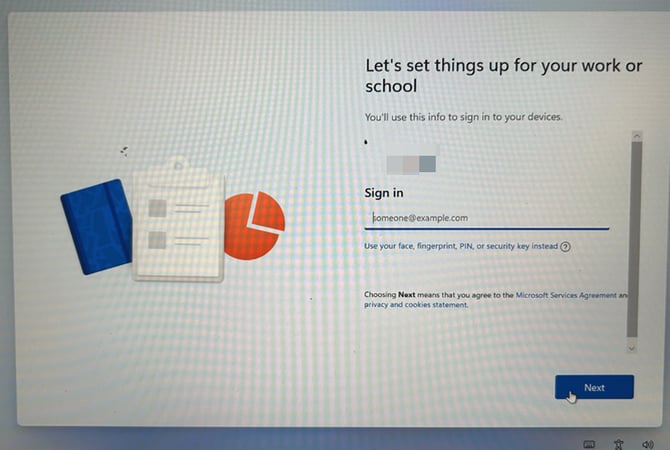
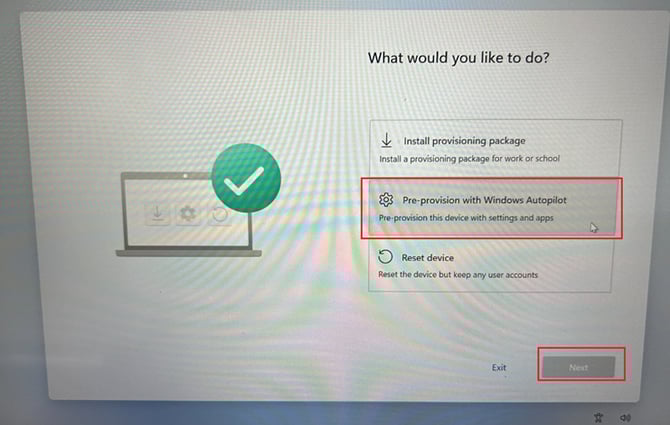
9. Next select Pre-provision with Windows Autopilot then select Next.
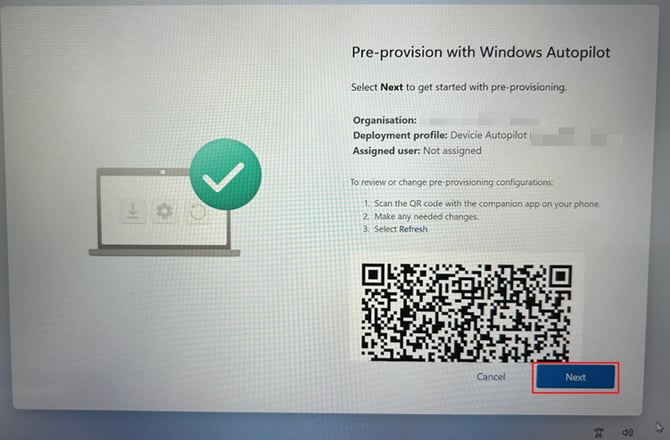
10. It will advise you that it is going to do the pre-provisioning task and which profile is assigned to that Serial number. Select Next.
11. Next it will bring you straight to the ESP.
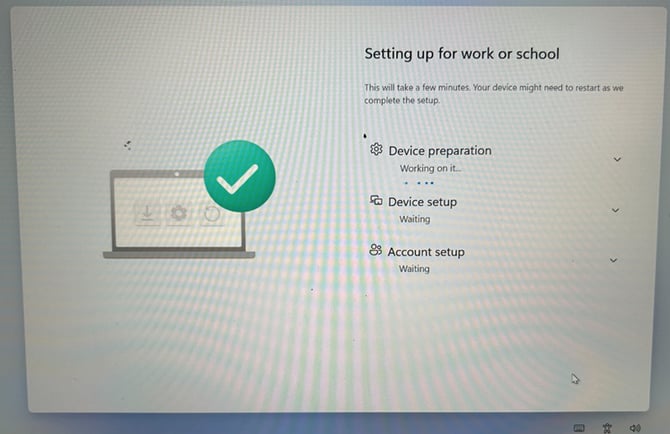
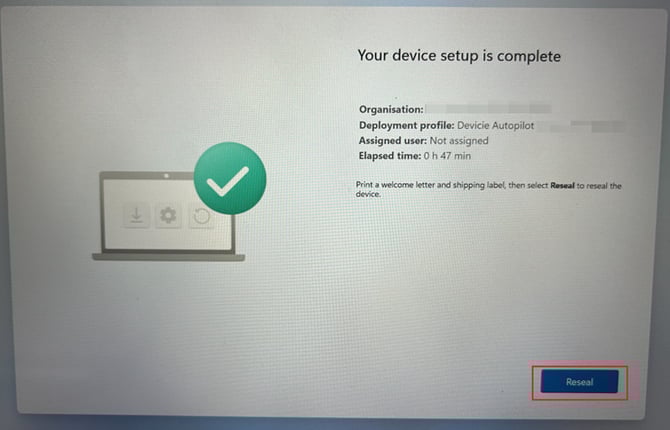
12. Once the ESP is completed.
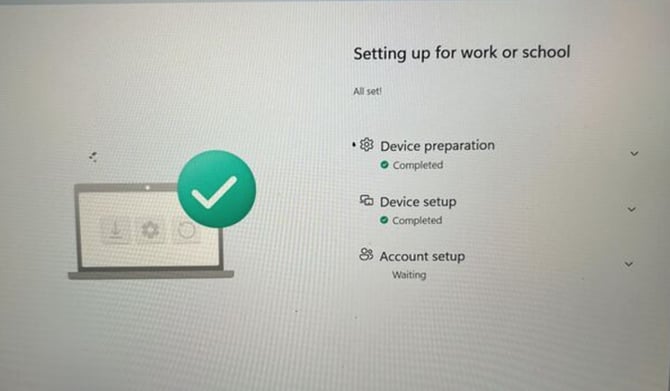
It will show “Reseal” once completed. Click on Reseal and this will shut the computer down.
13. Once the device has been given to the user, the user will start up the device and go through OOBE (Out of Box Experience), select Country and Keyboard then select Next. It will you to the login page.
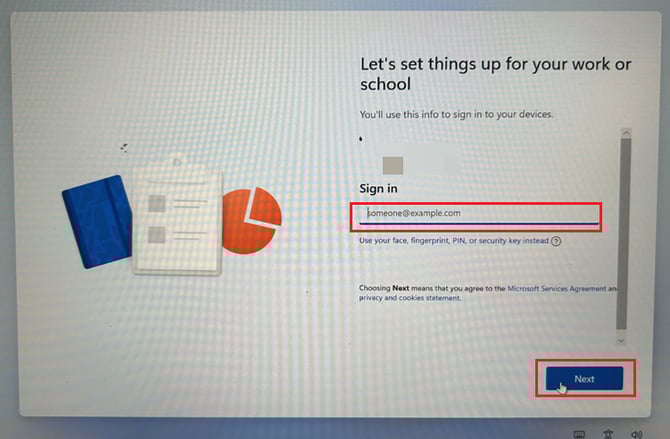
14. The end user will log into the device with their credentials (username which is their email address) and password along with MFA. It will bring it the ESP.
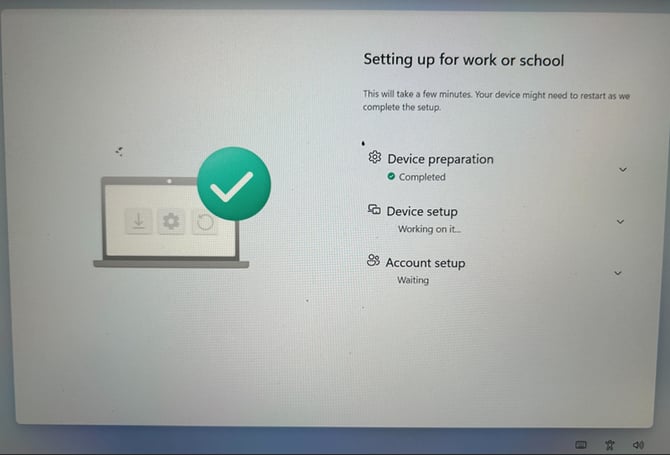
Under Device Setup, it will check to make sure the policies apply this is usually a 3 to 5 minutes way for to do it’s checks to ensure the policies align.
15. It will display with “Preparing Windows” and bring you to be prompted to setup Windows Hello for face recognition, if you wish to skip it, select Skip for now.If you do not have this setting enabled, you can skip this step.
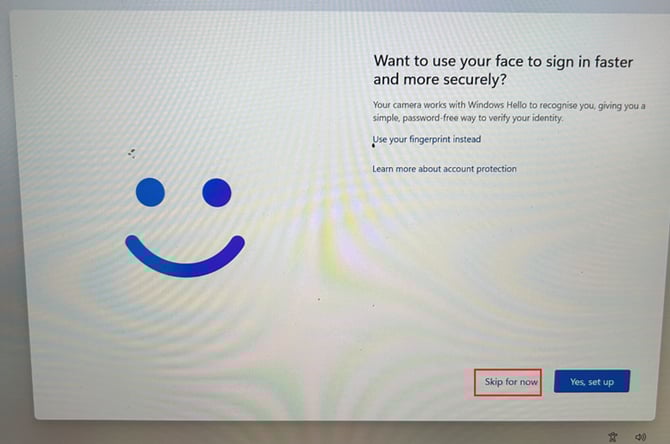
If you wish to proceed, select “Yes, set up” and follow the steps.
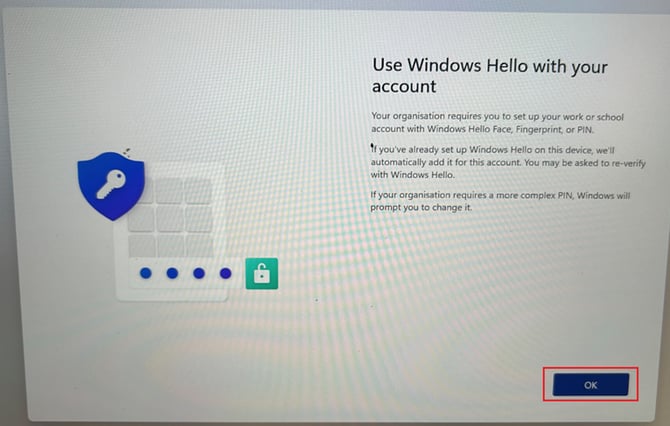
16. You will be prompted to setup Windows Hello for Business PIN, select OK. You will not be prompted for MFA as the previous MFA is still accepted.
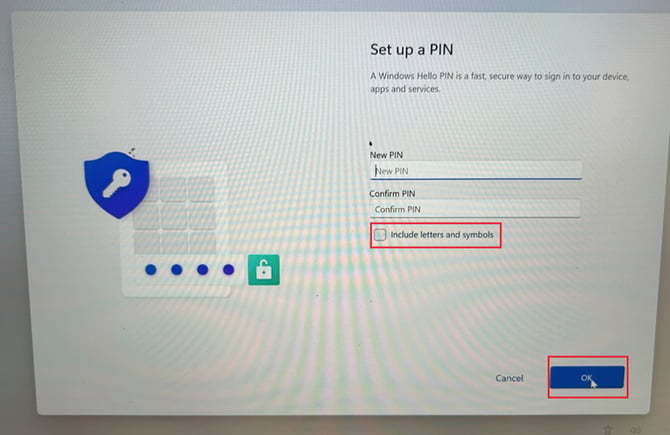
17. You will be prompted to enter a digit code to login, if you wish to add letters and symbols, ensure to tick the box and select OK once you are done.
18. Then select OK.
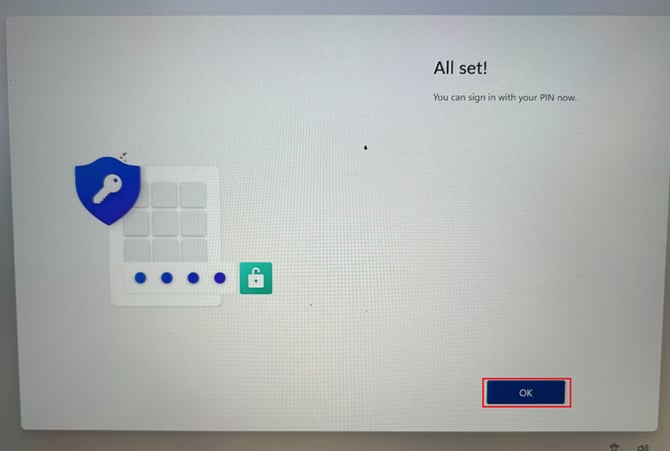
19. Next it will bring you to your login screen.