![Full Logo.png]](https://help.devicie.com/hs-fs/hubfs/Full%20Logo.png?height=30&name=Full%20Logo.png)
Overview
This knowledge base will demonstrate how to pause Windows Updates for Windows 10 and later in Intune.
The following will be covered in the article:
- How to pause update policies
- What to expect on devices when Windows Update is Paused?
- How to resume Windows Update policies
- What to expect on devices when Windows Update is resumed?
Prerequisites
You must have the following licenses, subscriptions and network configurations.
- Intune: Your tenant requires the Microsoft Intune Plan 1 subscription.
- Microsoft Entra ID: Microsoft Entra ID Free (or greater) subscription.
- Windows Editions:
- Pro
- Enterprise
- Education
- Pro for Workstations
- Windows subscription and licenses:
- Windows 10/11 Enterprise E3 or E5 (included in Microsoft 365 F3, E3, or E5)
- Windows 10/11 Education A3 or A5 (included in Microsoft 365 A3 or A5)
- Windows Virtual Desktop Access E3 or E5
- Microsoft 365 Business Premium
- Unsupported: Windows 10/11 Enterprise LTSC
- The device is running a version of Windows 10/11 that is still in support.
- The device is enrolled in Microsoft Intune and (hybrid) Entra joined.
- The telemetry is enabled, on the device, with a minimum level of Required.
- The Microsoft Account Sign-In Assistant (wlidsvc) service, on the device, is not Disabled.
- The device has access to the network endpoints required for Intune managed devices.
- The Intune setting Windows drivers, in an update ring, is set to Allow.
- The Intune setting Enable features that require Windows diagnostic data in processor configuration in turned On.
How to pause update policies
If you have existing Devicie Windows Updates: Windows OS Patching , Windows OS Patching - UAT and Windows OS Patching - Pilot 
1. Navigate to Microsoft Intune portal, then select Devices then under Manage updates, select Windows updates.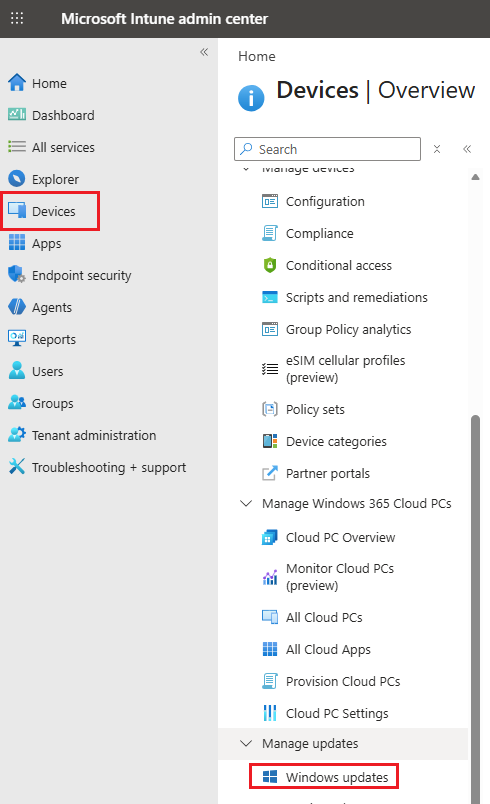
2. Select Update Rings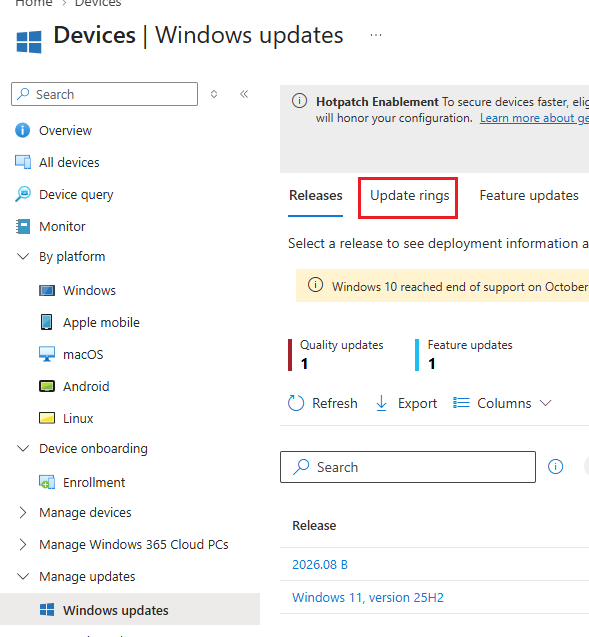
3. Select all three Update Rings, and select Pause then select Pause quality updates.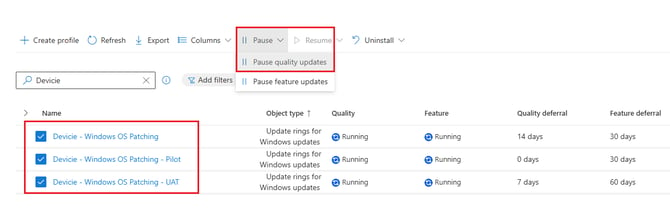
4. Select Yes when prompted.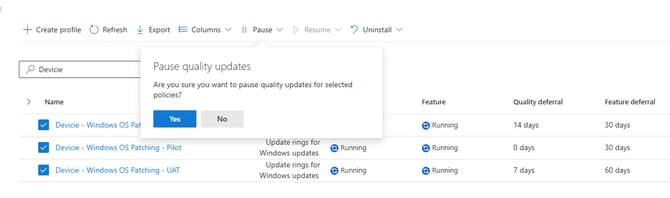
Which will notify that 'Windows Updates' have been paused for Quality Updates.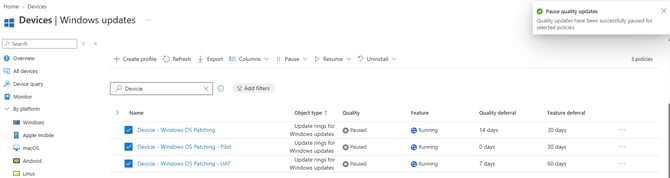
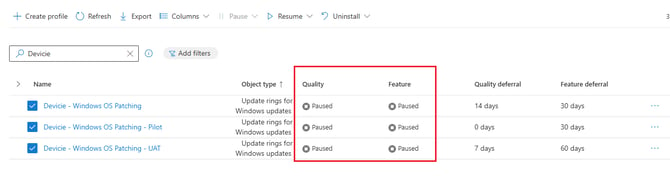
Now you will notice that Quality updates have been paused.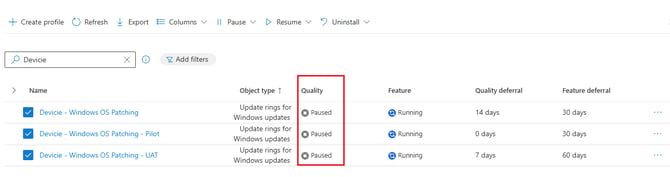
5. Next select Pause then select Pause feature updates and select Yes when prompted.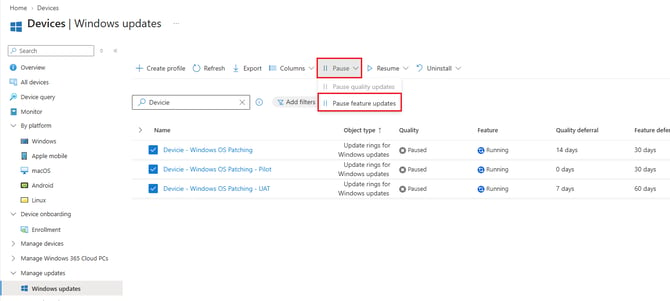
Now you will notice that Feature updates have been paused.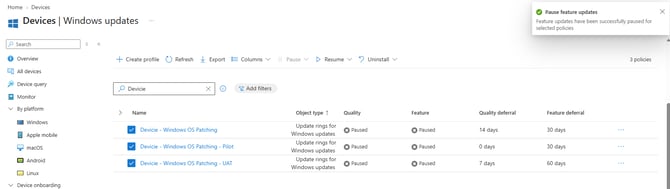
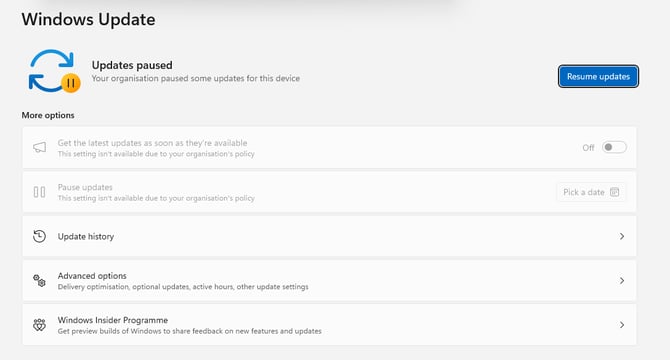
What to expect on devices when Windows Update is Paused?
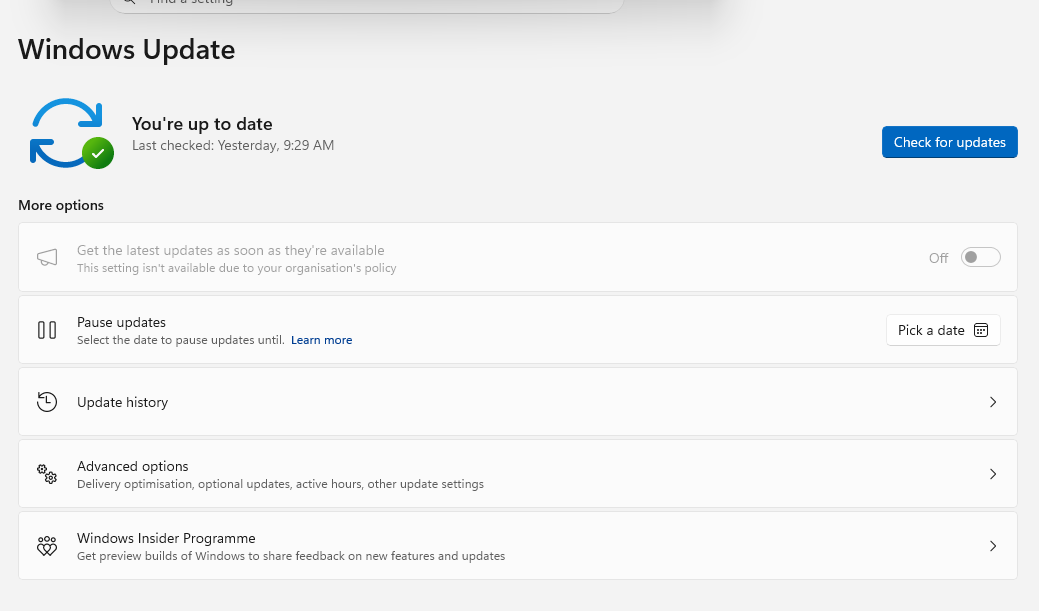
On the device, you will notice that it shows Updates paused.
How to resume Windows Update policies
1. Navigate to Microsoft Intune portal, then select Devices then under Manage updates, select Windows updates.
2. Select Update Rings
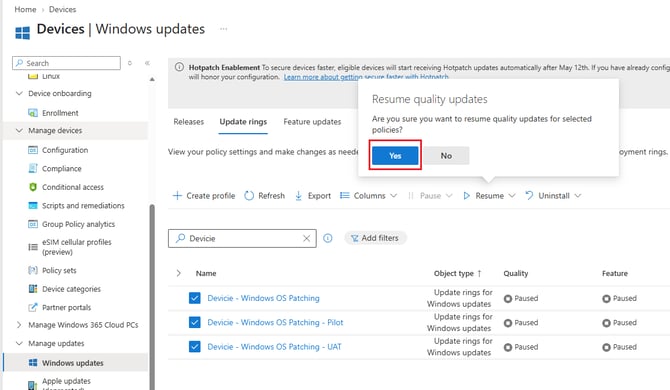
3. Select all three Update Rings, and select Resume then select Resume quality updates.
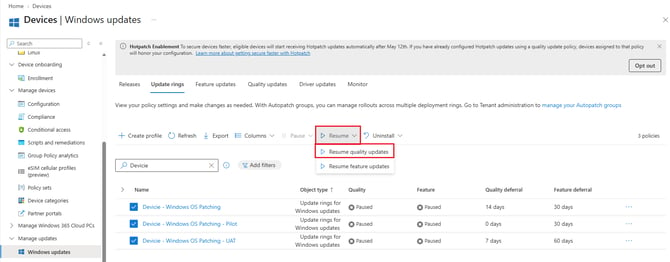
Select Yes when prompted.
Repeat the same, by selecting Resume then Resume feature Updates.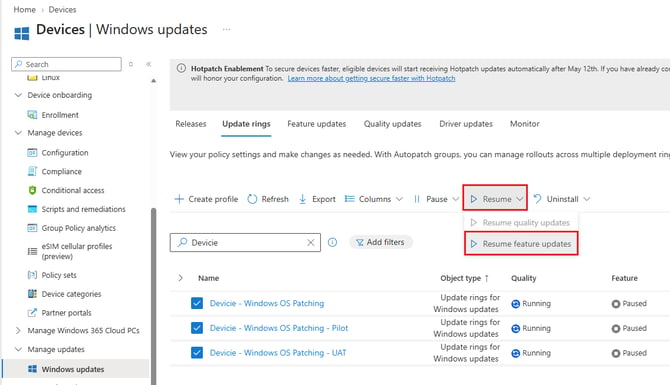
When prompted, select Yes.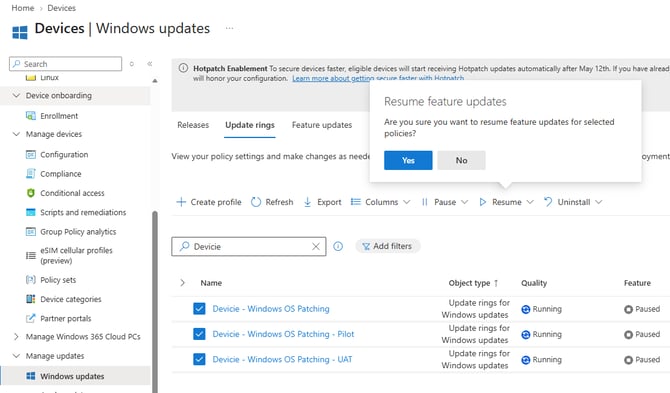
What to expect on devices when Windows Update is resumed?
Once the device picks up the policy changes, Windows Updates is resumed on the device.