![Full Logo.png]](https://help.devicie.com/hs-fs/hubfs/Full%20Logo.png?height=30&name=Full%20Logo.png)
Overview
The Devicie portal allows you to manage ESP policies directly, reducing the need to navigate to the Intune portal. By managing ESPs through Devicie, you benefit from automatic drift remediation if a change is made directly in Intune, Devicie will automatically revert the ESP to its defined state. Additionally, Devicie ensures the latest version of back catalog apps is always included in the ESP, eliminating the need to manually update the page when a new app version is deployed to the tenant.
To access these policies, navigate to: https://app.devicie.com/en-US/dashboard > Policies
Identifying Managed ESPs
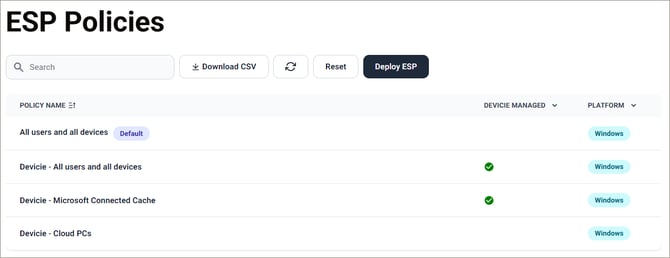
The ESP policies page displays all ESPs currently existing on your Intune tenant.
-
Devicie Managed: These policies are marked with a green tick icon. You can edit settings and assignments for these policies.
-
Non-Managed: Included for visibility only. These cannot be edited via the Devicie portal.
If you would like to create a managed ESP, see <link to creating page>.
Editing a Managed ESP
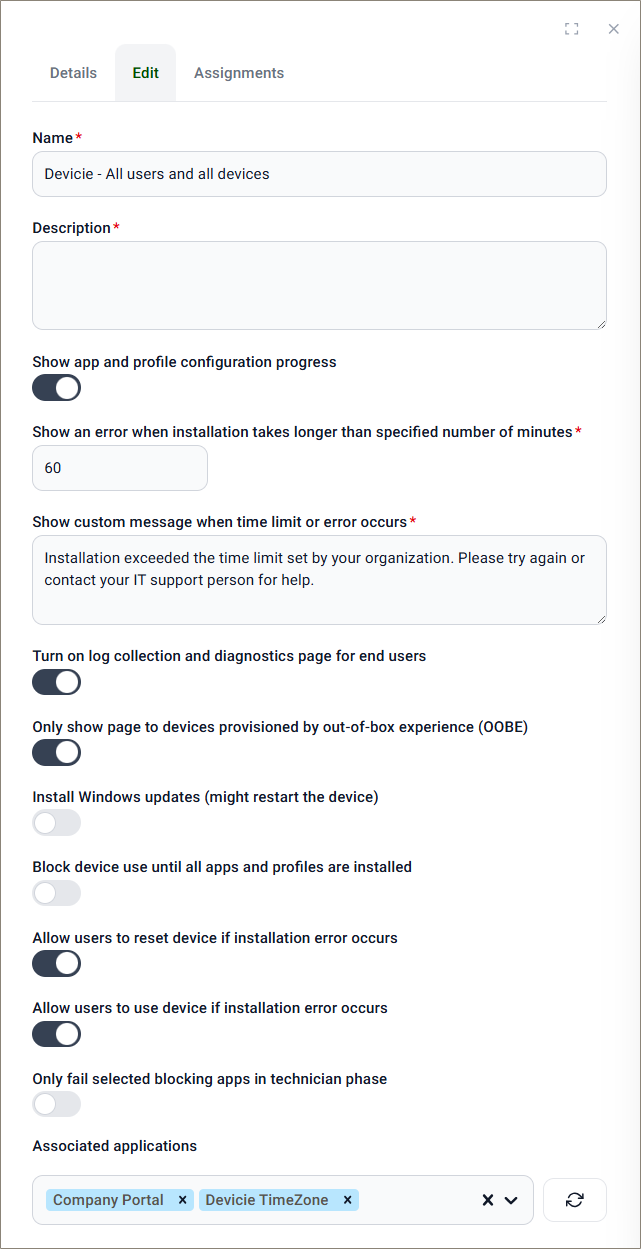
To edit a managed policy, click on the desired ESP and navigate to the Edit tab. Required fields are marked with an asterisk (*).
Note: Once you update the ESP, changes are reflected in the tenant within one minute.
Configuring Associated Applications
Within the edit view, you can manage the applications included in the ESP.
-
View & Edit: The list displays applications currently included. You can add or remove apps from this list.
-
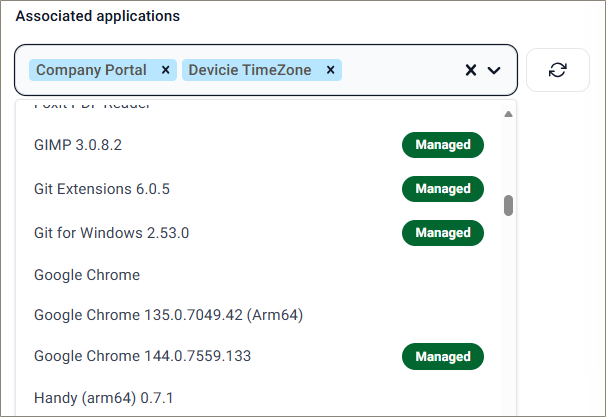
Application Availability: Only applications already assigned in the tenant are displayed. If an application is not assigned, it will not appear in the selection list because it cannot be installed during the ESP process.
-
Back Catalog Apps: Only the latest assigned version of a back-catalog application is displayed. These apps are marked as "Managed" in the list.
-
Adding Apps: Use the search function to find and select applications by name to add them to the ESP.
Assignment and Limitations
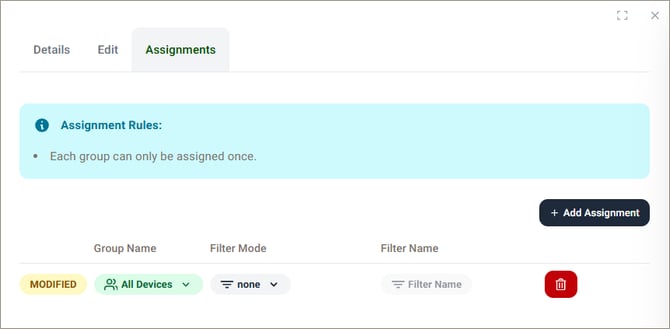
Assignments are subject to the same limitations found in Intune:
-
Conflict Resolution: If an ESP is assigned to All Devices, you can only add a second assignment to All Users. You cannot combine "All Devices" or "All Users" with specific group assignments.
-
Inclusion Only: ESP assignments only support inclusion intent; exclusion intent is not supported.
-
Targeting: A group can only be targeted once per ESP.
Support
If you have any questions or require assistance, please contact the Devicie support team.