![Full Logo.png]](https://help.devicie.com/hs-fs/hubfs/Full%20Logo.png?height=30&name=Full%20Logo.png)
Overview
This knowledge base article provides step-by-step instructions on fix the issue where the ESP (Enrollment Status Page) shows Certificates (0 out of 1 applied).
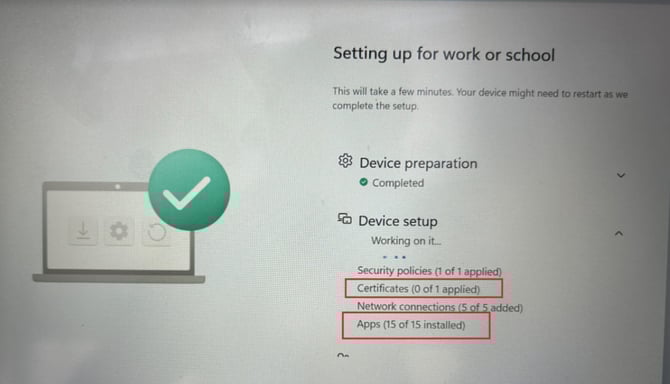
This article will cover how to gather the log files from Microsoft Intune portal then navigate to gather the correct log files to gather the events to address, search for certificates to see if they are revoked or issued.
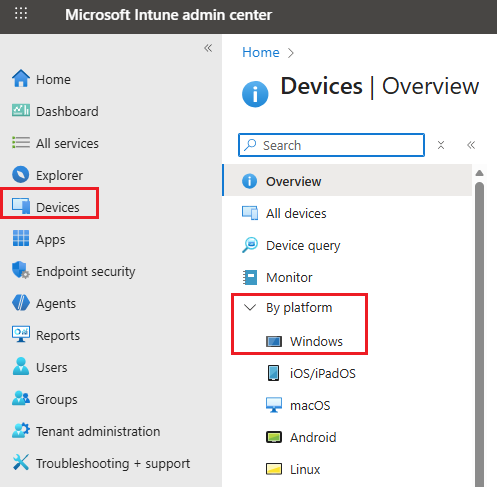
Navigate to https://intune.microsoft.com/, Select Devices then click on By platform then click on Windows
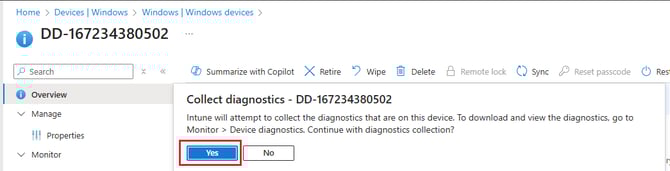
Search for the hostname of the device, then select Collect diagnostics

Select Yes when prompted.
It will show up with "Collect diagnostics pending" - this is dependentpendant on whether the device is online.

Next it will display with "Collect diagnostics: completed"

Go to Device Diagnostics tab on the left hand column, then select on the 3 dots then select Download.
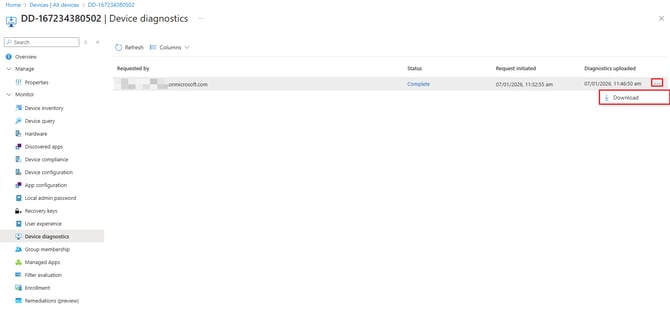
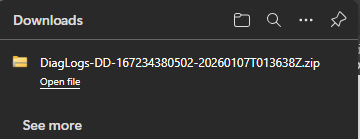
This will download the DiagLogs-Hostname-Date.zip like as per screenshot, extract it and open the files.
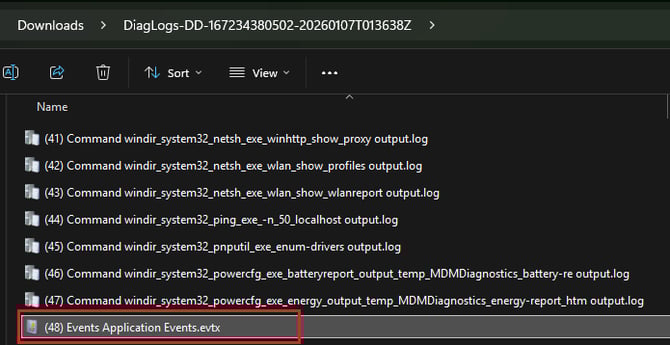
Search and open (48) Event Application Events.evtx
When the event viewer log opens, you will immediately see the issue from Event ID 87: 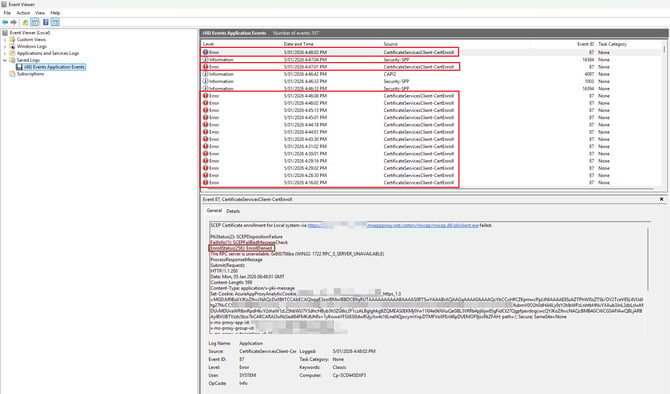
Where the full message will show (Note: Sensitive data has been removed)
SCEP Certificate enrollment for Local system via https://URL.msappproxy.net/certsrv/mscep/mscep.dll/pkiclient.exe failed:
PkiStatus(2): SCEPDispositionFailure
FailInfo(1): SCEPFailBadMessageCheck
EnrollStatus(256): EnrollDenied
The RPC server is unavailable. 0x800706ba (WIN32: 1722 RPC_S_SERVER_UNAVAILABLE)
ProcessResponseMessage
Submit(Request):
HTTP/1.1 200
Date: Mon, 05 Jan 2026 06:48:01 GMT
Content-Length: 599
Content-Type: application/x-pki-message
Set-Cookie: AzureAppProxyAnalyticCookie_Tenant-ID-ABC_https_1.3=MGD:MIIBxAYJKoZIhvcNAQcDoIIBtTCCAbECAQIxggE3ooIBMwIBBDCB9gRUYYYYYAWEASDS0RTSwYAAABrAQAAGgAAAA0AAAAQcVbCCoHfABC123sZTSk/OV2TceV9SL4VUdJtg27NvCCSZMIGdBgkrBgEEAYI3SgEwgY8GadaQQEXCQWQ0wgYAwfjB8DAREU1RTDHRhdXN0cmFsaWFlYXN0LWRrZ5123asdweASD2h0dHA6Ly9zY2hlbWFzLnhtbHNvYXAub3JnL3dzLzIwMDUvMDUvaWRlbnRpdHkvY2xhaWasdaasdaWE1Cx43MB4GCWCGSAFlAwQBLjARBAylBVUBTVzdcStzo7kCARCARAJ3oNzSadl64FMKdUhRs+1yKwwaYFGI83I8dwRUjyXw4s16LneNQjocymYnpZlTMAXQesczaeFAH; path=/; Secure; SameSite=None
x-ms-proxy-app-id: Tenant-ID-ABC
x-ms-proxy-group-id: Group-ID-ABC
x-ms-proxy-subscription-id: Subscription-ID-ABC
x-ms-proxy-transaction-id: Transaction-ID-ABC
x-ms-proxy-service-name: proxy-appproxy-XYZ-UCC02P-5
x-ms-proxy-data-center: XYZ
x-ms-proxy-connector-id: Connector-ID-ABC
x-powered-by: ASP.NET
Nel: {"report_to":"network-errors","max_age":86400,"success_fraction":0.001,"failure_fraction":1.0}
Report-To: {"group":"network-errors","max_age":86400,"endpoints":[{"url":"https://ffde.nelreports.net/api/report?cat=proxy-appproxy-XYZ-UCC02P-5"}]}
Method: POST(750ms)
Stage: ProcessResponseMessage
The RPC server is unavailable. 0x800706ba (WIN32: 1722 RPC_S_SERVER_UNAVAILABLE)
Navigate to https://intune.microsoft.com/, Select Devices then click on By platform then click on Windows then under Manage devices, select Configuration and search under SCEP
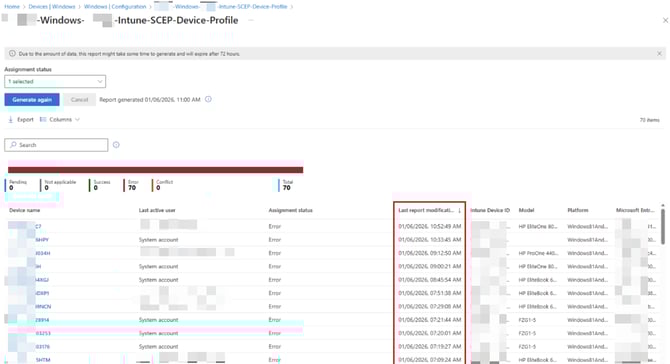
Keep note of the policy ID highlighted in the screenshot, the policy ID will be used to check whether it has been issued or revoked.

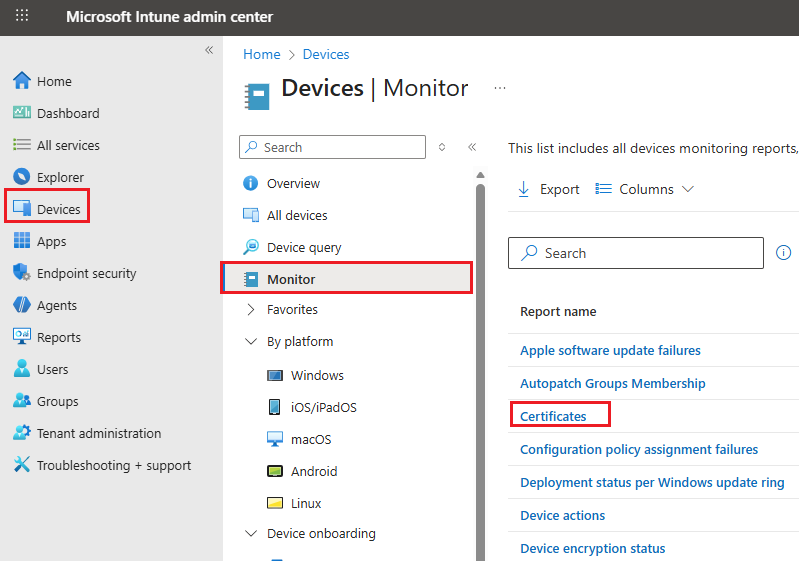
Navigate to https://intune.microsoft.com/, Select Devices then select Monitor then select Certificates
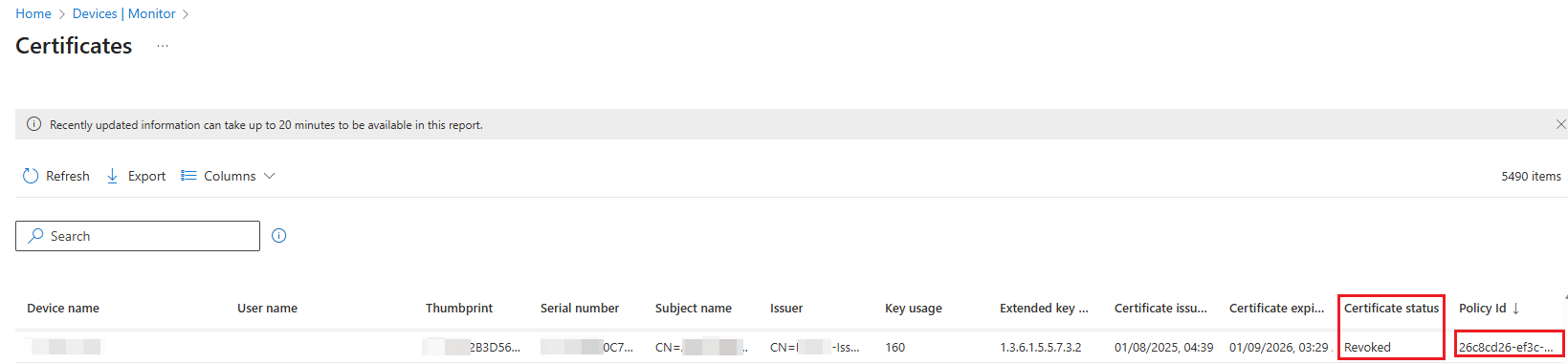
You will notice the policy ID that starts with: 26c8cd26-ef3c has been revoked.
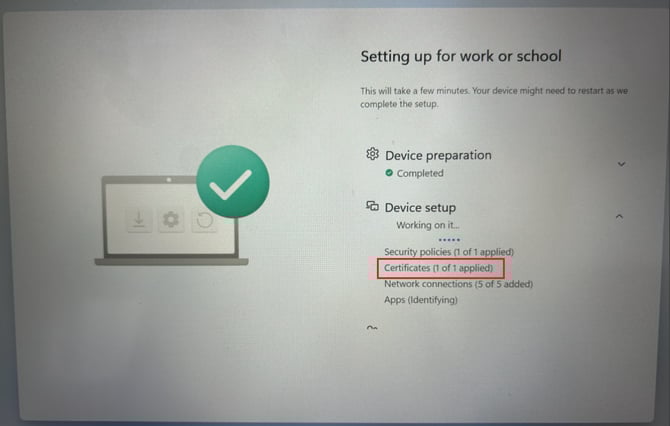
Once the relevant network or systems team renew the SCEP certificate, time to re-test the pre-provisioning or user driven process again. Certificates is now showing (1 of 1 applied).
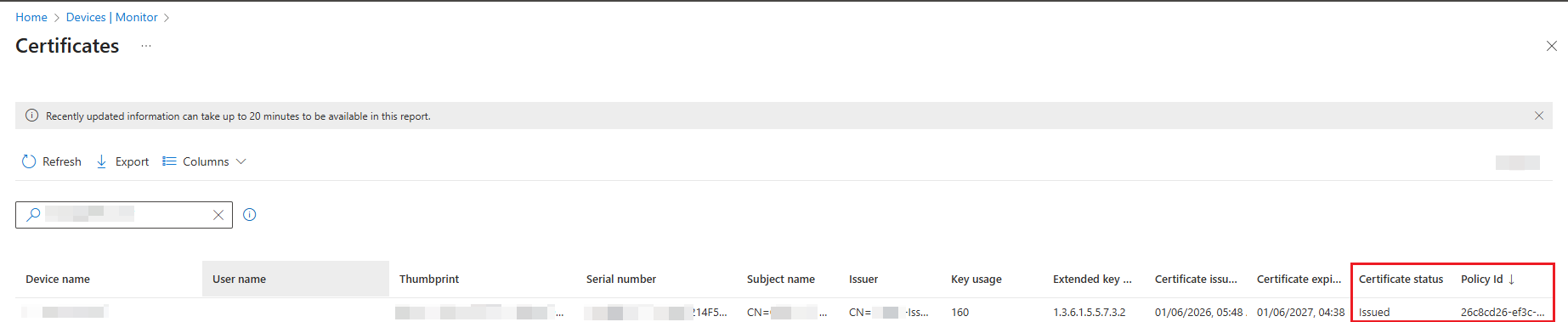
At the same time, navigate to https://intune.microsoft.com/, Select Devices then select Monitor then select Certificates which shows "Issued".
The pre-provisioning process has finished successfully.
