![Full Logo.png]](https://help.devicie.com/hs-fs/hubfs/Full%20Logo.png?height=30&name=Full%20Logo.png)
Overview:
Devicie Policy Controls gives you the ability to control which policies are under Devicie management. Policies under Devicie management are monitored for drift, remediated, and notified when drift occurs. This includes taking existing policies configured directly in Intune under management as well as pausing management temporarily in order to make an approved change to the desired state of that policy.
This feature is part of Devicie's overall approach to Policy Lifecycle Management and ensures you have the right balance between preventing unauthorised configuration drift and efficient self-administration of your Intune tenant.
Key capabilities:
- Take policies under management: bring your existing Intune policies under Devicie management without recreating them.
- Pause drift remediation: temporarily unlock a Devicie managed policy so you can make authorised changes directly in Intune.
- Resume management: pulls the latest policy with changes from Intune to lock in the new desired state and re-enable drift remediation.
How to use Policy Controls:
To use these features you will need admin access in the Devicie portal (see Manage access to the Devicie Portal for details on managing access roles). After logging in, navigate to the Policies Overview page using the main left hand side menu. Select a policy, open the side bar and use the available options. Details are shown below.
Step by step guide:
- Navigate to the Policies Overview page
On this page you can view the current management status of all policies in your Intune tenant. You can use the dropdown controls in the table header to filter as needed.
Devicie Managed Status symbols:

Currently managed by Devicie 
Devicie management is currently paused [blank] A policy created in Intune with no Devicie management status 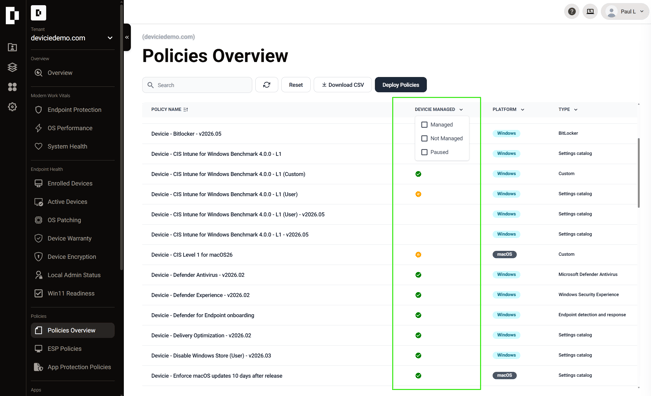
- Manage: select an unmanaged policy
Click the name of a policy from your Intune tenant that you want to manage with Devicie that is currently unmanaged. The side bar will open presenting you with the option to "Manage Policy".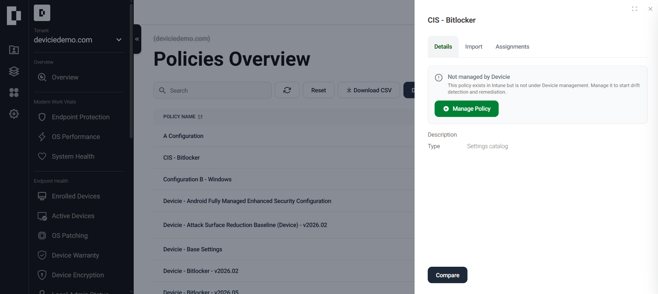
Once you click "Manage Policy" you will see a progress animation as the process runs. Once successfully complete, the panel will update to show that the policy is now managed by Devicie: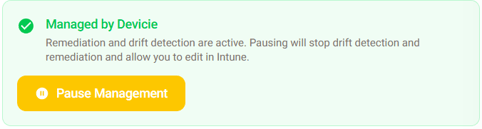
- Pause: click the "Pause Management" button
When you click on any Devicie managed policy, you will see the "Managed by Devicie" panel in the side bar. The "Pause Management" button is displayed there clearly. Once paused, the panel will update to reflect the paused status: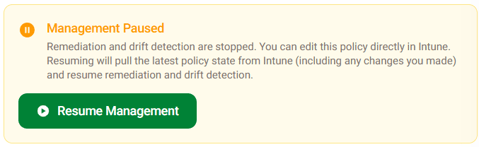
- Resume: click the "Resume Management" button
When you click on any paused policy, you will see the "Management Paused" panel in the side bar. Simply click the "Resume Management" button when ready and the panel will update to reflect the managed status again.