![Full Logo.png]](https://help.devicie.com/hs-fs/hubfs/Full%20Logo.png?height=30&name=Full%20Logo.png)
These steps are to set up the Intune environment prior to a Devicie onboarding call.
In the following steps you will set up two groups and a filter. These groups and filter are used to create a separation from the current Intune environment to allow for test and then allowing for a more robust set up for future use.
Overview of the Steps:
Step 1: Create two groups.
Step 2: Create a filter.
Step 1: Group Creation
- "Intune-Win-Default Device Policies and Apps"
- "Intune-Win-Devices-All EntraJoin Tagged Devices"
(Make sure there are no trailing spaces at the beginning or the end of the name)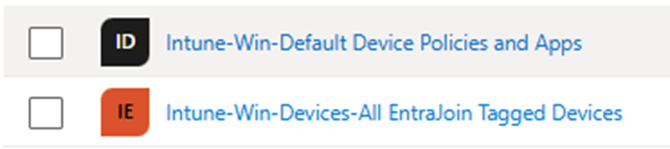
Go to intune.microsoft.com
Shortcut Groups
Create a new group
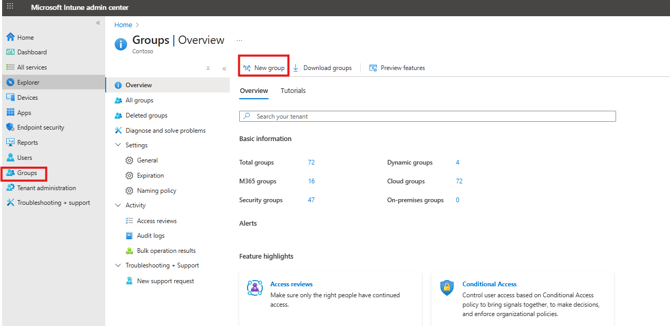
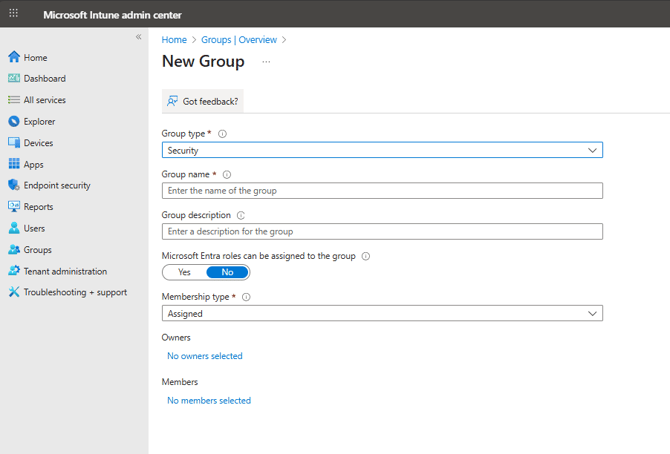
First group will be named:Intune-Win-Default Device Policies and Apps
This will be an assigned group
The second group will be named: Intune-Win-Devices-All EntraJoin Tagged Devices
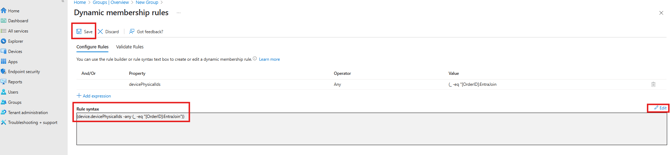
It will be a dynamic group
Change the Membership type to "Dynamic Device"
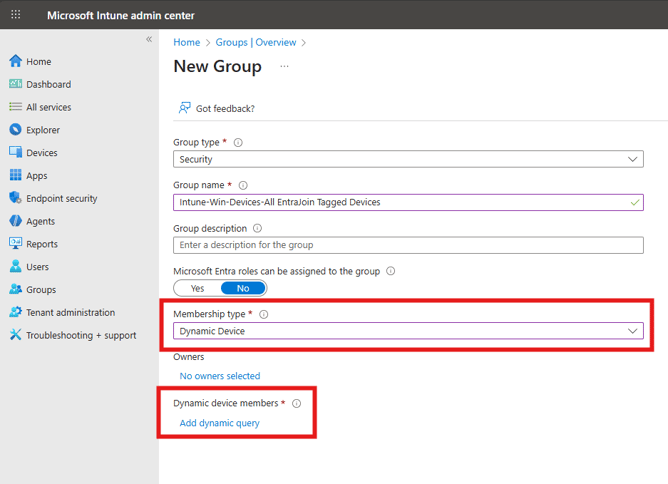
Add the rule by clicking edit
Adding the rule below
(device.devicePhysicalIds -any (_ -eq "[OrderID]:EntraJoin"))
Click save
It will send you back to the main group creation screen and click Create
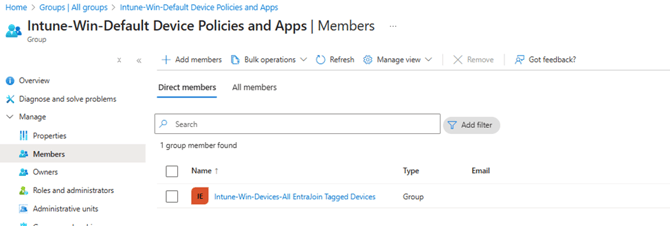
Place the “Intune-Win-Devices-All EntraJoin Tagged Devices” inside the group “Intune-Win-Default Device Policies and Apps”
Step 2: Set up Filter.
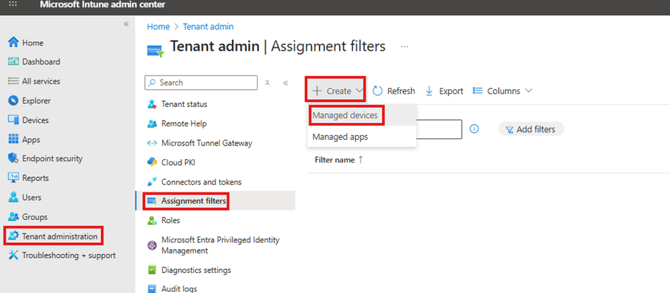
Intune>Tenant Administration>Assignment Filter
Short cut link: Assignment Filters
Click Create and choose Manage Devices
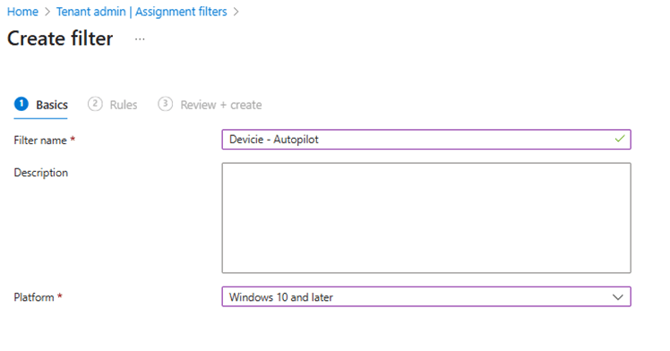
Name the filter Devicie - Autopilot
Platform: Choose “Windows 10 and later”
Click Edit for Rule Syntax and copy the Rule below
(device.enrollmentProfileName -eq "Devicie Autopilot Profile")
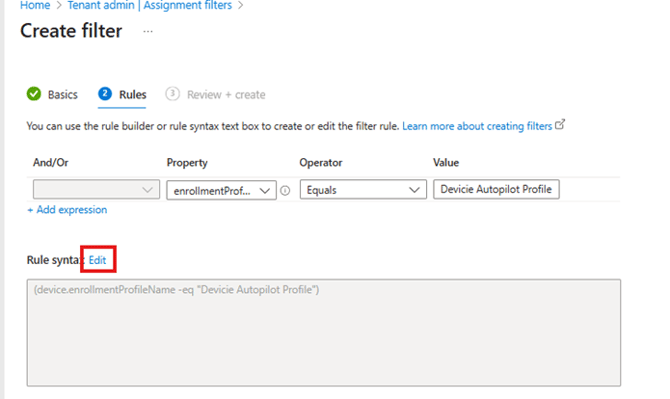
Click Next
Click Create
FAQ:
Q: Why have these groups vs doing assignments with "all user" or "all devices".
A: This allows for testing of policies without out interrupting the current set up
Q: Why have 2 groups.
A: Having an assign group allows the abilities to add a device to the group without out having to follow the rules of the dynamic the group.
Q: Why have the dynamic group.
A: This dynamic group allows for a simple way to pull in device from OOBE and add it to the main group.
Q: Why also have a filter
A: This way there is also have an option to filter in or out devices from policies.