![Full Logo.png]](https://help.devicie.com/hs-fs/hubfs/Full%20Logo.png?height=30&name=Full%20Logo.png)
Overview
The Devicie portal allows you to create managed ESPs to benefit from automatic drift remediation (reverting unauthorized changes made in Intune) and to keep back-catalog apps updated to the latest version automatically.
You can use the built-in Devicie ESP template or create your own custom templates for future deployments.
Using the Devicie ESP Template
To deploy an ESP using the pre-configured Devicie template:
-
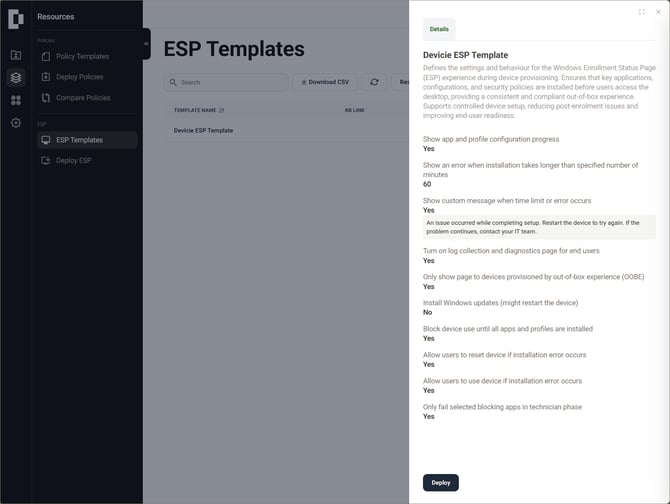
Navigate to https://app.devicie.com/en-US/resources/esp.
-
Locate and select the "Devicie ESP Template".
-
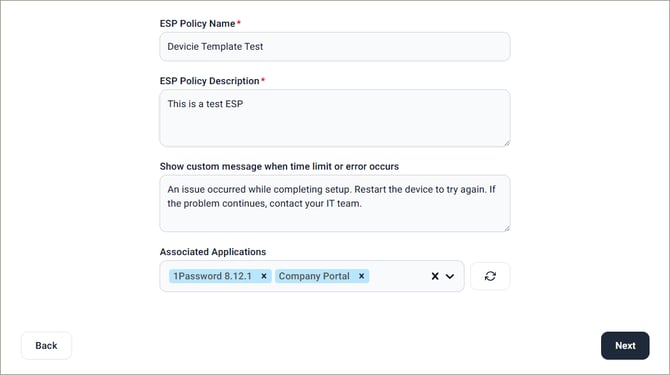
Configure the default settings to suit your requirements. Note that some settings may be restricted or modifiable only after deployment.
-
Add necessary assignments to the ESP.
-
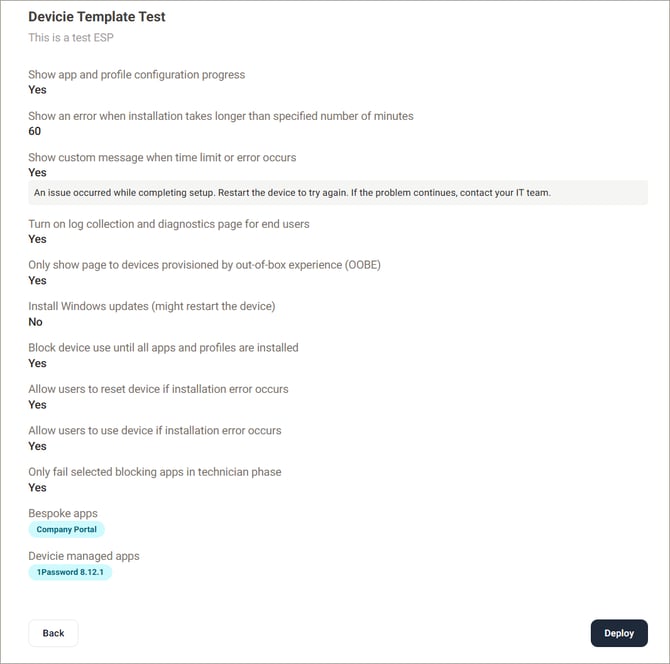
Review the configuration and deploy.
Creating and Managing Custom Templates
If you need to deploy similar ESPs multiple times with minor variations, you can use the template creation tool to build a custom template.
Creating a Template
-
Navigate to https://app.devicie.com/en-US/resources/esp.
-
Click Create in the top menu.
-
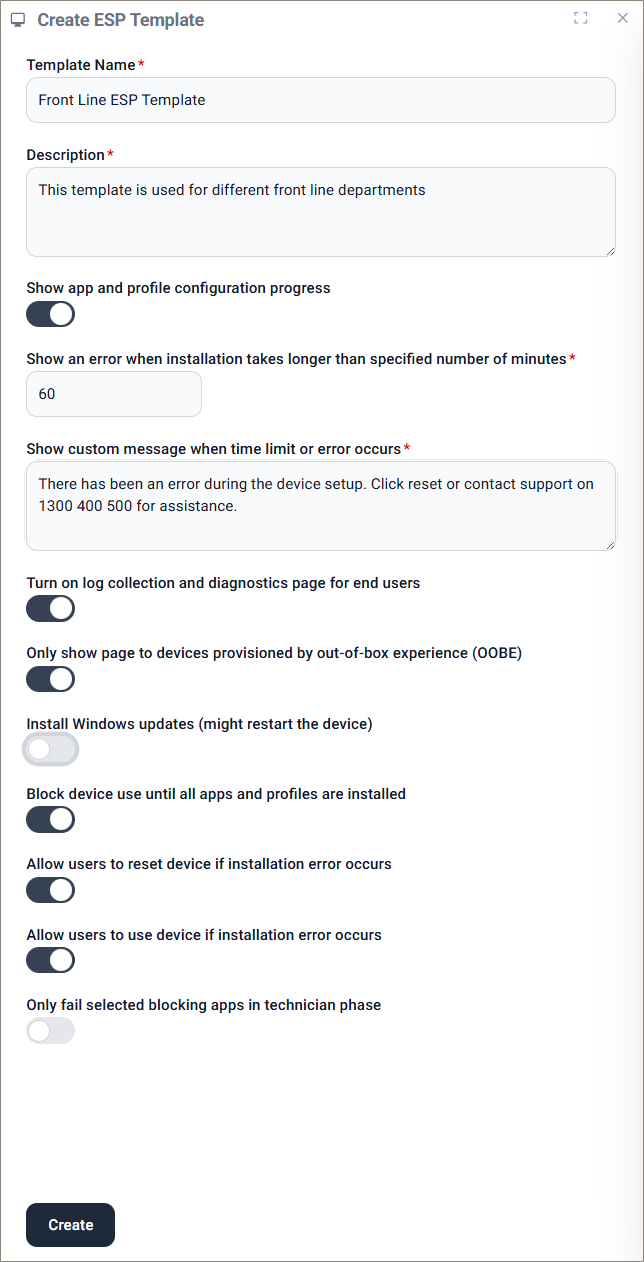
Modify the ESP settings to suit your needs and click Create.
Using and Editing Templates
Once created, you can use your custom template for multiple deployments.
-
Editing: You can edit your custom ESP templates, but the Devicie template cannot be edited.
-
Applications: Applications cannot be added to a template directly; they must be selected during the deployment process of the actual ESP.
Support
If you have any questions or require assistance, please contact the Devicie support team.