![Full Logo.png]](https://help.devicie.com/hs-fs/hubfs/Full%20Logo.png?height=30&name=Full%20Logo.png)
Overview
The bespoke application request form is designed to streamline the packaging process. This form is process uses automated detection to reduce manual input, and simplifies the submission of installation media.
Key Details
The request form offers several key features that are important to understand when submitting an application:
- Built-in Media Uploads: Application media can be uploaded directly within the form, eliminating the need for separate SharePoint write access.
-
Automated Detection: Uploading MSI or supported EXE files automatically prefills application details, including:
-
Application Name
-
Publisher
-
Version
-
Install Behavior (System/User)
-
Silent Install Arguments
-
Architecture
-
Detection values like product code or version
-
Supported Auto-Detection Types
Automated detection supports the following installer types:
- MSI
- AppX/MSIX/appxbundle/msixbundle
- EXE:
-
Advanced Installer
-
Burn (WiX)
-
Inno
-
InstallShield
-
Nullsoft (NSIS)
-
Squirrel (and forks like Velopack)
-
Requirements
The following information will be pre-populated in the request form where possible using the supported auto-detection mentioned above. To ensure a seamless and fast application packaging experience, please review the detected information and provide any missing information before submitting the request. While some fields are optional, they help expedite the process.
| Requirement | Description |
| App Installer | The primary installer file (MSI, EXE, etc.). |
| Other Files | Other files for packaging, including licenses, config, or scripts (Optional). |
| Name | How the app should be displayed in Intune and the Company Portal. |
| Publisher | The vendor or creator of the application. |
| Version | The specific version of the application. |
| Install Behavior | Whether the app installs for the System or User. |
| Silent Install Arguments | Command-line arguments for silent installation. If you don't know, you can leave it. |
| Apply to Tenants | Applicable for MSP and multi-tenant customers. |
| Dependencies | A list or attachment of required dependencies (Optional). |
| Description | App details shown to end users in the Company Portal (Optional). |
| Note for Devicie | Specific instructions for the packaging team (Optional). |
Validation Process
While this process automates detection and packaging, human intervention and customer validation are still necessary.
-
EXE Detection: Not all EXE files support auto-detection. Manual entry may be required.
-
Upload Limit: The maximum upload size is 30 GB. This is an Intune requirement.
-
Multi-file Installers: Installers comprising multiple files must be zipped before uploading, or uploaded as Other Files.
-
Upload Stability: Navigating away from the page during an upload will cause it to stop.
-
Assignments: Assignments must still be completed manually by the customer in Intune.
Devicie Testing Environment
Devicie testing confirms that the installation is successful and the application launches. It does not guarantee functional testing within your specific environment. Testing is conducted on a vanilla machine with the following specifications:
-
Latest OS patch and feature release.
-
Minimum 4vCPU and 4 GB RAM.
-
No CIS or ACSC E8 policies applied.
Step-by-Step Guide
-
Navigate to https://app.devicie.com, click on Apps in the left panel, and select Add Bespoke App. Alternatively, go directly to https://app.devicie.com/en/applications/bespoke/create.
-
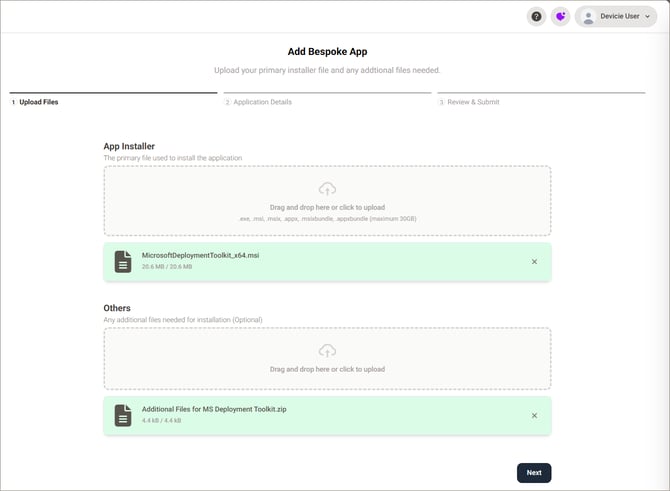
Click on the App Installer box and select the primary installation media.
-
Optional: Attach supporting installers, dependencies, license files, or documentation to the Others box.
-
-
Click Next.
-
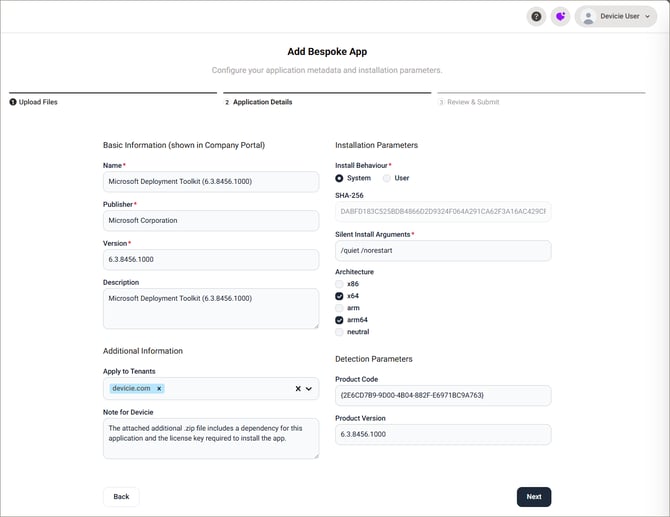
If the installer is supported, application information will auto-populate. Review, edit as necessary, and click Next.
-
If auto-detection fails, manually enter the required information (Name, Publisher, Version, Install Behavior, Silent Install Arguments).
-
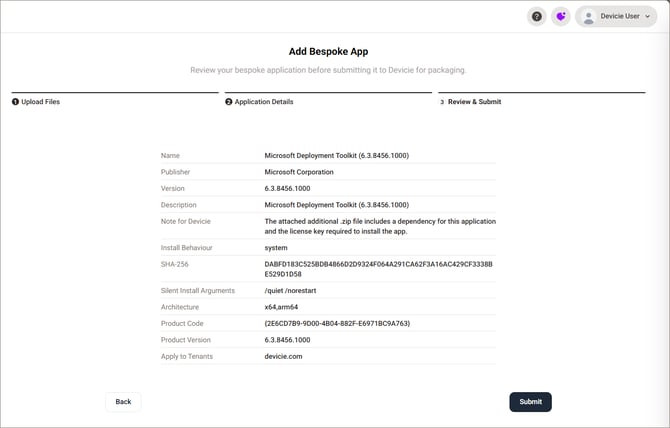
Review all information on the Review & Submit page and click Submit.
A ticket will be automatically created with the packaging team. You will receive a link to track the status of your package and add additional information if necessary.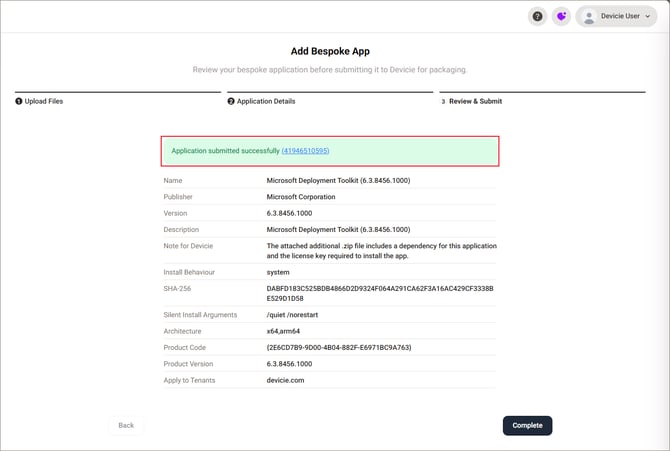
Support
If you have any questions or require assistance, please contact the Devicie support team.