![Full Logo.png]](https://help.devicie.com/hs-fs/hubfs/Full%20Logo.png?height=30&name=Full%20Logo.png)
Overview
This knowledge base article provides step-by-step instructions on how to remove the pop-up message that occurs on every logon

This article includes how to whitelist this pop-up from re-occurring.
When creating your assigned access XML profile as per instructions below, you will need this under the "AllowedApps" section which is covered in Step 3.
<App DesktopAppPath="C:\Windows\SystemApps\MicrosoftWindows.Client.CBS\_cw5n1h2txyewy\CrossDeviceResume.exe" />
Create Device Configuration: Assigned Access (Auto Logon) with Restricted Access
1. By navigating to Windows Configuration Profiles, select Create then select New Policy then select By platform: Windows 10 and later and Profile type: Templates then select Custom then select Create.
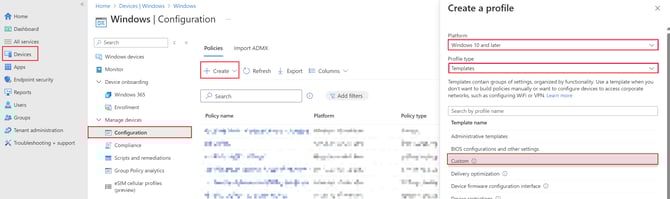
2. Under Basics tab, enter the following:
Name: Kiosk Mode - Assigned Access - Auto Logon with Restricted Access
Description: Kiosk Mode - Assigned Access - Auto Logon with Restricted Access
Then select Next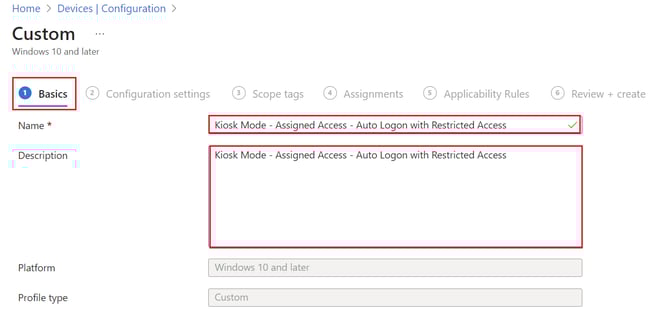
3. Under Configuration Settings tab, select Add Setting.
Note: In the XML, update it according to what name you desire for it to show.
<Config>
<AutoLogonAccount rs5:DisplayName="Kiosk" />
<DefaultProfile Id="{bceca31b-867e-4694-ad7d-cfc680019be3}" />
</Config>
The enter the following:
Name: AssignedAccess
Description: Not Configured
OMA-URI: ./Vendor/MSFT/AssignedAccess/Configuration
Data type: String (XML file)
Custom XML: Upload the XML
Save the following XML as Kiosk-Autologon-kioskuser0-restricteduserexperience.xml
<?xml version="1.0" encoding="utf-8"?>
<AssignedAccessConfiguration
xmlns:xs="http://www.w3.org/2001/XMLSchema"
xmlns="http://schemas.microsoft.com/AssignedAccess/2017/config"
xmlns:default="http://schemas.microsoft.com/AssignedAccess/2017/config"
xmlns:rs5="http://schemas.microsoft.com/AssignedAccess/201810/config"
xmlns:v3="http://schemas.microsoft.com/AssignedAccess/2020/config"
xmlns:v5="http://schemas.microsoft.com/AssignedAccess/2022/config">
<Profiles>
<Profile Id="{9A2A490F-10F6-4764-974A-43B19E722C23}">
<AllAppsList>
<AllowedApps>
<App DesktopAppPath="%ProgramFiles%\Mozilla Firefox\firefox.exe" />
<App DesktopAppPath="%ProgramFiles%\Google\Chrome\Application\chrome.exe" />
<App DesktopAppPath="%PROGRAMFILES(X86)%\Microsoft\Edge\Application\msedge.exe" />
<App AppUserModelId="Microsoft.WindowsCalculator_8wekyb3d8bbwe!App" />
<App AppUserModelId="Microsoft.Windows.Photos_8wekyb3d8bbwe!App" />
<App AppUserModelId="Microsoft.BingWeather_8wekyb3d8bbwe!App" />
<App DesktopAppPath="C:\Windows\system32\cmd.exe" />
<App DesktopAppPath="%windir%\System32\WindowsPowerShell\v1.0\Powershell.exe" />
<App DesktopAppPath="%windir%\explorer.exe" />
<App
AppUserModelId="windows.immersivecontrolpanel_cw5n1h2txyewy!microsoft.windows.immersivecontrolpanel" />
<App AppUserModelId="%ProgramFiles(x86)%\Microsoft\Edge\Application\msedge.exe" />
<App DesktopAppPath="C:\Windows\SystemApps\MicrosoftWindows.Client.CBS\_cw5n1h2txyewy\CrossDeviceResume.exe" />
</AllowedApps>
</AllAppsList>
<rs5:FileExplorerNamespaceRestrictions>
<rs5:AllowedNamespace Name="Downloads" />
<v3:AllowRemovableDrives />
</rs5:FileExplorerNamespaceRestrictions>
<v5:StartPins><![CDATA[{
"pinnedList":[
{"packagedAppId":"Microsoft.WindowsCalculator_8wekyb3d8bbwe!App"},
{"packagedAppId":"Microsoft.Windows.Photos_8wekyb3d8bbwe!App"},
{"packagedAppId":"Microsoft.BingWeather_8wekyb3d8bbwe!App"},
{"desktopAppLink":"%APPDATA%\\Microsoft\\Windows\\Start Menu\\Programs\\System Tools\\Command Prompt.lnk"},
{"desktopAppLink":"%APPDATA%\\Microsoft\\Windows\\Start Menu\\Programs\\Windows PowerShell\\Windows PowerShell.lnk"},
{"desktopAppLink":"%APPDATA%\\Microsoft\\Windows\\Start Menu\\Programs\\File Explorer.lnk"},
{"packagedAppId": "windows.immersivecontrolpanel_cw5n1h2txyewy!microsoft.windows.immersivecontrolpanel"},
{"desktopAppLink":"%ProgramFiles%\\Mozilla Firefox\\firefox.exe"},
{"desktopAppLink":"%ProgramFiles%\\Google\\Chrome\\Application\\chrome.exe"},
{"desktopAppLink":"%PROGRAMFILES(X86)%\\Microsoft\\Edge\\Application\\msedge.exe"}
]
}]]></v5:StartPins>
<Taskbar ShowTaskbar="true" />
</Profile>
</Profiles>
<Configs>
<Config>
<AutoLogonAccount rs5:DisplayName="Kiosk" />
<DefaultProfile Id="{9A2A490F-10F6-4764-974A-43B19E722C23}" />
</Config>
</Configs>
</AssignedAccessConfiguration>
It should look like this:
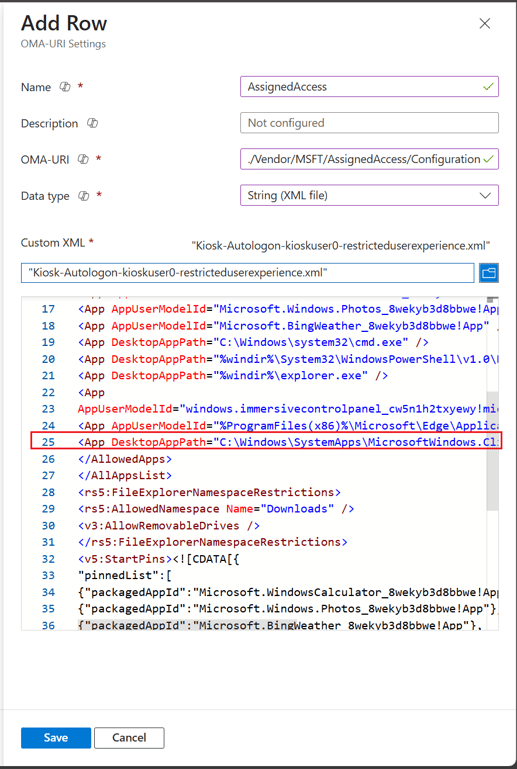
Select Save.
4. Under Scope tags, tab, leave as default and select Next.
5. Under Assignments, select the required group and select Next.
6. Under Applicability Rules, leave as default and select Next.
7. Under Review + create, review the settings then select Create.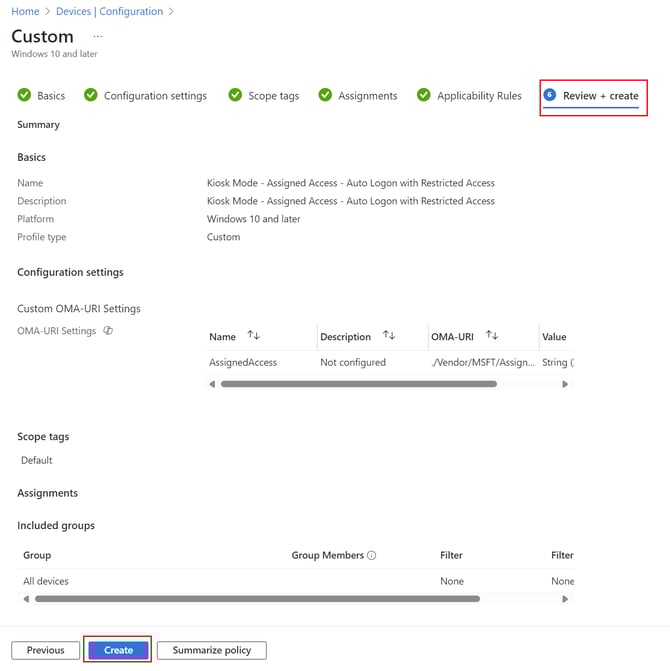
Once the policy has applied successfully to the devices, restart the Kiosk device and the pop-up message will no longer appear on startup and future deployments.