![Full Logo.png]](https://help.devicie.com/hs-fs/hubfs/Full%20Logo.png?height=30&name=Full%20Logo.png)
Overview:
When deploying an app, you can set rings for deployment. App ring deployment enables organizations to roll out applications in stages, reducing risk and improving reliability. By assigning users or devices to specific deployment rings, IT can test updates with smaller groups before expanding to the wider environment.
Steps:
Step 1: Go to app.devicie.com
Go to "App Catalog"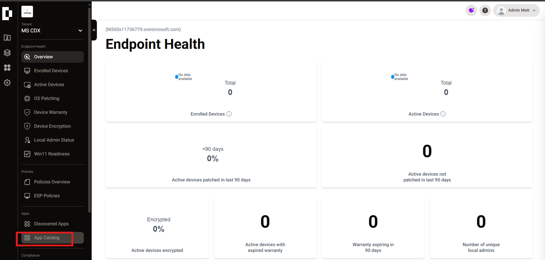
Step 2: Click "Deploy App" to deploy the app you want. Look up an app you want to deploy
(in this example we will use chrome)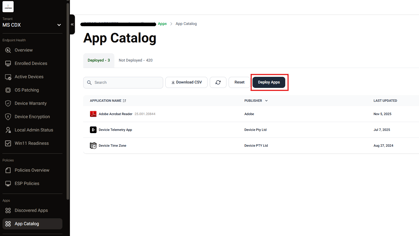
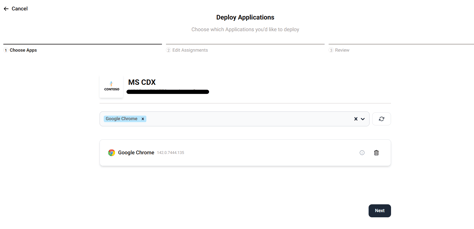
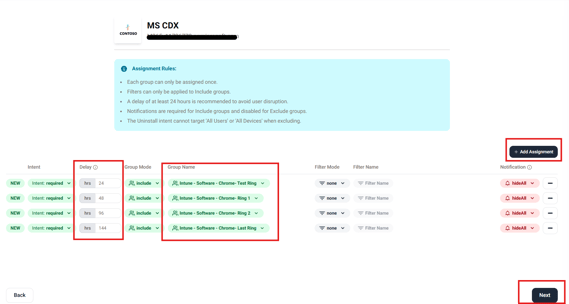
Step 3: Here you can add the assignments.
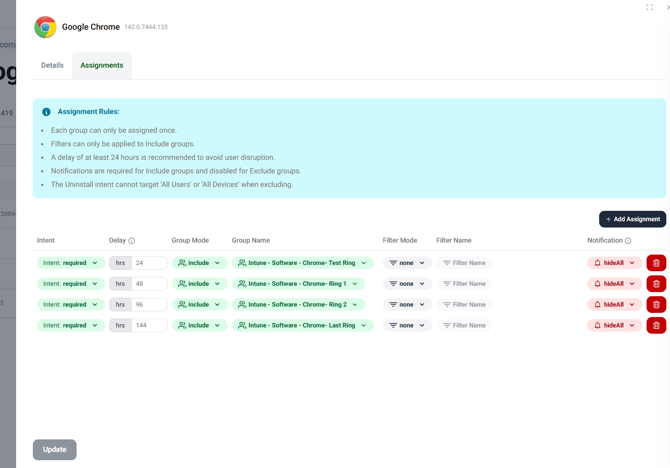
Click the "Add Assignment" to add a line to add a group and the other settings of a group.
Under "Delay" you can set how many hours to delay between group assignments
Once you have created your desired schedule, hit "Next"
Settings:
Intent: This option allows you to make the app is required, available or set it as uninstalled
Delay: Adjusts the deferral period (in hours) between update rings. The initial ring is set to 24 hours after the vendor releases an update, during which the Devicie team tests a new app version.
Group Name: The name group that you want to assign to the app
Filter Mode: Allows finer grained control inside of a group using Intune filters
Filter Name: Name of the Intune filter if using one
Notification: Allows sending users a toast notification of app updates if desired
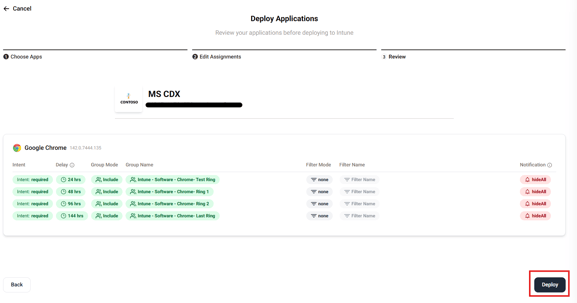
Step 4: Click "Deploy" once you have reviewed your set up.
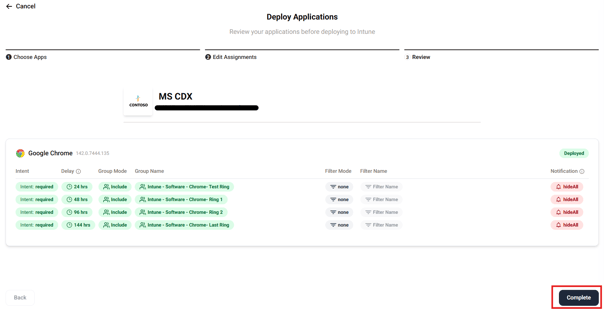
Step 5: Click "Complete" to move to the next page.
Editing Application Assignments
Step 1: If you need to make a change to the assignment of the app, go to "App Catalog" and click on the name of the app.
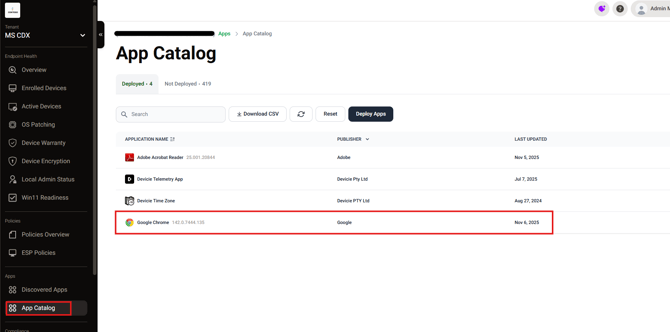
Step 2: Click Assignments in the tab. Here you can change how and to what group you want the assignment of the app to go to.